putty远程连接
配置完网络拍摄快照
-
选择虚拟机右击》快照,拍摄快照。
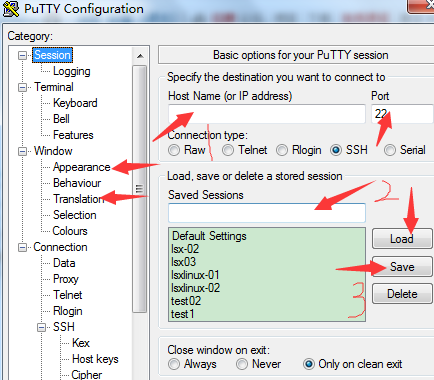
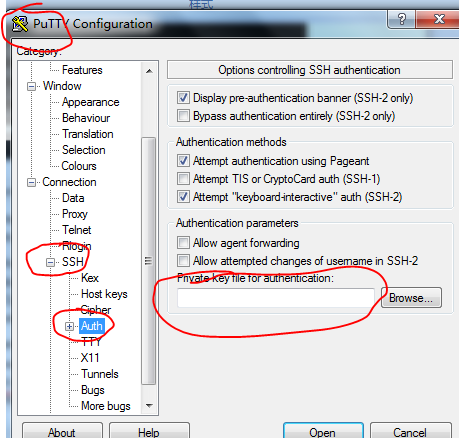
下载之后打开putty.exe包。配置如图。
xshell远程连接
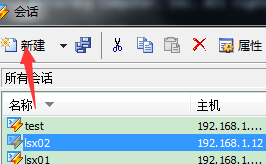
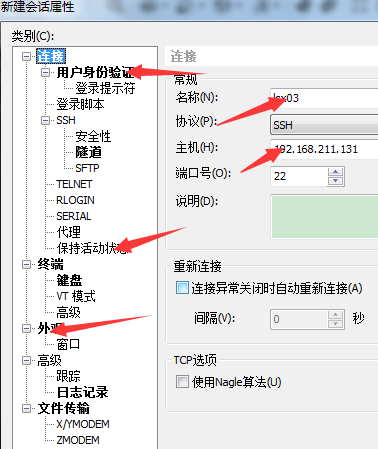
打开xshell之后。步骤如图
putty密匙认证
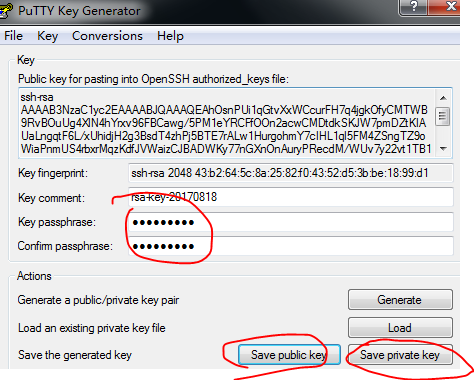
1.打开putty包的“puttygen.exe”
2.按下Generate移动鼠标
3.生成**
复制公钥
[[email protected] ~]# mkdir /root/.ssh
[[email protected] ~]# chmod 700 /root/.ssh/
[[email protected] ~]# vi /root/.ssh/authorized_keys
[[email protected] ~]# setenforce 0
xshell**认证
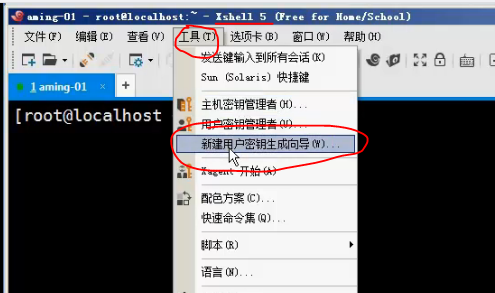
2."下一步".
3.“下一步”
4.设置**密码,“下一步”。
5.[[email protected] ~]# vi /root/.ssh/authorized_keys
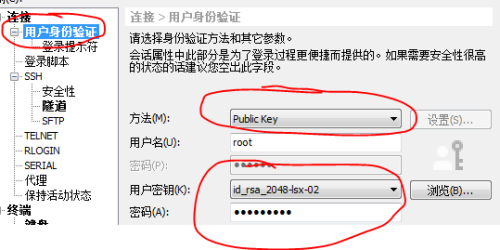
6.退出。回到登录页,设置属性。
转载于:https://blog.51cto.com/lsxme/1973801