初探 Headless Chrome

专心做技术宅
什么是 Headless Chrome
Headless Chrome 是 Chrome 浏览器的无界面形态,可以在不打开浏览器的前提下,使用所有 Chrome 支持的特性运行你的程序。相比于现代浏览器,Headless Chrome 更加方便测试 web 应用,获得网站的截图,做爬虫抓取信息等。相比于出道较早的 PhantomJS,SlimerJS 等,Headless Chrome 则更加贴近浏览器环境。
如何获取 Headless Chrome
目前,Mac 上 Chrome 59 beta 版本与 Linux 上的 Chrome 57+ 已经开始支持 headless 特性。Windows 上 Chrome 暂时不支持,可以使用 Chrome Canary 60 进行开发。
如何在终端中使用
在Mac上使用前,建议先绑定 Chrome 的别名
alias google-chrome="/Applications/Google\ Chrome.app/Contents/MacOS/Google\ Chrome"Linux下无需绑定别名,从官网上下载最新版 Chrome 之后直接运行以下命令即可。然后,在终端中输入:
google-chrome --headless --disable-gpu --remote-debugging-port=9222 https://github.com
增加 --disable-gpu 主要是为了屏蔽现阶段可能触发的错误。此时,Headless Chrome已经成功运行了。打开浏览器,输入 http://localhost:9222,你会看到如下的界面:
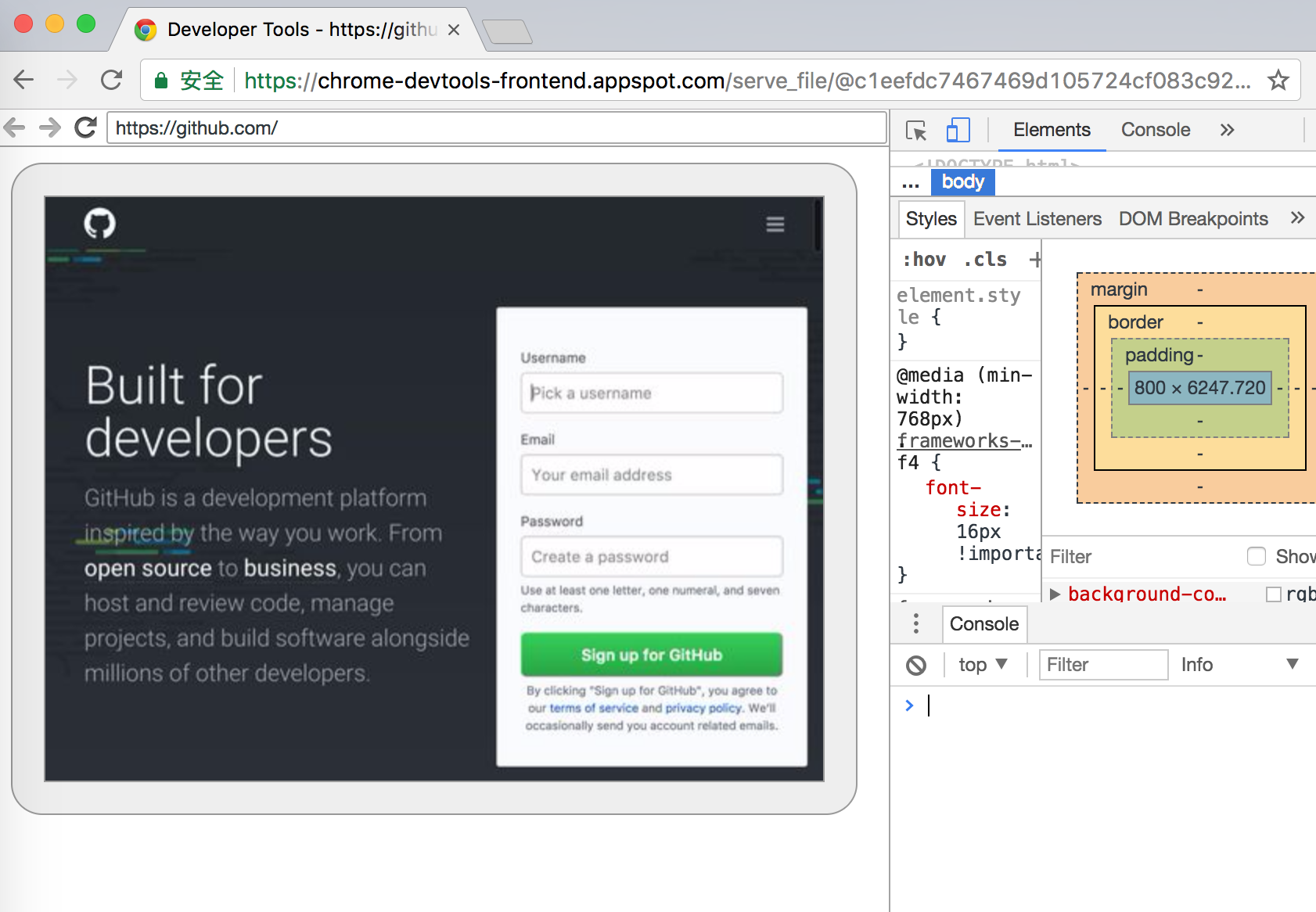
在终端中,我们还可以做以下操作:
获取屏幕截图:
google-chrome --headless --disable-gpu --screenshot --window-size=1280,1696 https://github.com
获取页面为PDF:
google-chrome --headless --disable-gpu --print-to-pdf https://github.com打印页面DOM:
google-chrome --headless --disable-gpu --dump-dom https://github.com/远程控制
在上文中讲述的都使用终端命令启动 Headless Chrome,下文以获取截图为例,尝试如何在程序里控制 Headless Chrome。
安装依赖
npm install lighthouse chrome-remote-interface --saveconst { ChromeLauncher } = require(\'lighthouse/lighthouse-cli/chrome-launcher\')
const chrome = require(\'chrome-remote-interface\')
const fs = require(\'fs\')
const deviceMetrics = {
width: 1200,
height: 800,
deviceScaleFactor: 0,
mobile: false,
fitWindow: false
}
const screenshotMetrics = {
width: deviceMetrics.width,
height: deviceMetrics.height
}
let protocol
let launcher
function launchChrome () {
const launcher = new ChromeLauncher({
port: 9222,
autoSelectChrome: true,
additionalFlags: [\'--window-size=412,732\', \'--disable-gpu\', \'--headless\']
})
return launcher.run().then(() => launcher)
}
function getScreenShot () {
const { Page, Emulation } = protocol
return Page.enable()
.then(() => {
Emulation.setDeviceMetricsOverride(deviceMetrics) // 配置浏览器尺寸
Emulation.setVisibleSize(screenshotMetrics) // 配置截图尺寸
Page.navigate({ url: \'https://github.com/\' })
return new Promise((resolve, reject) => {
Page.loadEventFired(() => {
resolve(Page.captureScreenshot({ format: \'jpeg\', fromSurface: true }))
})
})
})
.then(image => {
const buffer = new Buffer(image.data, \'base64\')
return new Promise((resolve, reject) => {
fs.writeFile(\'output.jpeg\', buffer, \'base64\', err => {
if (err) return reject(err)
resolve()
})
})