JS获操作浏览器窗口 尺寸
JS获取各种高度宽度:浏览器窗口滚动条的位置、元素的几何尺寸
1)关于 pageX, clienX,offsetX,layerX
-
pageX:鼠标在页面上的位置,从页面左上角开始,即是以页面内
-
clientX:鼠标在页面上可视区域的位置,从浏览器可视区域左上角开始,即是以浏览器可视区内
-
offsetX:IE特有,鼠标相比较于触发事件的元素的位置,以元素盒子模型的内容区域的左上角为参考点,如果有boder,可能出现负值
-
layerX:FF特有,鼠标相比较于当前坐标系的位置,即如果触发元素没有设置绝对定位或相对定位,以页面为参考点,如果有,将改变参考坐标系,从触发元素盒子模型的border区域的左上角为参考点,也就是当触发元素设置了相对或者绝对定位后,layerX和offsetX就相等。
2)关于元素尺寸、位置和溢出的更多信息
-
只读属性offsetWidth和offsetHeight:以css像素返回它的屏幕尺寸。返回尺寸包含元素的边框以内,出去外边距。
-
offsetLeft和offsetTop属性:返回元素的X和Y坐标。offsetParent属性指定这个属性相对的父元素。
-
ClientWidth和clientHeight:类似offsetWidth和offsetHeight,不同的是不包含边框大小,只包含内边距以内。如果浏览器在内边距和边框之间添加了滚动条,还不会包含滚动条。注意,<i>和<code>和<span>这类内联元素,clientWidth和clientHeight总是返回0;
-
clientLeft和clientTop属性:没什么用,返回内边距的外边缘和边框的外边缘之间水平距离和垂直距离。
-
scrollWidth和scrollHeight:内容+内边距+溢出。当无溢出时,和clientWidth和clientHeight相等。
-
scrollLeft和scrollTop:是滚动条位置。
3)查询元素的几何尺寸
-
判断一个元素最简单的方法是调用它的getBoundingClientRect()方法。该方法在IE5中引入,而在现在所有浏览器中都实现了。返回一个有left right top bottom 等属性的对象。left top表示元素左上角的X和Y坐标,right bottom属性表示元素的右下角的X和Y坐标。
-

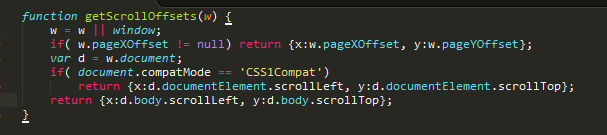
4)判断浏览器窗口滚动条的位置
-
所有浏览器支持window.pageXOffset和window.pageYOffset. 除了IE8以下,所有支持scrollLeft和scrollTop;
-
-
document.compatMode // 有两种可能的返回值:BackCompat和CSS1Compat,对其解释如下: [BackCompat]Standards-compliant mode is not switched on. (Quirks Mode) [CSS1Compat] Standards-compliant mode is switched on. (Standards Mode)
5)设置鼠标滚动值
-
方法一:scrollLeft和scrollTop属性可以用来设置浏览器滚动,如 document.body.scrollTop = 100;
-
方法二:在jquery中,使用.scrollTop(value) 和 .scrollLeft() 来设置scrollTop的值。
相关DEMO展示:
| 1 | document.getElementsByClassName("js-new-issue-button")[0].style.width |
| 2 | // "84px" |
| 3 | document.getElementsByClassName("js-new-issue-button")[0].clientWidth |
| 4 | // 104 |
| 5 | $(".w_content .product_piece img").css("width"); |
| 6 | // "165px" |
| 7 | $(".w_content .product_piece img").width(); |
| 8 | // 165 |
//获取元素的纵坐标
| 1 | function getTop(e){ |
| 2 | var offset=e.offsetTop; |
| 3 | if(e.offsetParent!=null) |
| 4 | offset+=getTop(e.offsetParent); |
| 5 | return offset; |
| 6 | } |
//获取元素的横坐标
| 1 | function getLeft(e){ |
| 2 | var offset=e.offsetLeft; |
| 3 | if(e.offsetParent!=null) |
| 4 | offset+=getLeft(e.offsetParent); |
| 5 | return offset; |
| 6 | } |
获取高度时在iPad中遇到问题:
要做自适应,并且随着屏幕颠来倒去改变菜单高度的效果,于是在ipad上遇到了纠结的问题:
屏幕工作区高度:window.screen.height(在ipad中,旋转屏幕时,该值不会发生变化)
屏幕工作区宽度:window.screen.width(在ipad中,旋转屏幕时,该值不会发生变化)
屏幕可用工作区高度:window.screen.availHeight (在ipad中,旋转屏幕时,该值不会发生变化)
屏幕可用工作区宽度:window.screen.availWidth(在ipad中,旋转屏幕时,该值不会发生变化)
$(window).height() // 在ipad中获取的高度会与pc上预期的不一样,有一个( 屏幕工作区高度 - 屏幕可用工作区高度)的偏差
$(window).width() // 在ipad中获取的宽度会与pc上预期的不一样,有一个( 屏幕工作区宽度 - 屏幕可用工作区宽度)的偏差
在没有声明DOCTYPE的IE中,浏览器显示窗口大小只能以下获取:
document.body.offsetWidth
document.body.offsetHeight
在声明了DOCTYPE的浏览器中,可以用以下来获取浏览器显示窗口大小:
document.documentElement.clientWidth
document.documentElement.clientHeight
IE,FF,Safari皆支持该方法,opera虽支持该属性,但是返回的是页面尺寸;
同时,除了IE以外的所有浏览器都将此信息保存在window对象中,可以用以下获取:
window.innerWidth
window.innerHeight
documentElement 对应的是 html 标签,而 body 对应的是 body 标签。
在标准w3c下,即,在xhtml标准网页,或者更简单的说是带<!DOCTYPE html>标签的页面里:
document.body.scrollTop恒为0,
document.body.clientHeight为document内容的实际高度,
window.innerHeight==document.documentElement.clientHeight=window.screen.height =视窗高度
document.documentElement.scrollTop 为滚动条顶端到浏览器顶端的距离
document.body.clientHeight==window.innerHeight==document.documentElement.clientHeight=window.screen.height = 视窗高度
IE中:
document.body.clientWidth ==> BODY对象宽度
IE为:
document.documentElement.clientHeight ==> 0
网页可见区域高: document.body.clientHeight
网页可见区域宽: document.body.offsetWidth (包括边线的宽)
网页可见区域高: document.body.offsetHeight (包括边线的高)
网页正文全文宽: document.body.scrollWidth
网页正文全文高: document.body.scrollHeight
网页被卷去的高: document.body.scrollTop
网页被卷去的左: document.body.scrollLeft
网页正文部分上: window.screenTop
网页正文部分左: window.screenLeft
屏幕分辨率的高: window.screen.height
屏幕分辨率的宽: window.screen.width
屏幕可用工作区高度: window.screen.availHeight
屏幕可用工作区宽度: window.screen.availWidth
(注意:CSS中的margin属性,与clientWidth、offsetWidth、clientHeight、offsetHeight均无关)
scrollHeight ==> 获取对象的滚动高度
scrollLeft ==> 设置或获取位于对象左边界和窗口中目前可见内容的最左端之间的距离(被卷去的左)
scrollTop ==> 设置或获取位于对象最顶端和窗口中可见内容的最顶端之间的距离(被卷去的高)
offsetLeft ==> 获取对象相对于版面或由 offsetParent 属性指定的父坐标的计算左侧位置
offsetTop ==> 获取对象相对于版面或由 offsetTop 属性指定的父坐标的计算顶端位置
offsetHeight ==> 获取对象相对于版面或由父坐标 offsetParent 属性指定的父坐标的高度
event.clientX ==> 相对文档的水平座标
--------------------------------------------
////////浏览器视口的高度
function windowHeight() {
var myHeight = 0;
if (typeof(window.innerHeight) == \'number\') {
//Non-IE
myHeight = window.innerHeight;
} else if (document.documentElement && (document.documentElement.clientHeight)) {
//IE 6+ in \'standards compliant mode\'
myHeight = document.documentElement.clientHeight;
} else if (document.body && (document.body.clientHeight)) {
//IE 4 compatible
myHeight = document.body.clientHeight; //ace 此高度在带<!DOCTYPE html>标签的页面里为页面的实际高度
}
return myHeight;
}
/////////浏览器视口的宽度
function windowWidth() {
var myWidth = 0;
if (typeof(window.innerWidth) == \'number\') {
//Non-IE
myWidth = window.innerWidth;
} else if (document.documentElement && (document.documentElement.clientWidth)) {
//IE 6+ in \'standards compliant mode\'
myWidth = document.documentElement.clientWidth;
} else if (document.body && (document.body.clientWidth)) {
//IE 4 compatible
myWidth = document.body.clientWidth;
}
return myWidth;
}
/**** 浏览器垂直滚动位置 ****/
function scrollY() {
var de = document.documentElement;
return window.pageYOffset || (de && de.scrollTop) || document.body.scrollTop;
}
/**** 浏览器水平滚动位置 ****/
function scrollX() {
var de = document.documentElement;
return window.pageXOffset || (de && de.scrollLeft) || document.body.scrollLeft;
}
/**** 当前页面高度 ****/
function pageHeight() {
return document.body.scrollHeight;
}
/**** 当前页面宽度 ****/
function pageWidth() {
return document.body.scrollWidth;
}
* */
function __getPageScrollY(top) {
if (top || Number(top) == 0) { //设置垂直滚动值
if (self.pageYOffset) {
self.pageYOffset = Number(top);
}
if (document.documentElement && document.documentElement.scrollTop) { // Explorer 6 Strict
document.documentElement.scrollTop = Number(top);
}
if (document.body) {// all other Explorers
document.body.scrollTop = Number(top);
}
return true;
} else { //获取垂直滚动值
var yScroll;
if (self.pageYOffset) {
yScroll = self.pageYOffset;
} else if (document.documentElement && document.documentElement.scrollTop) { // Explorer 6 Strict
yScroll = document.documentElement.scrollTop;
} else if (document.body) {// all other Explorers
yScroll = document.body.scrollTop;
}
return yScroll;
}
};