使用Azure Automation来自动化处理各种重复的耗时的云管理任务从而帮助云运维人员提升效率,帮助降低运营成本。
具体相关的介绍以及怎样利用Azure Automation来完成定期开关虚拟机(ASM)定期删除存储账号在Zhanglei老师的blog里有详细的指导(http://www.cnblogs.com/threestone/category/725902.html)。今天我们在这个基础上讲一下怎么用Azure Automation开关ARM的虚拟机。
首先,让我们先明确以下的概念:
1. 中国的Azure目前提供的Automation是一个ASM的产品,我们只能从老的portal https://manage.windowsazure.cn找到这个产品并且管理automation本身。当然我们也可以使用powershell管理ASM的命令来管理Automation。
2. 用Automation管理Azure资源的本质是,用powershell的工作流来管理Azure资源。所以,我们不但可以用它来管理ASM的资源也可以用它来管理ARM的资源。比如讲,我们可以定时开关ASM的虚拟机也可以定时开关ARM的虚拟机
接下来,我们介绍如何在老的portal里使用Azure Automation来定期开虚拟机。
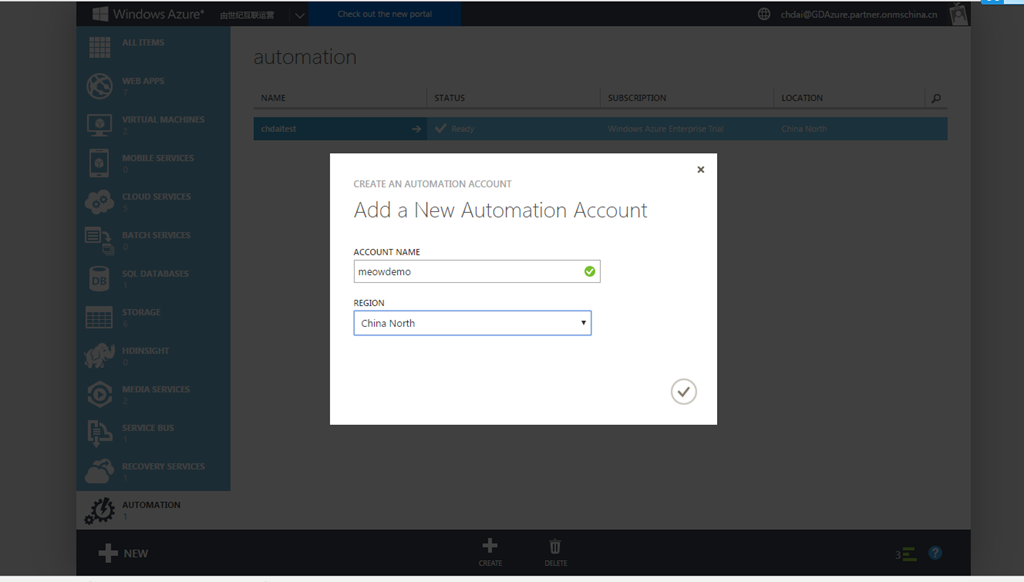
1. 创建一个Automation account,名字是meowmeowdemo。
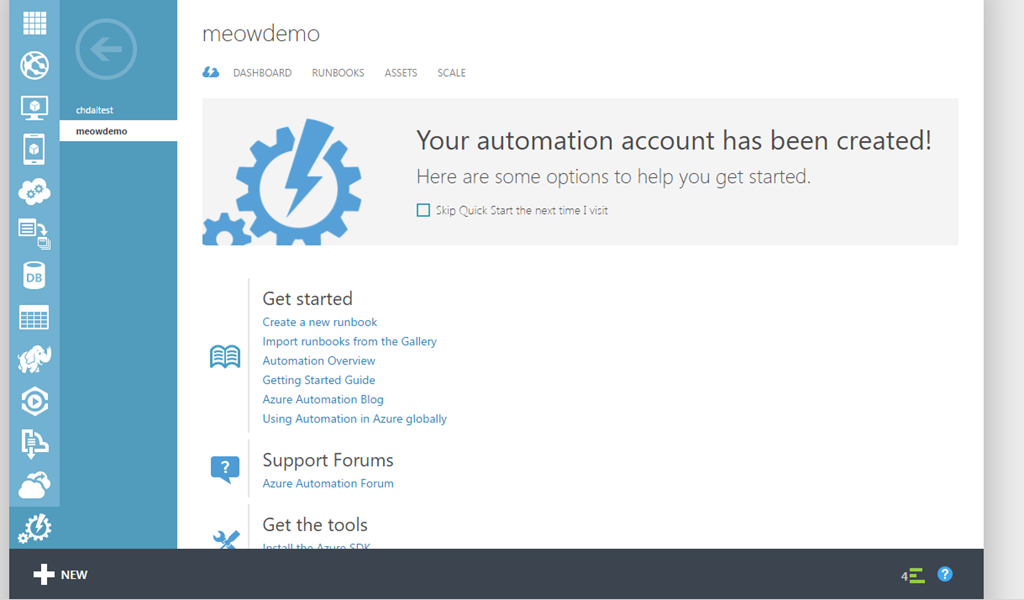
2. 创建成功后,点击meowmeowdemo的name,进入主页面如下
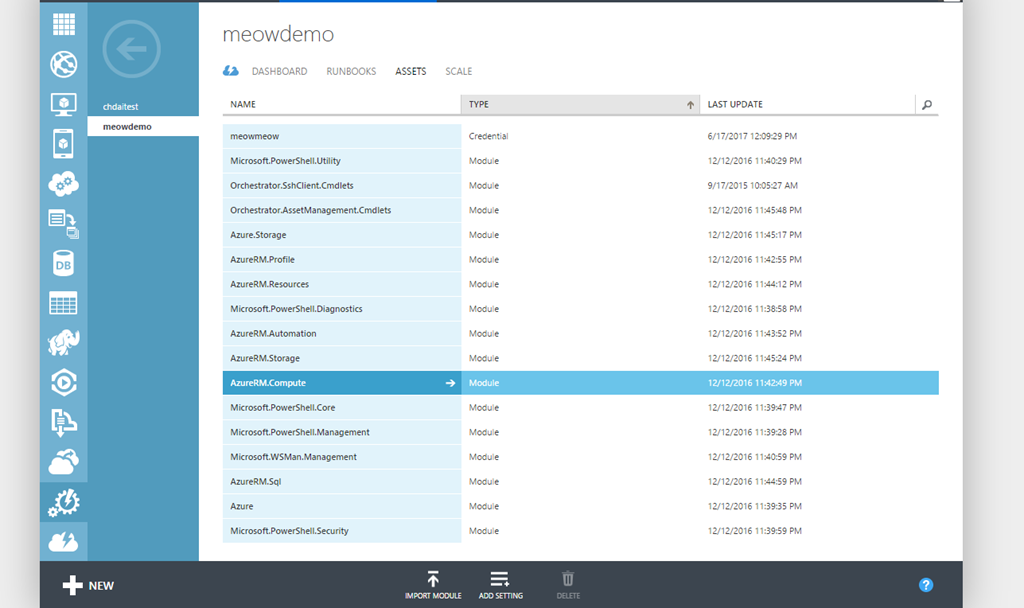
3. 点击ASSETS,进入一个很重要的页面
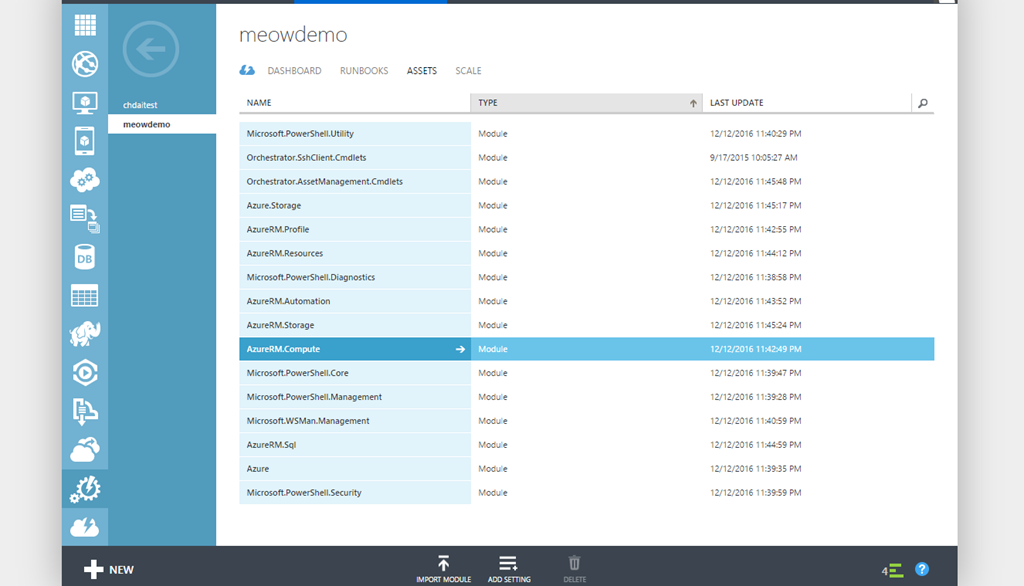
在本文开始的时候,我们提过“用Automation管理Azure资源的本质是,用powershell的工作流来管理Azure资源”. 所以,我们需要做两件事:
- 创建一个assets来存入一个azure的账号和密码以供powershell工作流登录Azure使用。
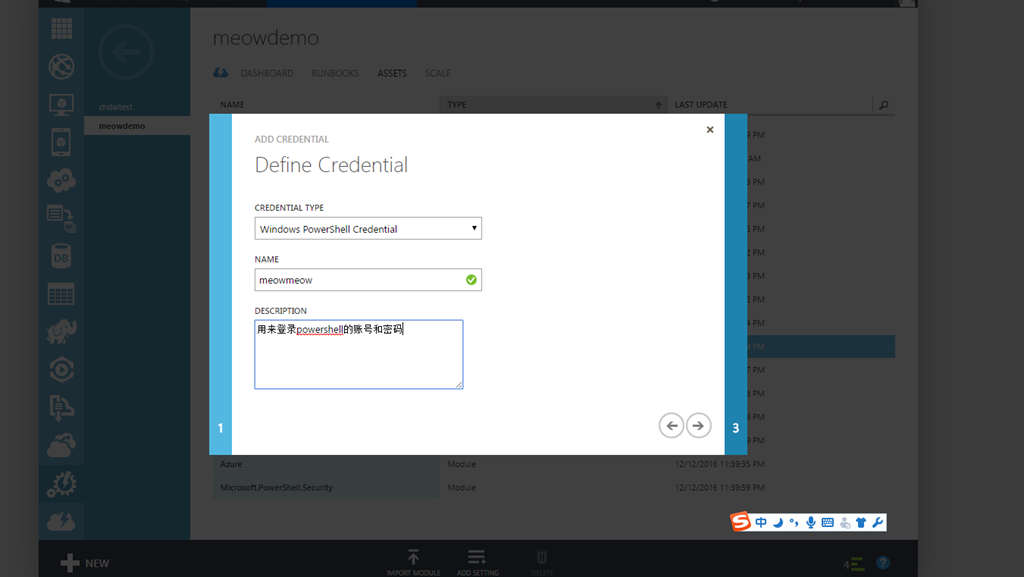
使用Assets来创建的好处是,密码不再是被明文保存在portal里面,安全性得到了保证

- 检查我们将要使用的管理ARM资源的powershell命令模块是不是已经被加载到automation后台(在99.9%的情况下,这一步都已经由后台完成了.)
开关ARM虚拟机需要使用的命令是 Start-AzureRMVM 和 Stop-AzureRMVM,相关的模块是AZURERM.COMPUTE
有时间的话,大家可以点一下每个module,每个模块支持的azure powershell命令都会列出来的。
那剩下的0.1%模块没有加载怎么办呢?别急,页面底部的”IMPORT MODULE”就是用来干这个的
4.现在点击RUNBOOKS,进入页面后再点击左下角的NEW,开始创建真正运行的用来开关机的powershell脚本
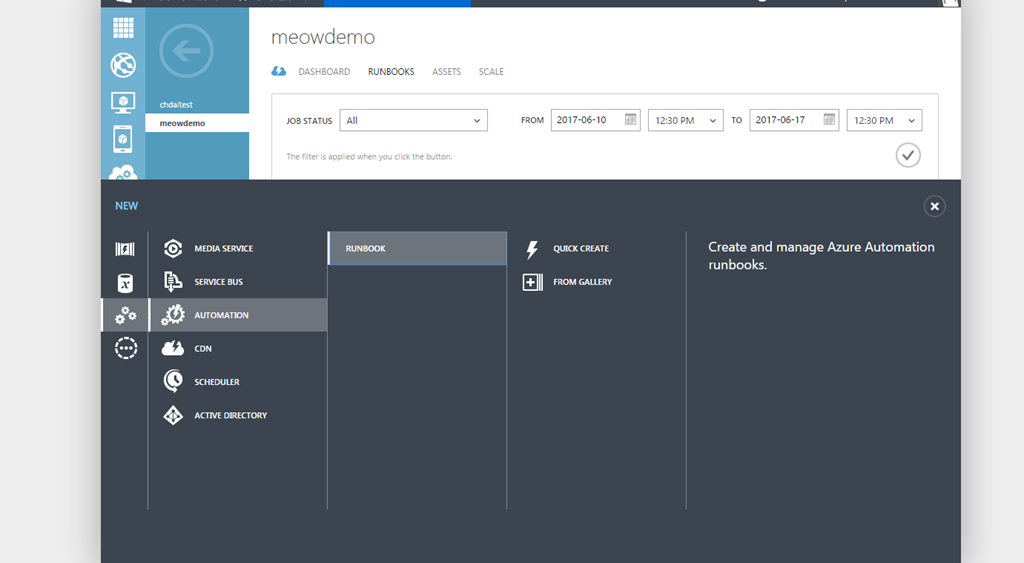
这里我们可以选择从Gallery里创建。为什么呢?因为世界上已经有很多的聪明人写了很多脚本,我们不需要再重复造相同的轮子了。
不过切记一点,大多数Gallery脚本是写给Azure Global的。在把脚本运行于azure中国前我们需要做一点改动,比方讲,把登录azure的命令从
Login-AzureRmAccount -Credential $Cred -TenantId $TenantID;
改为
Login-AzureRmAccount -EnvironmentName AzureChinaCloud -Credential $cred
这里为了简单起见,我们从点击底部的“Import”从本地import一个脚本可以实现定期开机的脚本
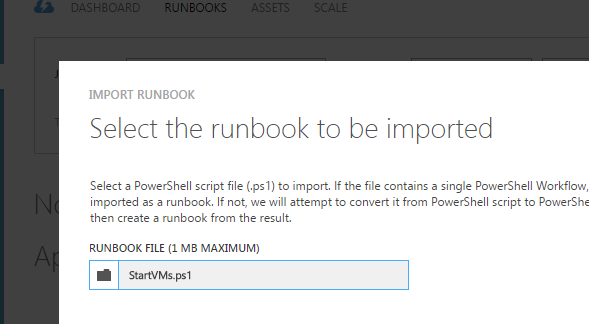
Import成功后还需要在runbook页面点击底部的Publish按钮。脚本只有在publish后才能运行
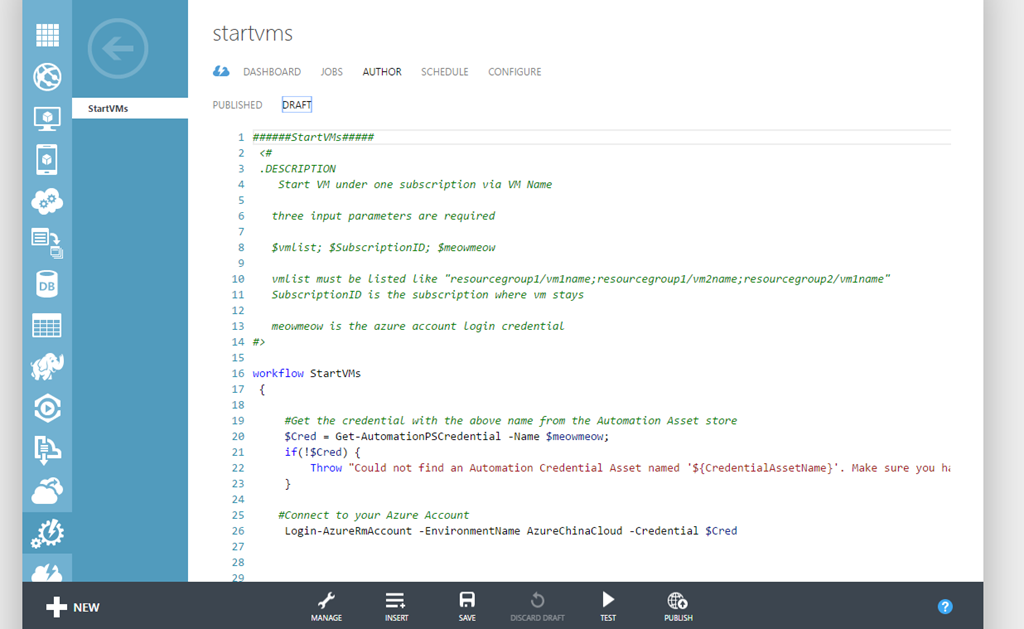
脚本的内容如下:
######StartVMs#####
 <#
 .DESCRIPTION
    Start VM under one subscription via VM Name

   three input parameters are required

   $vmlist; $SubscriptionID; $meowmeow

   vmlist must be listed like "resourcegroup1/vm1name;resourcegroup1/vm2name;resourcegroup2/vm1name"
   SubscriptionID is the subscription where vm stays

   meowmeow is the azure account login credential
#>

workflow StartVMs
 {


     #Get the credential with the above name from the Automation Asset store
     $Cred = Get-AutomationPSCredential -Name "meowmeow" ;
     if(!$Cred) {
         Throw "Could not find an Automation Credential Asset . Make sure you have created one in this Automation Account."
     }

      #Get the vmlist with the above name from the Automation Variable store
     $vmlist = Get-AutomationVariable -Name "vmlist" ;
     if(!$vmlist) {
         Throw "Could not find an Automation Variable Asset . Make sure you have created one in this Automation Account."
     }

      #Get the SubscriptionID with the above name from the Automation Asset store
     $SubscriptionID = Get-AutomationVariable -Name "SubscriptionID" ;
     if(!$SUbscriptionID) {
         Throw "Could not find an Automation Variable Asset . Make sure you have created one in this Automation Account."
     }
     $server = Get-AutomationVariable –Name ‘ServerName’

    #Connect to your Azure Account
     Login-AzureRmAccount -EnvironmentName AzureChinaCloud -Credential $Cred
     Select-AzureRmSubscription -SubscriptionId $SubscriptionID

    $vmnames = $vmlist -split ";"

    foreach($vm in $vmnames)
        {

         Start-AzureRmVM -ResourceGroupName $vm.split("/")[0] -Name $vm.split("/")[1]
         }

}
5. 在运行这个脚本之前,我们还需要做如下准备工作。脚本要求的输入参数如下:
   three input parameters are required

   $vmlist; $SubscriptionID; $meowmeow

   vmlist must be listed like "resourcegroup1/vm1name;resourcegroup1/vm2name;resourcegroup2/vm1name"
   SubscriptionID is the subscription where vm stays

   meowmeow is the azure account login credential
其中用户登录azure的用户名和密码我们在上面第三步就做好了,剩下的一个是虚拟机的列表,一个是订阅的ID。这两个也需要在ASSETS的页面按要求创建
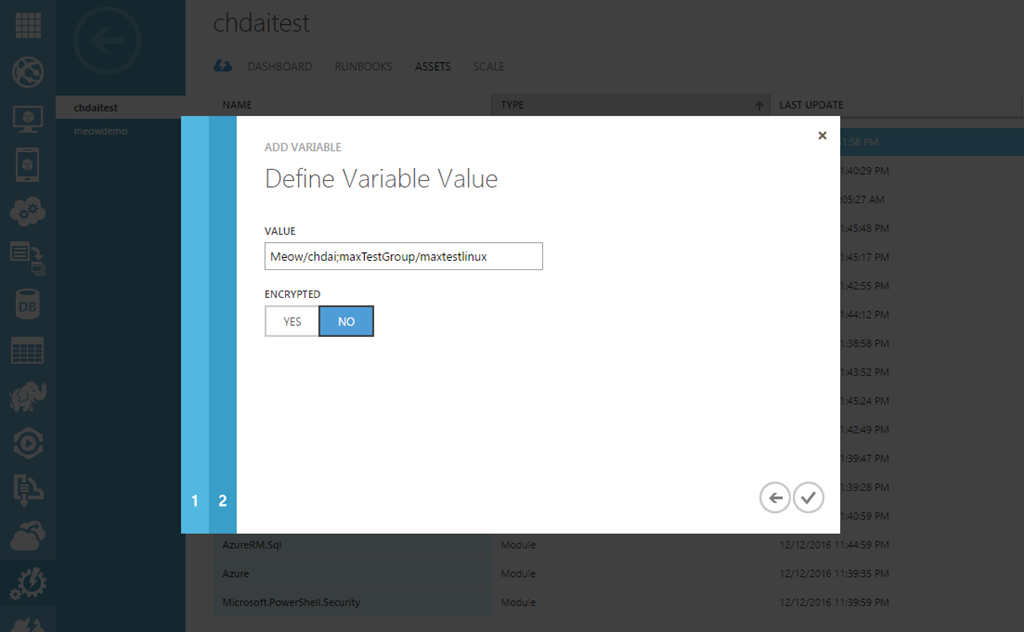
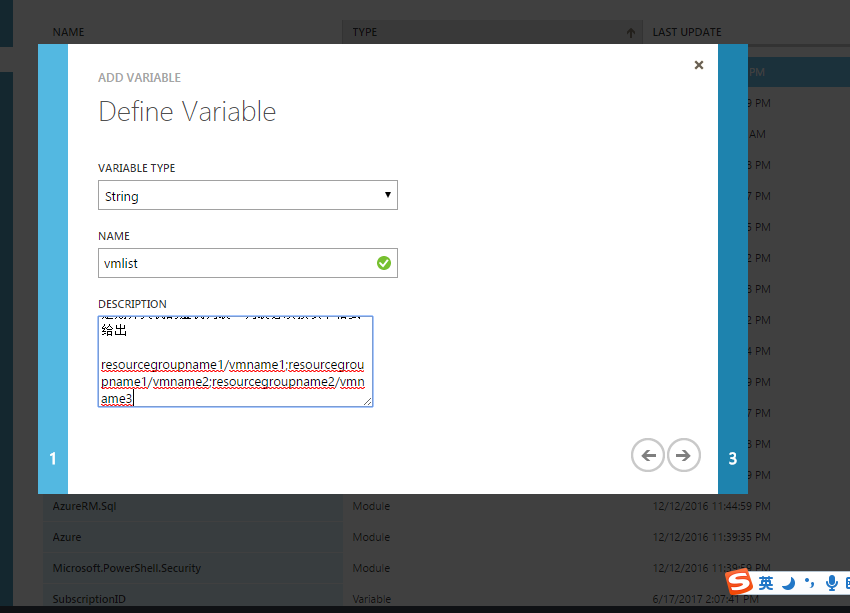

6. 配置好参数后,我们还需要创建Schedule。同样我们可以在ASSETS页面创建这个schedule

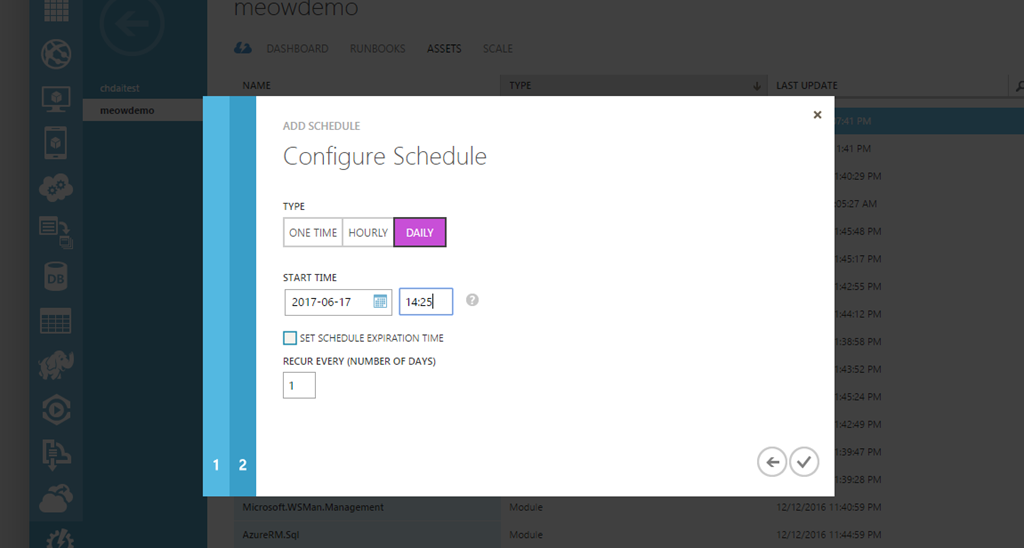
7. 最后我们把schedule和第5步创建的runbook脚本链接起来
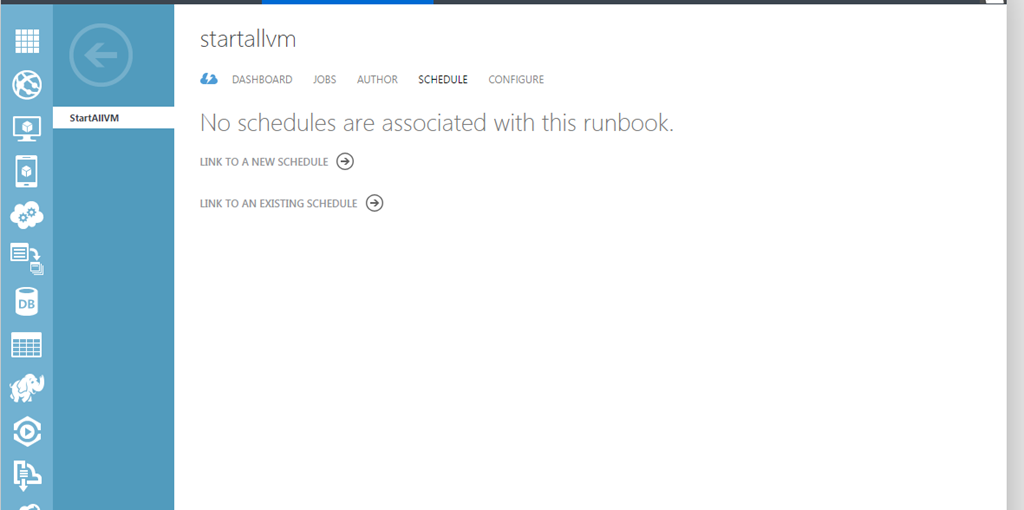
8.最后,我们测试一下,yeah!!!!!
通过这种方式创建的automation 脚本灵活性很好,如果有新的vm也需要加入自动化开机的行列,只要在Assets vmlist里面加入新vm就好了。脚本的本身并不需要有任何变化。
大家可以试着遵循同样的步骤创建一个自动关机的runbook,还可以借鉴zhanglei老师的代码加入对周末和节假日的验证,如果在周末和节假日我们就不需要自动启动虚机
NOTE:如果你有几百个虚机要定期开关机的话,这段脚本不推荐哦,一个个启动太慢啦,下次有时间写一下该怎么实现