列表的显示表单添加打印功能
moss 列表如果使用了infopath作为表单,这样就不会有打印预览的按钮了,不过如果是表单库就会有这个打印预览。那怎么打印呢,我找了一些资料,觉得有两个思路:
1.从页面考虑,采用前端的代码添加打印功能
2.从ribbion考虑,考虑添加打印按钮,再后端调用API实现打印。
这里主要介绍第一种:
1. Click on the “List” tab under List Tools
2. Click on the drop down arrow on the “Modify Form Webparts” button (pictured)
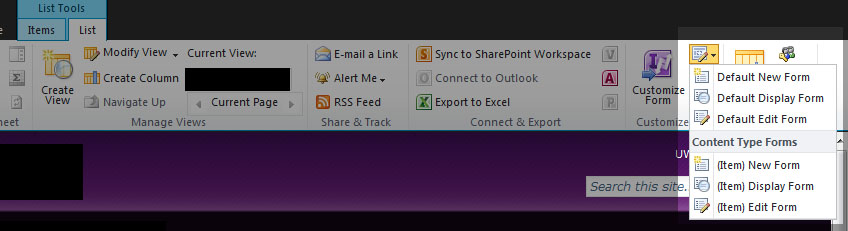
3. Select “(Item) Display Form”
4. This will take you to an edit page screen with your Infopath form set as a webpart
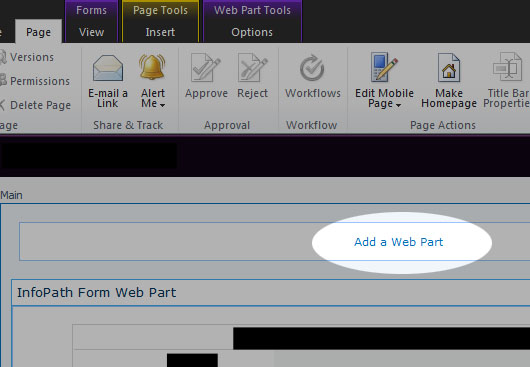
5. Add a “Content Editor Webpart” to the page
6. Edit your new webpart’s source and paste in the following:
<input type="button" value=" Print this page "onclick="window.print();return false;" />
<script src="/_catalogs/Scripts/jquery-1.4.1.min.js" type="text/javascript"></script><script src="/_catalogs/Scripts/jquery.print.js" type="text/javascript"></script>

<script src="/_catalogs/Scripts/jquery.PrintArea.js" type="text/javascript"></script>


<script type="text/javascript">

$(function(){

    $("#btn_mossprintwp").bind("click",function(event){


        $("#WebPartWPQ2").print();
return false;
    });
});

 </script><input />
jquery.PrintArea.js 是一个插件,可以去下载:http://archive.plugins.jquery.com/project/PrintArea
jquery.printArea.js 下载链接:
http://download.csdn.net/detail/chanedi/3805171
至于另外的jquery-1.4.1.min.js到处能找到的。
这里已经能实现打印的功能了,但是我还是想问同学们,你们用的是什么方法?可否分享一下。
参考的资料有:
http://arcemise.wordpress.com/2011/02/04/sharepoint-2010-infopath-print-button/
http://geekswithblogs.net/SoYouKnow/archive/2010/10/27/using-jquery-to-print-a-web-part.aspx
https://www.nothingbutsharepoint.com/sites/eusp/Pages/jquery-for-everyone-print-any-web-part.aspx
http://www.cnblogs.com/xvqm00/archive/2011/05/04/2036766.html
http://www.bennadel.com/blog/1591-Ask-Ben-Print-Part-Of-A-Web-Page-With-jQuery.htm