一、前期准备
-
- 安装Android Studio
-
参考http://www.cnblogs.com/rocedu/p/6371315.html#SECANDROID,安装 Android Stuidio
-
安装完成后配置和启动模拟器。
-
具体过程略。
-
- 翻阅参考《Java和Android开发学习指南(第二版)(EPUBIT,Java for Android 2nd)》;
- 由于老师给的链接失效,自行上网下载了一个pdf。
二、实验内容
- 任务一 Android Stuidio的安装测试:
- 参考《Java和Android开发学习指南(第二版)(EPUBIT,Java for Android 2nd)》第二十四章:
- 参考http://www.cnblogs.com/rocedu/p/6371315.html#SECANDROID,安装 Android Stuidio
- 完成Hello World, 要求修改res目录中的内容,Hello World后要显示自己的学号,自己学号前后一名同学的学号,提交代码运行截图和码云Git链接,截图没有学号要扣分
- 学习Android Stuidio调试应用程序
- 任务二 Activity测试:
- 参考《Java和Android开发学习指南(第二版)(EPUBIT,Java for Android 2nd)》第二十五章:
- 构建项目,运行教材相关代码
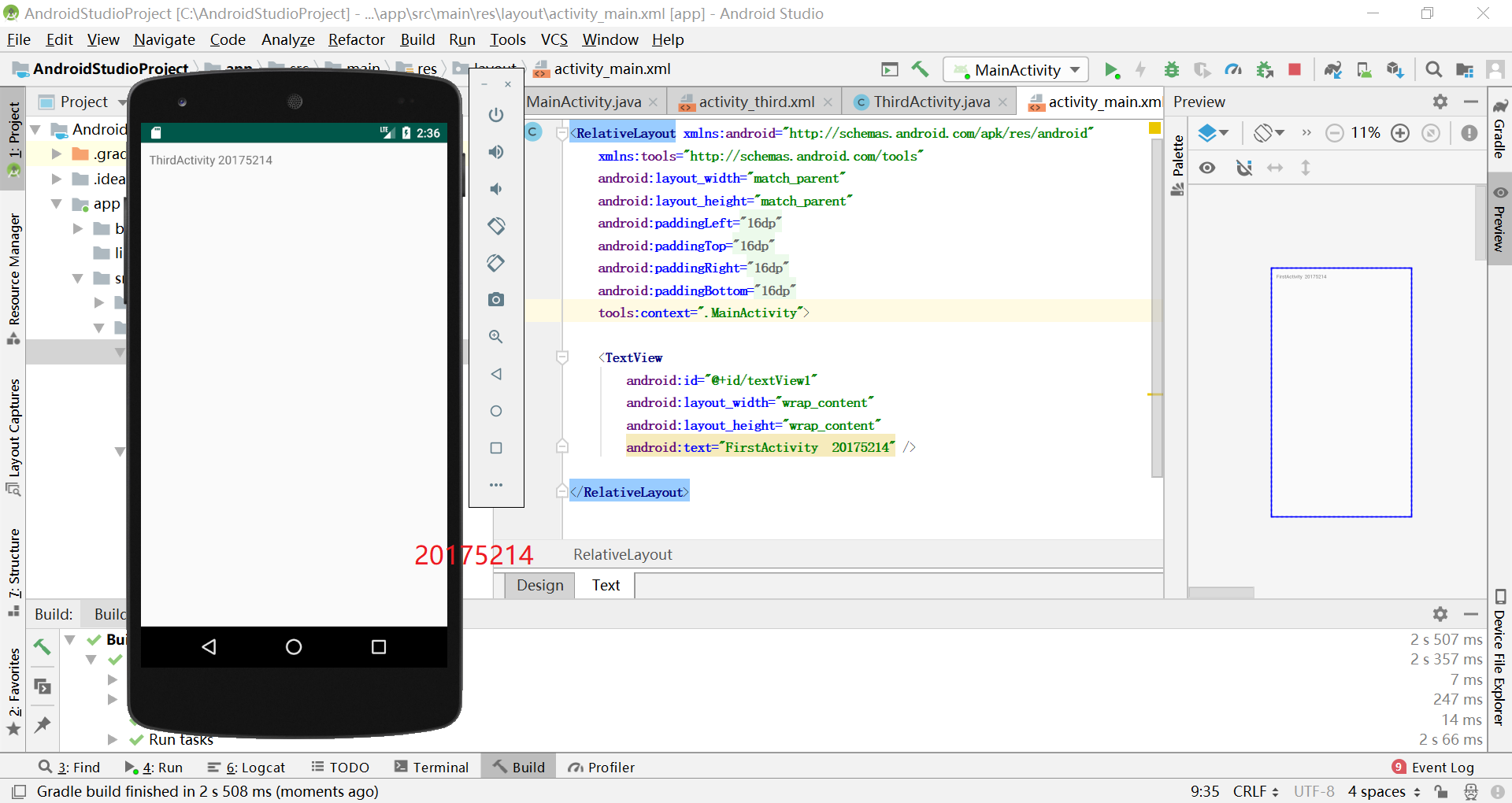
- 创建 ThirdActivity, 在ThirdActivity中显示自己的学号,修改代码让MainActivity启动ThirdActivity
- 提交代码运行截图和码云Git链接,截图要有学号水印,否则会扣分
- 任务三 UI测试:
- 参考《Java和Android开发学习指南(第二版)(EPUBIT,Java for Android 2nd)》第二十六章:
- 构建项目,运行教材相关代码
- 修改代码让Toast消息中显示自己的学号信息
- 提交代码运行截图和码云Git链接,截图要有学号水印,否则会扣分
- 任务四 布局测试:
- 参考《Java和Android开发学习指南(第二版)(EPUBIT,Java for Android 2nd)》第二十七章:
- 构建项目,运行教材相关代码
- 修改布局让P290页的界面与教材不同
- 提交代码运行截图和码云Git链接,截图要有学号水印,否则会扣分
- 任务五 事件处理测试:
- 参考《Java和Android开发学习指南(第二版)(EPUBIT,Java for Android 2nd)》第二十八章:
- 构建项目,运行教材相关代码
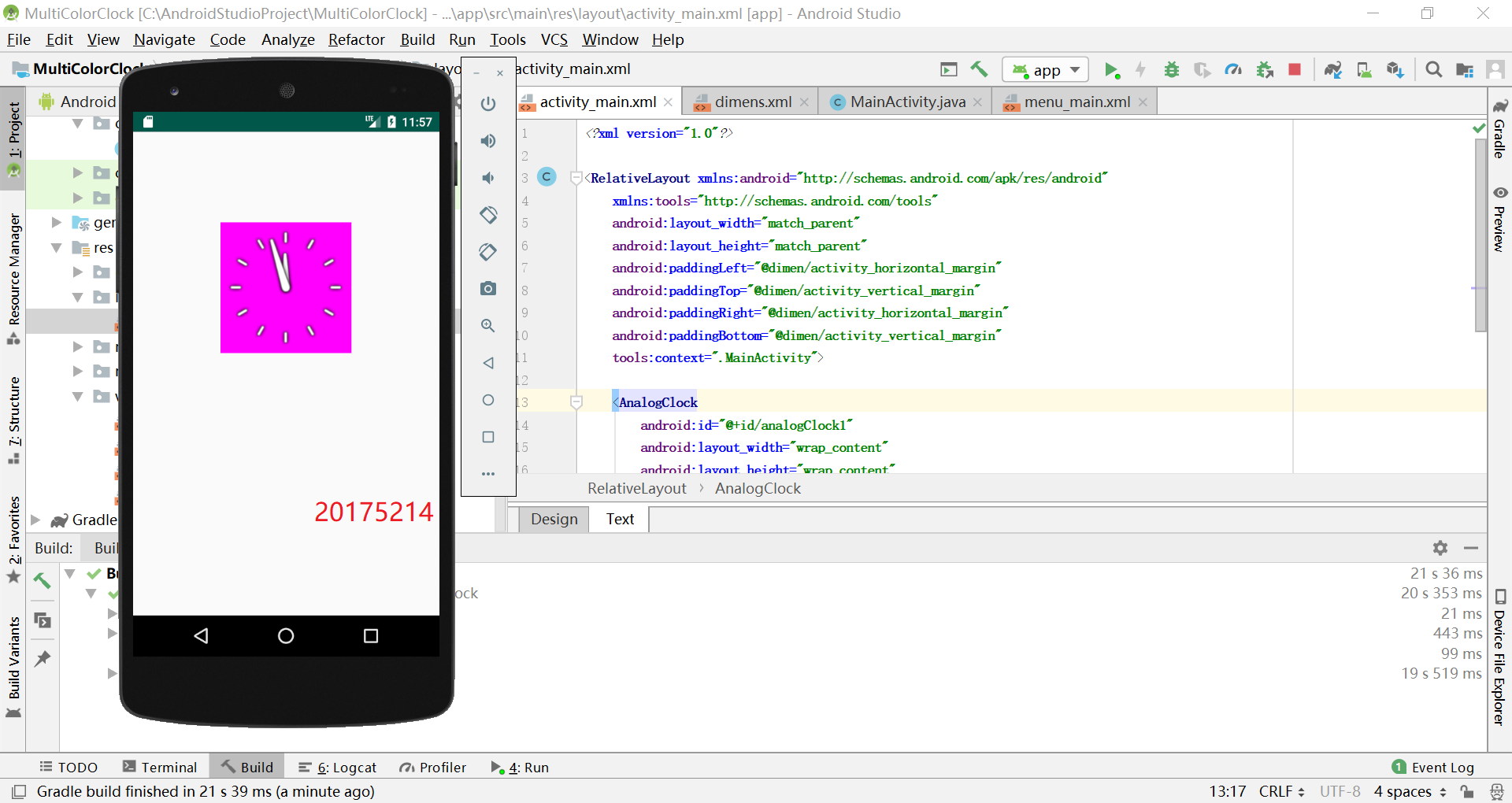
- 提交代码运行截图和码云Git链接,截图要有学号水印,否则会扣分
三、实验步骤
-
任务一 Android Stuidio的安装测试
- 由于HelloWorld是自带的,所以创建项目后对布局文件进行简单修改即可;
- 布局文件代码:
<?xml version="1.0" encoding="utf-8"?> <android.support.constraint.ConstraintLayout xmlns:andro xmlns:app="http://schemas.android.com/apk/res-auto" xmlns:tools="http://schemas.android.com/tools" android:layout_width="match_parent" android:layout_height="match_parent" tools:context=".MainActivity"> <TextView android:layout_width="wrap_content" android:layout_height="wrap_content" android:layout_marginEnd="80dp" android:layout_marginRight="80dp" android:text="Hello World!20175214 20175213 20175215" app:layout_constraintBottom_toBottomOf="parent" app:layout_constraintEnd_toEndOf="parent" app:layout_constraintLeft_toLeftOf="parent" app:layout_constraintRight_toRightOf="parent" app:layout_constraintTop_toTopOf="parent" tools:text="Hello World!20175214 20175213 20175215" /> </android.support.constraint.ConstraintLayout>- 测试结果截图:
-
任务二 Activity测试
-
创建项目,新建题中要求的ThirdActivity;
-
参考《Java和Android开发学习指南(第二版)》键入代码;
-
MainActivity.java
package com.example.helloworld;

import android.app.Activity;
import android.content.Intent;
import android.os.Bundle;
import android.view.Menu;
import android.view.MotionEvent;
import android.view.View;
import android.view.View.OnTouchListener;
import android.widget.TextView;
public class MainActivity extends Activity implements
   OnTouchListener {
  @Override
  protected void onCreate(Bundle savedInstanceState) {
      super.onCreate(savedInstanceState);
      setContentView(R.layout.activity_main);
      TextView tv = (TextView) findViewById(R.id.textView1);
      tv.setOnTouchListener(this);
  }
  @Override
  public boolean onTouch(View arg0, MotionEvent event) {
      Intent intent = new Intent(this, ThirdActivity.class);
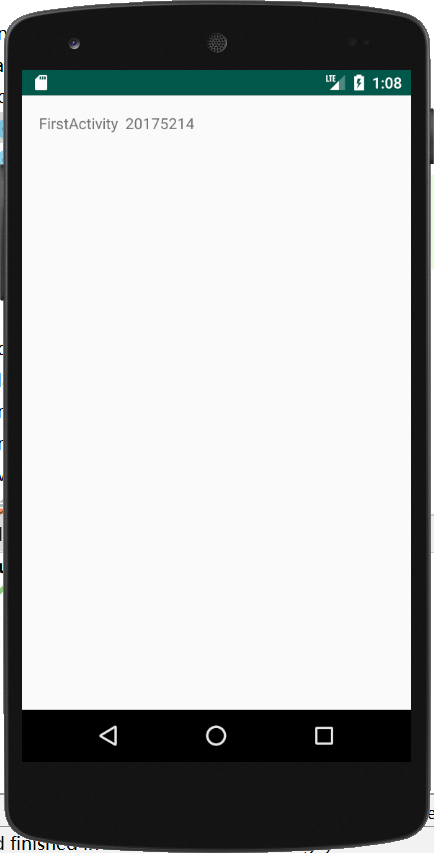
      intent.putExtra("message", "ThirdActivity 20175214");
      startActivity(intent);
      return true;
  }
}
ThirdActivity.java
package com.example.helloworld; -
import android.app.Activity;
import android.content.Intent;
import android.os.Bundle;
import android.view.Menu;
import android.widget.TextView;
public class ThirdActivity extends Activity {
@Override
protected void onCreate(Bundle savedInstanceState) {
super.onCreate(savedInstanceState);
setContentView(R.layout.activity_third);
Intent intent = getIntent();
String message = intent.getStringExtra("message");
((TextView) findViewById(R.id.textView1)).setText(message);
}
}
- `activity_main.xml`
- `activity_third.xml`
- 测试结果截图:
- 任务三 UI测试
- 创建项目;
- 参考《Java和Android开发学习指南(第二版)》键入代码;
- `MainActivity.java`
```
package com.example.toast;
import android.content.DialogInterface;
import android.support.v7.app.AlertDialog;
import android.support.v7.app.AppCompatActivity;
import android.os.Bundle;
import android.widget.Toast;
public class MainActivity extends AppCompatActivity {
@Override
protected void onCreate(Bundle savedInstanceState) {
super.onCreate(savedInstanceState);
setContentView(R.layout.activity_main);
Toast.makeText(this,"20175214 林郅聪",Toast.LENGTH_LONG).show();
}
}
activity_main.xml
<?xml version="1.0" encoding="UTF-8"?>
<android.support.constraint.ConstraintLayout xmlns:andro
 xmlns:app="http://schemas.android.com/apk/res-auto"
 xmlns:tools="http://schemas.android.com/tools"
 android:layout_width="match_parent"
 android:layout_height="match_parent"
 tools:context=".MainActivity">
 <TextView
     android:layout_width="wrap_content"
     android:layout_height="wrap_content"
     android:text="Hello!My name is ↓↓↓"
     app:layout_constraintBottom_toBottomOf="parent"
     app:layout_constraintLeft_toLeftOf="parent"
     app:layout_constraintRight_toRightOf="parent"
     app:layout_constraintTop_toTopOf="parent" />
</android.support.constraint.ConstraintLayout>
-
测试结果截图
-
任务四 布局测试
- 创建项目;
- 参考《Java和Android开发学习指南(第二版)》键入代码;
- 修改代码以改变布局;
MainActivity.java
package com.example.ui;
import android.support.v7.app.AppCompatActivity;
import android.os.Bundle;
public class MainActivity extends AppCompatActivity {
@Override
protected void onCreate(Bundle savedInstanceState) {
super.onCreate(savedInstanceState);
setContentView(R.layout.relative_layout);
}
}
- `relative_layout.xml`
<RelativeLayout
xmlns:andro
xmlns:tools="http://schemas.android.com/tools"
android:layout_width="match_parent"
android:layout_height="match_parent"
android:paddingLeft="2dp"
android:paddingRight="2dp">
<Button
    android:
    android:layout_width="wrap_content"
    android:layout_height="wrap_content"
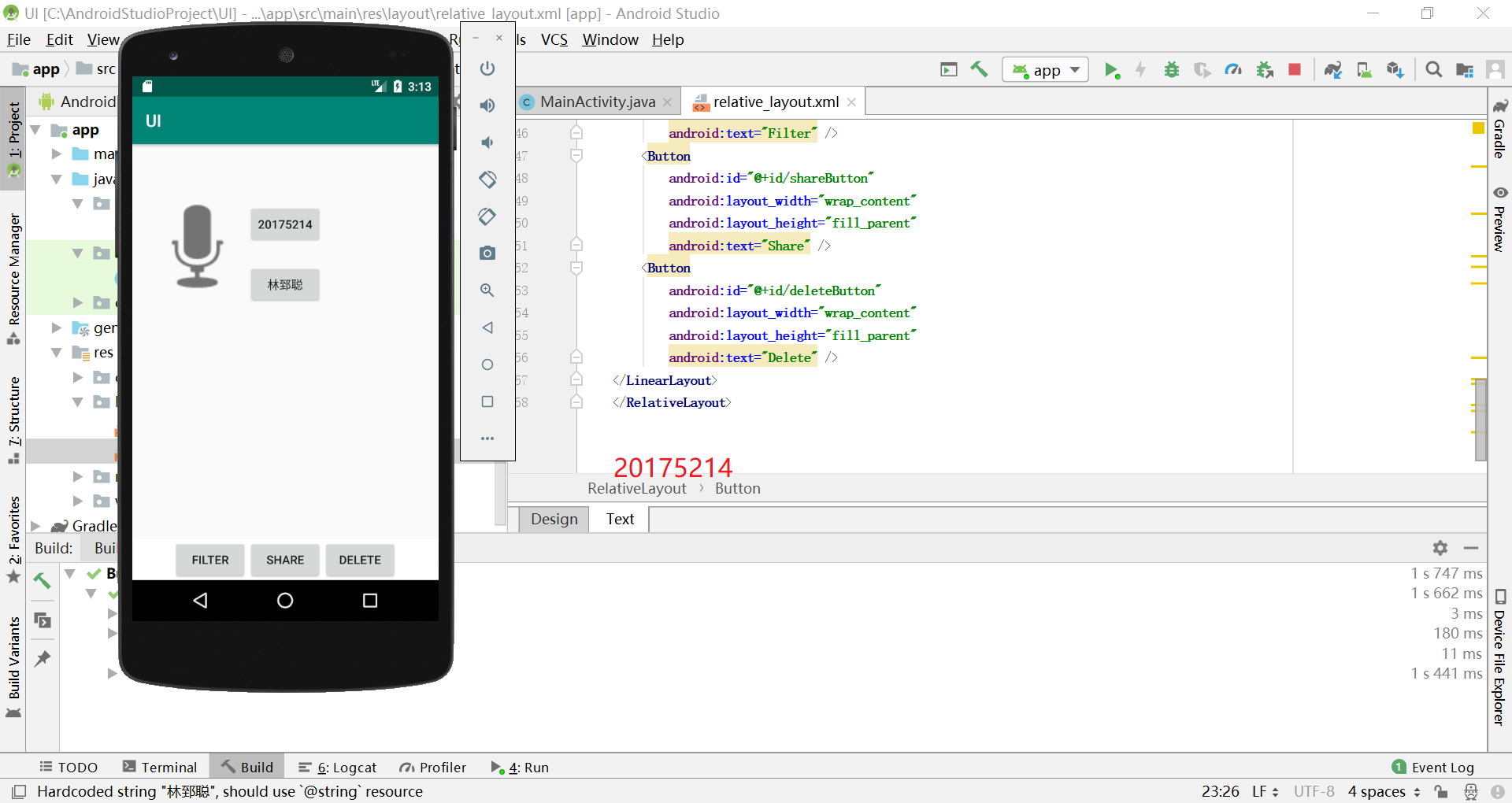
    android:text="20175214"
    android:layout_marginTop="70dp"
    android:layout_alignParentTop="true"
    android:layout_centerHorizontal="true" />
<Button
    android:
    android:layout_width="wrap_content"
    android:layout_height="wrap_content"
    android:text="林郅聪"
    android:layout_below="@+id/cancelButton"
    android:layout_alignLeft="@+id/cancelButton"
    android:layout_alignStart="@+id/cancelButton"
    android:layout_marginTop="23dp" />
    <ImageView
        android:layout_width="150dp"
        android:layout_height="150dp"
        android:layout_marginTop="45dp"
        android:padding="4dp"
        android:src="@android:drawable/ic_btn_speak_now" />
package com.example.multicolorclock;
- 测试结果截图:
- 任务五 事件处理测试
- 创建项目;
- 参考《Java和Android开发学习指南(第二版)》键入代码;
- `MainActivity.java`
import android.support.v7.app.AppCompatActivity;
import android.os.Bundle;
import android.app.Activity;
import android.graphics.Color;
import android.os.Bundle;
import android.view.Menu;
import android.view.View;
import android.widget.AnalogClock;
import android.app.Activity;
import android.graphics.Color;
import android.os.Bundle;
import android.view.Menu;
import android.view.View;
import android.widget.AnalogClock;
public class MainActivity extends Activity {
int counter = 0;
int[] colors = { Color.BLACK, Color.BLUE, Color.CYAN,
Color.DKGRAY, Color.GRAY, Color.GREEN, Color.LTGRAY,
Color.MAGENTA, Color.RED, Color.WHITE, Color.YELLOW };
@Override
protected void onCreate(Bundle savedInstanceState) {
super.onCreate(savedInstanceState);
setContentView(R.layout.activity_main);
}
@Override
public boolean onCreateOptionsMenu(Menu menu) {
// Inflate the menu; this adds items to the action bar if it
// is present.
getMenuInflater().inflate(R.menu.menu_main, menu);
return true;
}
public void changeColor(View view) {
if (counter == colors.length) {
counter = 0;
}
view.setBackgroundColor(colors[counter++]);
}
} - `activity_main.xml`
- 测试结果截图
## 四、实验过程中遇到的问题及其解决
- 1、R标红丢失
- 解决方法:尝试了网上的解决方法,未能解决问题,直接重新新建项目;
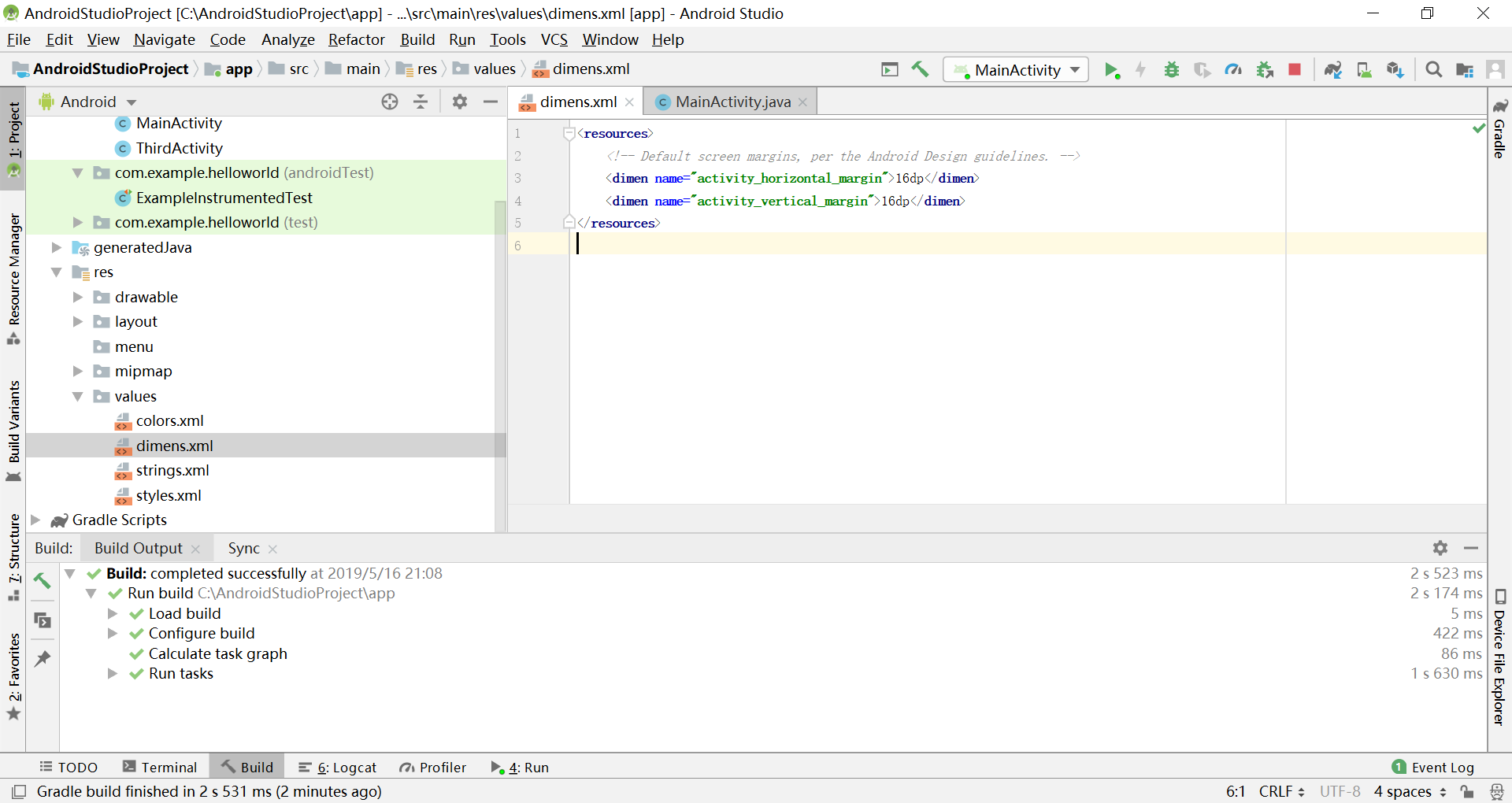
- 2、任务二中参考资料的代码运行失败,模拟器中app闪退;
- 解决方法:发现是布局文件引用的`value`不存在,双击标红处新建value值;
## 五、码云链接
- 由于任务2直接修改了任务1的代码,故而码云中没有提交,具体实现代码见上方
- [链接](https://gitee.com/fzlzc/java2019/tree/master/AndroidStudioProject)
## 六、参考资料
- Android开发简易教程
- 《Java和Android开发学习指南(第二版)(EPUBIT,Java for Android 2nd)》