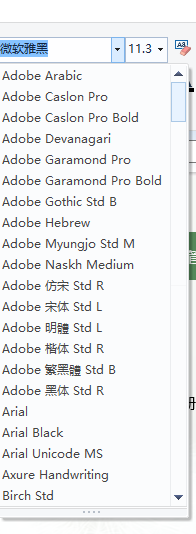
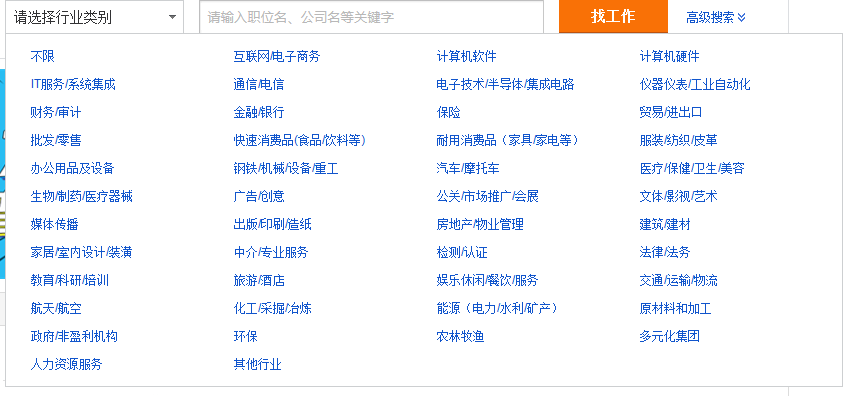
说起下拉框,想必大家都比较熟悉,在我们注册一些网站的时候,会出现大量的地区数据供我们选择,这个时候出现的就是下拉框列表,再比如字体选择的时候也是使用的下拉框,如图1所示。下拉框到处可见,作为一个图形库,qt也提供了QtComboBox类来供我们使用,但是有些时候简单的下拉列表已经满足不了我们的需求,如图2所示,是一个下拉表格,这个时候就需要我们自己定制一下QComboBox。
上边说了我们需求的变化,接下来我就讲述一下关于QComboBox定制的一些内容,本片文章我就只讲述两种常用的下拉选项控制,分别是列表和表格
一、列表的实现
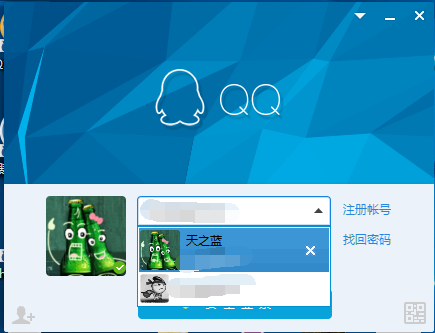
首先我上一张qq的登录框,如图3所示,下拉列表里不仅仅是一个文字描述或者复选框,而是含有图片文字和关闭按钮的复杂窗口,那么这个时候简单的QComboBox是完成不了这项功能的,要做到像qq这样美观的功能是需要我们自己做一定的处理
列表窗口定制步骤如下:
1、首先我们需要自定义一个窗口,上边有我们需要操作的内容,这个窗口讲会是QComboBox下拉框中的一项,我自己定义的类名为CActionContentWidget,头文件如下:
 1 class CActionContentWidget : public QWidget
 2 {
 3     Q_OBJECT
 4 signals:
 5     void IconClicked();
 6     void showText(const QString &);
 7
 8 public:
 9     CActionContentWidget(const QString & text, QWidget * parent = nullptr);
10     ~CActionContentWidget();
11
12 public:
13     void SetContentText(const QString & text);//设置显示文字
14     void SetItemIcon(const QString & icon, const QString & hover);//设置图标
15
16 public:
17     void SetBackgroundRole(bool hover);
18
19 protected:
20     virtual void enterEvent(QEvent *) Q_DECL_OVERRIDE;//暂时没用
21     virtual void leaveEvent(QEvent *) Q_DECL_OVERRIDE;//暂时没用
22     virtual bool eventFilter(QObject *, QEvent *) Q_DECL_OVERRIDE;
23     virtual void mousePressEvent(QMouseEvent *) Q_DECL_OVERRIDE;
24
25
26     virtual void mouseReleaseEvent(QMouseEvent *) Q_DECL_OVERRIDE;
27
28 private:
29     void InitializeUI();
30
31 private:
32     bool m_Mouse_press = false;
33     QWidget * m_ContentWidget = nullptr;
34     QPushButton * m_ActIcon = nullptr;
35     QLabel * m_ActText = nullptr;
36 };
这个窗口支持鼠标hover事件,并且我自己实现了鼠标按下和弹起方法,为的是自己控制QComboBox下拉框的隐藏,接口SetBackgroundRole是控制窗口背景色变化的函数,由于enterEvent和leaveEvent方法在成为了代理窗口后,事件触发我自己也没有搞清楚是怎么回事,因此我使用了installEventFilter方法把该窗口的事件放到父窗口去处理,在窗口中判断鼠标当前位置和CActionContentWidget 窗口之间的关系来判断鼠标是否进入该窗口。

2、如图4所示,是我实现的结果预览,接下来我们需要把定制的窗口放到QComboBox的下拉框中,代码如下:
 1 class combobox : public QWidget
 2 {
 3     Q_OBJECT
 4
 5 public:
 6     combobox(QWidget *parent = 0);
 7     ~combobox();
 8
 9 protected:
10     virtual bool eventFilter(QObject *, QEvent *) Q_DECL_OVERRIDE;
11
12 private:
13     void ConstructList();//列表定制
14     void ConstructTable();//表格定制
15
16 private:
17     Ui::comboboxClass ui;
18 };
ConstructList方法是列表的定制,也就是上图4所示的效果,ConstructTable方法内封装的是定制表格,后续我会讲解。
3、上边提到定制的窗口和鼠标位置的判断是在父窗口中进行的,那么接下来我就解释下父窗口的eventFIlter方法。代码比较简单,我就不一一进行解释了
 1 bool combobox::eventFilter(QObject * watched, QEvent * event)
 2 {
 3     if (watched->inherits("QWidget") && event->type() == QEvent::Paint)
 4     {
 5         if (CActionContentWidget * actionItem = dynamic_cast<CActionContentWidget *>(watched))
 6         {
 7             if (actionItem->rect().contains(actionItem->mapFromGlobal(QCursor::pos())))
 8             {
 9                 actionItem->SetBackgroundRole(true);
10             }
11             else
12             {
13                 actionItem->SetBackgroundRole(false);
14             }
15         }
16     }
17
18     return QWidget::eventFilter(watched, event);
19 }
4、ConstructList列表实现,代码如下:
 1 void combobox::ConstructList()
 2 {
 3     QListWidget * listWidget = new QListWidget;
 4     listWidget->setViewMode(QListView::ListMode);
 5
 6     for (int i = 0; i < 5; i++)
 7     {
 8         CActionContentWidget * itemWidget = new CActionContentWidget("fawefawe");
 9         connect(itemWidget, &CActionContentWidget::showText, this, [this, listWidget](const QString & text){
10             ui.comboBox->hidePopup();
11             if (ui.comboBox->isEditable())
12             {
13                 ui.comboBox->setCurrentText(text);
14             }
15             else
16             {
17                 for (int c = 0; c < listWidget->count(); ++c)
18                 {
19                     CActionContentWidget * itemWidget = dynamic_cast<CActionContentWidget *>(listWidget->itemWidget(listWidget->item(c)));
20                     if (itemWidget == sender())
21                     {
22                         ui.comboBox->setCurrentIndex(c);
23                     }
24                 }
25             }
26         });
27         itemWidget->SetItemIcon(":/combobox/Resources/icon1.jpg", ":/combobox/Resources/icon1.jpg");
28         itemWidget->setFixedHeight(45);
29         itemWidget->setFixedWidth(150);
30          QListWidgetItem * item = new QListWidgetItem(listWidget);
31         item->setText(QStringLiteral("%1").arg(i));
32     //    item->setCheckState(Qt::Checked);
33         listWidget->setItemWidget(item, itemWidget);
34         listWidget->addItem(item);
35         itemWidget->installEventFilter(this);
36     }
37
38     ui.comboBox->setModel(listWidget->model());
39     ui.comboBox->setView(listWidget);
40     ui.comboBox->setEditable(true);//是否支持下拉框可编辑
41     ui.comboBox->setMaxVisibleItems(3);
42
43     setStyleSheet("QComboBox{border:1px solid gray;}"
44         "QComboBox QAbstractItemView::item{height:45px;}" //下拉选项高度
45         "QComboBox::down-arrow{image:url(:/combobox/Resources/icon1.jpg);}" //下拉箭头
46         "QComboBox::drop-down{border:0px;}"); //下拉按钮
47 }