Visual Studio 2012 provides a facility to split the design time visual representation of the Entity Data Model. This means that you can have multiple diagrams for one Entity Data Model.
You can create a new diagram in multiple ways:
- Add a new diagram and drag and drop entities from Model Browser
- Move entities from an existing diagram to a new diagram
1. Add a new diagram and drag and drop entities from Model Browser:
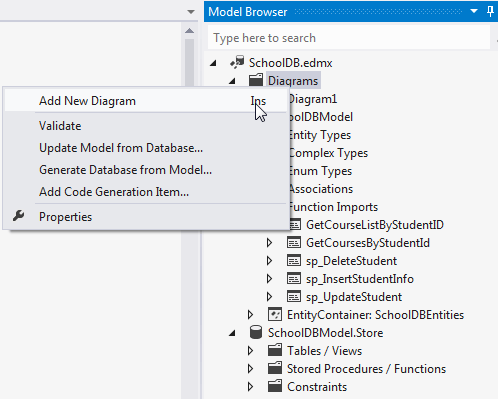
You can add a new diagram by right clicking on the Diagrams node of the model browser and selecting 'Add New Diagram':
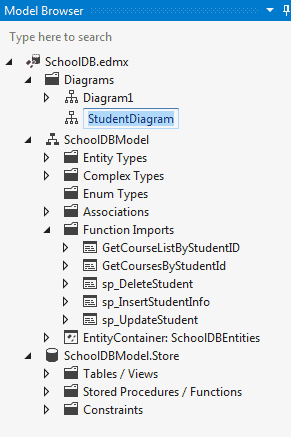
You can rename the diagram, for example: StudentDiagram to include all student related entities:
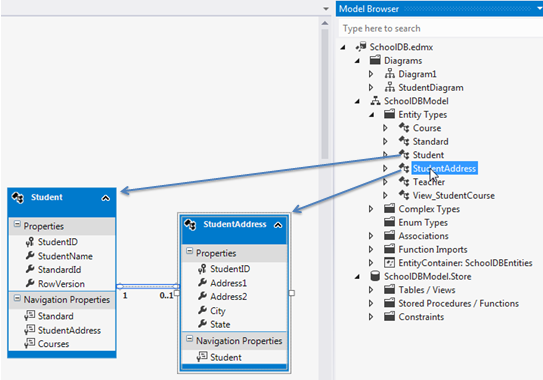
Now, you can drag and drop Student and StudentAddress entities to this new diagram:
2. Move entities from existing diagram to new diagram:
You can also move entities from an existing diagram to a new diagram. For example, if you want to move Teacher and Course entities to a new diagram, then select those entities in an existing diagram and right click and select 'Move to New Diagram' from the context menu:
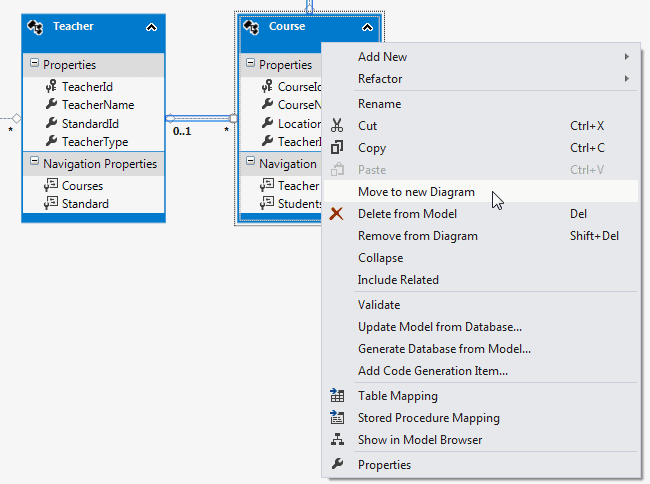
It will create a new diagram and move Teacher and Course entities to a new diagram as shown below:
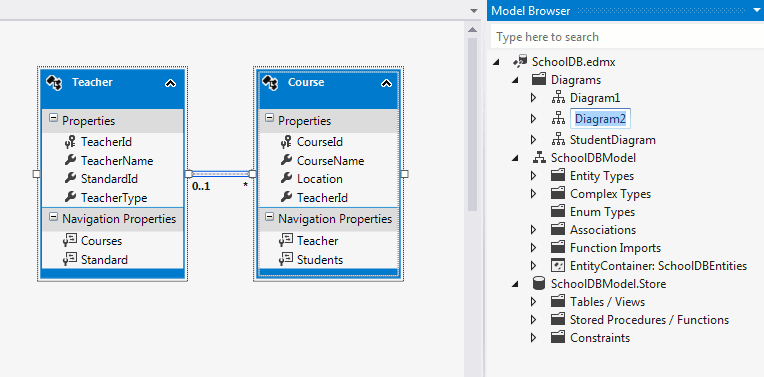
So, in this way you can create a new diagram from an existing diagram.
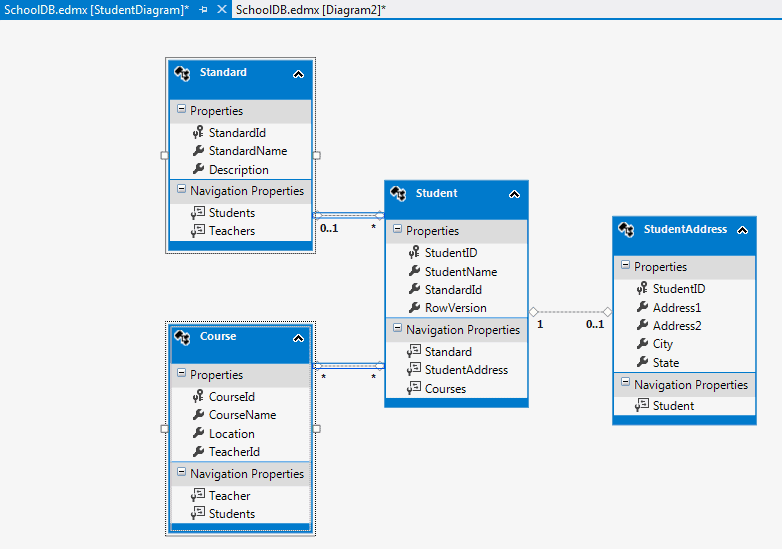
You can also include the related entities of a particular entity. For example, right click on Student entity → select 'Include Related'. Standard and Course entities will also be included, because Student has their reference property:
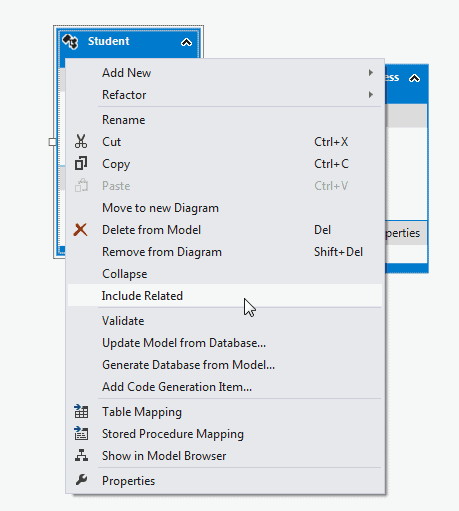
This will include Standard and Course entity as shown below.
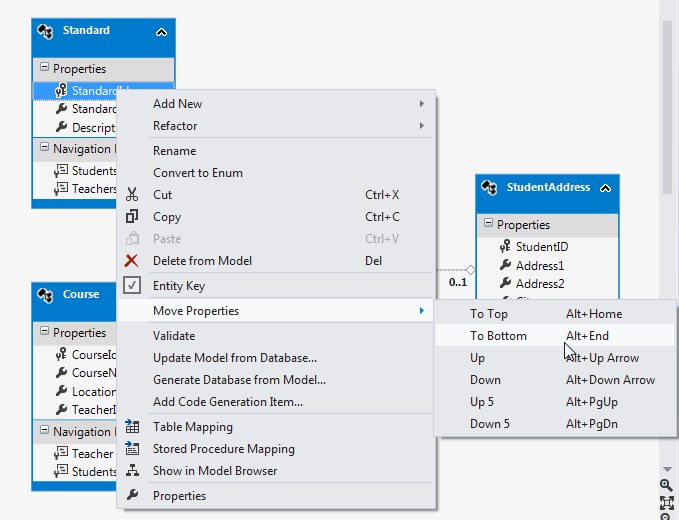
Additionally, you can also move properties up or down by right clicking on the property → select Move Property → select UP/Down etc. as shown below:
Difference between delete and remove entity:
You can remove the entity from the diagram by right clicking on entity and selecting 'Remove from diagram'.
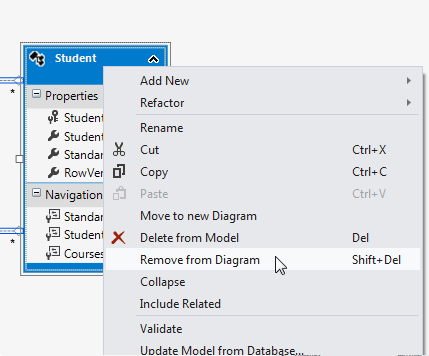
Remove from Diagram will only remove the entity from the diagram whereas 'Delete from Model' will delete the entity from the EDM. So you won't be able to use that entity at all.