vscode中的如何自动将代码格式化成eslint风格
找到"文件" -> "首选项" -> "设置"(或者: File->Preferences->Settings ),点击右上角,切换到setting.json配置文件
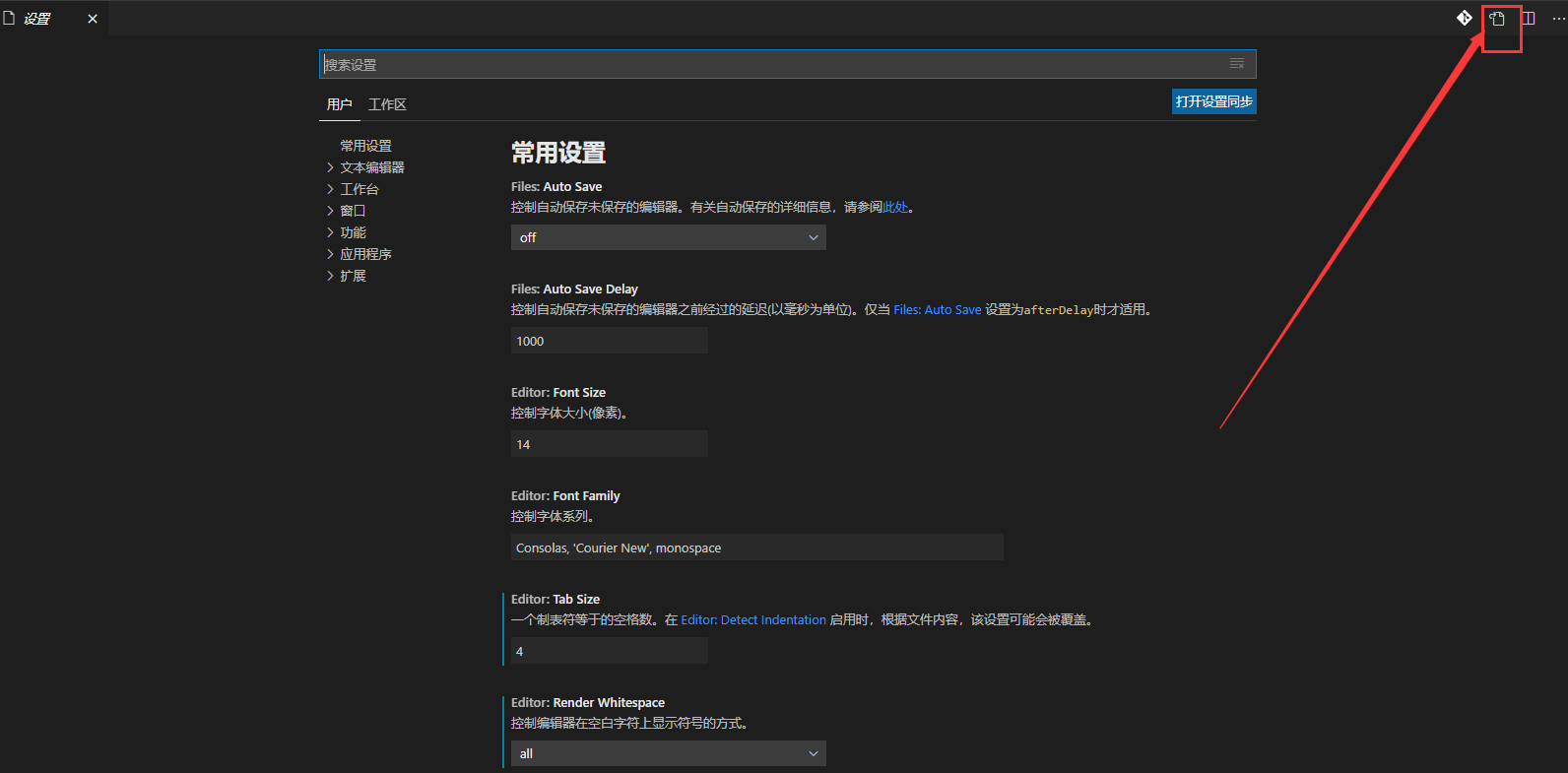
追加以下代码:
{
    // vscode默认启用了根据文件类型自动设置tabsize的选项
    "editor.detectIndentation": false,
    // 重新设定tabsize
    "editor.tabSize": 4,
    // #每次保存的时候自动格式化
    "editor.formatOnSave": true,
    "eslint.validate": [
        "javascript",
        "javascriptreact",
        "html",
        "vue"
    ],
    // #每次保存的时候将代码按eslint格式进行修复
    "editor.codeActionsOnSave": {
        "source.fixAll.eslint": true
    },
    //  #让prettier使用eslint的代码格式进行校验
    "prettier.eslintIntegration": true,
    //  #去掉代码结尾的分号
    "prettier.semi": false,
    //  #使用带引号替代双引号
    "prettier.singleQuote": true,
    //  #让函数(名)和后面的括号之间加个空格
    "javascript.format.insertSpaceBeforeFunctionParenthesis": true,
    // #让vue中的js按编辑器自带的ts格式进行格式化
    "vetur.format.defaultFormatter.js": "vscode-typescript",
    "vetur.format.defaultFormatterOptions": {
        "js-beautify-html": {
            "wrap_attributes": "force-aligned"
            // #vue组件中html代码格式化样式
        }
    },
    "window.zoomLevel": 0,
    "explorer.confirmDelete": false,
    "explorer.confirmDragAndDrop": false,
    "editor.renderControlCharacters": true,
    "editor.renderWhitespace": "all"
}
1、安装 ESlint 的插件,重启vscode
2、右键vue页面,选择“格式化本文档”或(Shift+Alt+F)
参考:https://jingyan.baidu.com/article/7082dc1c2c75b2e40b89bd57.html
https://www.cnblogs.com/cuianbing/p/13751132.html