1. 从CKEditor官网下载最新版的CKEditor,目前最新版本为Version 4.3.1。
2. 将下载下来的压缩包解压缩后,将文件拷贝到项目的WebContent根目录下,启动服务器,如果能通过服务器地址访问\ckeditor\samples下的例子,则证明CKEditor安装成功。
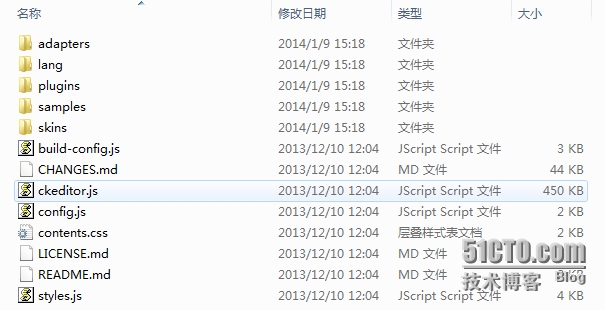
3. 参照\ckeditor\samples\目录下的replacebyclass.html例子,将以下代码拷贝到需要需要显示文本编辑器的地方。
|
1
2
3
|
<textarea class="ckeditor" cols="80" id="editor1" name=" blog.content " rows="10">
${blog.content}
</textarea>
|
4. 在该JSP页面的Header处,引入\ckeditor\ ckeditor.js文件。
5. 在\ckeditor\samples\ sample.css文件中,将文本编辑器部分的样式提取出来,放到单独的CSS文件(如blog_ckeditor.css)中,并在页面的Header中引入。
注:请不要直接使用sample.css文件,以防止该文件中的样式与现有系统的样式表冲突。
|
1
2
3
4
5
6
7
8
9
10
11
12
13
14
15
16
17
18
19
20
21
22
23
24
25
26
27
28
29
30
31
32
33
34
35
36
|
/** * CKEditor editables are automatically set with the "cke_editable" class
* plus cke_editable_(inline|themed) depending on the editor type.
*/
/* Style a bit the inline editables. */.cke_editable.cke_editable_inline{ cursor: pointer;
}/* Once an editable element gets focused, the "cke_focus" class is added to it, so we can style it differently. */
.cke_editable.cke_editable_inline.cke_focus{ box-shadow: inset 0px 0px 20px 3px #ddd, inset 0 0 1px #000;
outline: none;
background: #eee;
cursor: text;
}/* Avoid pre-formatted overflows inline editable. */.cke_editable_inline pre
{ white-space: pre-wrap;
word-wrap: break-word;
}.cke_contents_ltr blockquote{ padding-left: 20px;
padding-right: 8px;
border-left-width: 5px;
}.cke_contents_rtl blockquote{ padding-left: 8px;
padding-right: 20px;
border-right-width: 5px;
} |
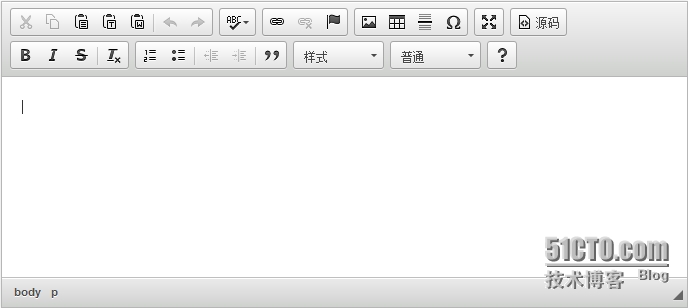
6. 配置改页面的Action,并将提交方法设置为Post格式提交,至此你就可以在你的页面中展示CKEditor的强大功能了。
本文转自 genuinecx 51CTO博客,原文链接:http://blog.51cto.com/favccxx/1351592,如需转载请自行联系原作者