ps: 红字字体为重要部分, 仔细看
一、shell特性
1. history查看命令历史记录,默认记录1000条;
[[email protected] ~]# history
    1  vim /etc/hosts
    2  ifconfig
    3  cd /etc/sysconfig/network-scripts/ifcfg-
    4  cd /etc/sysconfig/network-scripts/ifcfg-eth0
    5  ifconfig eth0 up
……………………/省略
[[email protected] ~]# vim /etc/profile               #可自定义history历史命令记录;
2. !!执行上条命令;
[[email protected] ~]# !!
    1  vim /etc/hosts
    2  ifconfig
    3  cd /etc/sysconfig/network-scripts/ifcfg-
    4  cd /etc/sysconfig/network-scripts/ifcfg-eth0
    5  ifconfig eth0 up
……………………/省略
3. !$表示上条命令最后一个参数;
[[email protected] ~]# ls 1.txt
1.txt
[[email protected] ~]# ls !$
ls 1.txt
1.txt
4. alias别名;
[[email protected] ~]# alias a="ls"           #创建别名;
[[email protected] ~]# a
1.tar  1.txt  2.txt  anaconda-ks.cfg  install.log  install.log.syslog
[[email protected] ~]# unalias a               #取消别名;
[[email protected] ~]# a
-bash: a: command not found
5. shell中的字符;
*: 表示可以匹配零个或多个字符;
?: 可以匹配一个任意字符;
#: 表示注释;
$: 用来标记一个变量;
~: 表示家目录;
&: 把一条可执行命令放入后台执行;
[]: 表示里面的括号选一个;
6. 重定向(输出)、追加、输入、错误重定向、错误追加;
[[email protected] ~]# ls [123].txt > error.log

[[email protected] ~]# cat 2.txt >> error.log

[[email protected] ~]# cat < 2.txt
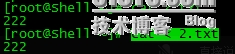
[[email protected] ~]# lasdasd 2> error_2.log

[[email protected] ~]# ndiasndias 2>> error_2.log

7. 作业控制;
[[email protected] ~]# sleep 100          #按Crtl+z放到后台执行;
[[email protected] ~]# sleep 200          #按Crtl+z放到后台执行;
[[email protected] ~]# sleep 300          #按Crtl+z放到后台执行;
[[email protected] ~]# jobs               #查看后台执行作业;

[[email protected] ~]# fg 1 #将作业调回到前台执行;

二、变量
1. 自定义变量;
[[email protected] ~]# a=c
[[email protected] ~]# set | grep  -n ^a                #set可以把所有变量列出来;
55:a=c
[[email protected] ~]# env | grep ^a                    #env可以列出的当前用户的所有环境变量;
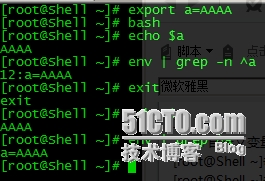
[[email protected] ~]# export a=AAAA                    #export引入全局变量;
[[email protected] ~]# bash
[[email protected] ~]# echo $a
AAAA
[[email protected] ~]# env | grep -n ^a
12:a=AAAA
[[email protected] ~]# exit
exit
[[email protected] ~]# echo $a
AAAA
[[email protected] ~]# bash                             #取消一个自定义变量;
[[email protected] ~]# unset a
[[email protected] ~]# env | grep ^a
2. 自定义变量中间如果带有空格, 需用引号;
[[email protected] ~]# a=aming Linux
-bash: Linux: command not found
[[email protected] ~]# a='aming Linux'
[[email protected] ~]# echo $a
aming Linux
[[email protected] ~]# b=`echo $a`                    #` `引用里面的值赋值给b;
[[email protected] ~]# echo $b
aming Linux
[[email protected] ~]# b='echo $a'                    #' '只打印出里面的参数;
[[email protected] ~]# echo $b
echo $a
[[email protected] ~]# b="echo $a"                    #" "引用里面的值并打印;
[[email protected] ~]# echo $b
echo aming Linux
3. 合并变量;
[[email protected] ~]# a=2
[[email protected] ~]# b=1
[[email protected] ~]# c=$a'$b'
[[email protected] ~]# echo $c
2$b
[[email protected] ~]# c=$a"$b"
[[email protected] ~]# echo $c
21
[[email protected] ~]# c=$a`$b`
-bash: 1: command not found
4. 系统变量和用户变量;
[[email protected] ~]# cat /etc/profile
[[email protected] ~]# cat /etc/bashrc
[[email protected] ~]# cat .bash_profile
[[email protected] ~]# cat .bashrc
[[email protected] ~]# echo 'echo "bashrc"' >> .bashrc
[[email protected] ~]# echo 'echo "profile"' >> .bash_profile
[[email protected] ~]# bash
bashrc
[[email protected] ~]# su -
bashrc
profile
总结:
/etc/profile和/etc/bashrc属于全局配置.
$HOME/bashrc和$HOME/bash_profile属于用户配置.
一组对所有用户生效, 一组对当前用户生效.
三、Shell常用命令
1. cut分割
-d: 指定分隔符;
-f: 打印第几段;
-c: 指定截取字符;
以':'为分隔符, 打印/etc/passwd第一段到三段的字符;
[[email protected] ~]# cut -d ':' -f 1-3 /etc/passwd | head -3
root:x:0
bin:x:1
daemon:x:2
截取/etc/passwd的第一个字符到第五个字符;
[[email protected] ~]# cut -c 1-5 /etc/passwd | head -3
root:
bin:x
daemo
2. sort排序
-t: 指定分隔符;
-k: 对第几列排序;
-n: 以数字排序(默认从小到大);
-r: 反向排序,结合-n使用;
-u: 去掉重复行;
以':'为分隔符, 以从小到大数字排序/etc/passwd的第三段字符;
[[email protected] ~]# sort -t ':' -k3 -n /etc/passwd
root:x:0:0:root:/root:/bin/bash
bin:x:1:1:bin:/bin:/sbin/nologin
daemon:x:2:2:daemon:/sbin:/sbin/nologin
adm:x:3:4:adm:/var/adm:/sbin/nologin
lp:x:4:7:lp:/var/spool/lpd:/sbin/nologin
……………………/省略
以':'为分隔符, 以从大到小数字排序/etc/passwd的第三段字符;
[[email protected] ~]# sort -t ':' -k 3 -nr /etc/passwd
user1:x:500:500::/home/user1:/bin/bash
saslauth:x:499:76:"Saslauthd user":/var/empty/saslauth:/sbin/nologin
dhcpd:x:177:177:DHCP server:/:/sbin/nologin
nobody:x:99:99:Nobody:/:/sbin/nologin
postfix:x:89:89::/var/spool/postfix:/sbin/nologin
3. uniq去重行
-c: 去重行;
[[email protected] ~]# cat 2.txt
222
222
333
222
333
111
222
[[email protected] ~]# uniq -c 2.txt
      2 222
      1 333
      1 222
      1 333
      1 111
      1 222
4. wc统计行数、字符数、词数
-l: 统计行数;
-m: 统计字符数;
-w: 统计词数;
[[email protected] ~]# wc 2.txt
7  7 28 2.txt
[[email protected] ~]# wc -l 2.txt
7 2.txt
[[email protected] ~]# wc -m 2.txt
28 2.txt
[[email protected] ~]# wc -w 2.txt
7 2.txt
5. tr替换字符
[[email protected] ~]# ls | tr '1-9' 'A-Z' #将数字1-9替换为A-Z;
6. split切割文件
-b: 按文件大小分割;
-l : 按行数分割;
[[email protected] ~]# du -sh 1.txt
160K    1.txt
[[email protected] ~]# split -l 20 1.txt
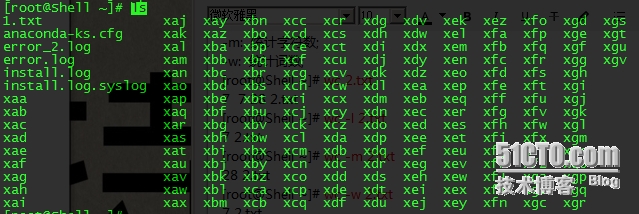
[[email protected] ~]# ls x* | xargs -i mv {} {}.txt                #将x*改为x*.txt
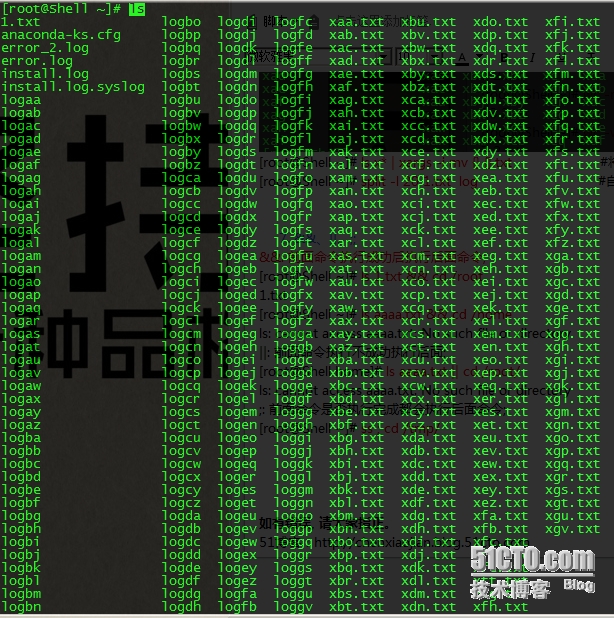
[[email protected] ~]# split -l 20 1.txt  log                       #自定义分割完后的名字;
7. &&、||、;;
&&: 前面命令执行成功后执行后面命令;
[[email protected] ~]# ls 1.txt && cd /root
1.txt
[[email protected] ~]# ls aaaa.txt && cd /home
ls: cannot access aaaa.txt: No such file or directory
||: 前面命令执行不成功执行后面;
[[email protected] home]# ls aaaa.txt || cd /root/
ls: cannot access aaaa.txt: No such file or directory
;: 前面命令是否执行完成都会执行后面命令;
[[email protected] ~]# ss ; cd /tmp

转载于:https://blog.51cto.com/chenxiaojian/1630205