Nginx作为一款优秀的Web Server软件同时也是一款优秀的负载均衡或前端反向代理、缓存服务软件,很有必要搭建实验环境来对其进行学习。
1.实验环境
本次实验的测试环境使用的宿主机操作系统为Windows 7,在Vmware虚拟机安装CentOS 6.5,说明如下:
-
宿主机操作系统Windows 7
-
虚拟机安装的操作系统CentOS 6.5
-
虚拟机操作系统上网方式NAT
而当使用NAT的方式进行上网时虚拟机、宿主机之间的网络连接关系可如下所示:

关于为什么网络拓扑结构是这样的,这里不展开说明,可以参考博主的另一篇博文《在实践中深入理解VMware虚拟机的上网模式NAT模式》,这篇文章深入地分析了VMware虚拟机使用NAT模式上网时的网络结构细节,相信看完这篇文章后,这里搭建Nginx的实验环境也就很容易理解了。
另外需要注意的是这里安装的CentOS 6.5操作系统使用了最小化安装,并且只定制安装了一些常用的开发工具如gcc等,其版本信息如下:
|
1
2
3
4
5
6
|
[[email protected] ~]# cat /etc/redhat-release
CentOS release 6.5 (Final)[[email protected] ~]# uname -r
2.6.32-431.el6.x86_64[[email protected] ~]# uname -m
x86_64 |
2.编译安装Nginx
(1)安装Nginx依赖函数库pcre
pcre为“perl兼容正则表达式”perl compatible regular expresssions,安装其是为了使Nginx支持具备URI重写功能的rewrite模块,如果不安装Nginx将无法使用rewrite模块功能,但是该功能却十分有用和常用。
检查系统中是否有安装:
|
1
|
[[email protected] ~]# rpm -q pcre pcre-devel
|
上面可以看到并没有安装使用yum方式安装如下:
|
1
2
3
4
5
6
7
8
9
10
|
[[email protected] ~]# yum install pcre pcre-devel -y
......Installed: pcre-devel.x86_64 0:7.8-7.el6
Updated: pcre.x86_64 0:7.8-7.el6
Complete! |
安装完后检查一下是否已经成功安装:
|
1
2
3
|
可以看到已经安装成功。
(2)安装Nginx依赖函数库openssl-devel
Nginx在使用HTTPS服务的时候要用到此模块,如果不安装openssl相关包,安装过程中是会报错的。
检查系统是否有安装openssl相关包:
|
1
2
3
|
[[email protected] ~]# rpm -q openssl openssl-devel
openssl-1.0.1e-15.el6.x86_64package openssl-devel is not installed |
可以看到只是安装了opensslopenssl-devel还没有安装使用yum安装如下:
|
1
2
3
4
|
再次检查:
|
1
2
3
|
[[email protected] ~]# rpm -q openssl openssl-devel
openssl-1.0.1e-48.el6_8.4.x86_64openssl-devel-1.0.1e-48.el6_8.4.x86_64 |
可以看到都已经成功安装上。
(3)下载Nginx软件包
这里使用的Nginx版本为1.6.3,下载方式如下:
|
1
2
3
4
5
6
7
8
9
|
[[email protected] ~]# pwd
/root[[email protected] ~]# mkdir tools
[[email protected] ~]# cd tools/
[[email protected] tools]# wget http://nginx.org/download/nginx-1.6.3.tar.gz
......100%[======================================>] 805,253 220K/s in 3.6s
2017-02-24 12:10:26 (220 KB/s) - anginx-1.6.3.tar.gza saved [805253/805253]
|
查看下载的Nginx软件包:
|
1
2
3
|
[[email protected] tools]# ll
total 788-rw-r--r--. 1 root root 805253 Apr 8 2015 nginx-1.6.3.tar.gz
|
当然上面的方式是使用wget方式直接下载,前提是已经知道了Nginx的下载地址,也可以到官网下载,然后再上传到我们的CentOS操作系统上。
(4)开始安装Nginx
可以先在根目录下创建一个/application文件夹用来存放我们安装的软件:
|
1
2
3
|
-
解压缩
将我们刚刚下载的Nginx软件包解压缩:
|
1
2
3
4
|
[[email protected] tools]# tar -zxvf nginx-1.6.3.tar.gz
......[[email protected] tools]# ls
nginx-1.6.3 nginx-1.6.3.tar.gz
|
-
使用./configure指定编译参数
先创建一个nginx用户用来安装完成后运行nginx使用:
|
1
2
3
4
5
6
|
[[email protected] tools]# useradd nginx -s /sbin/nologin -M
[[email protected] tools]# tail -1 /etc/passwd
nginx:x:500:500::/home/nginx:/sbin/nologin
# -s参数后的/sbin/nologin指定不允许nginx进行登陆# -M参数则是在创建该用户时不创建用户家目录 |
使用configure命令指定编译参数:
|
1
|
[[email protected] nginx-1.6.3]# ./configure --user=nginx --group=nginx --prefix=/application/nginx-1.6.3/ --with-http_stub_status_module --with-http_ssl_module
|
对于配置时使用的参数可以通过./configure --help来进行查询,上面使用的参数解析如下:
|
1
2
3
4
5
|
--prefix=PATH # 指定安装路径
--user=USER # 设置用户进程权限
--group=GROUP # 设置用户组进程权限
--with-http_stub_status_module # **状态信息
--with-http_ssl_module # **ssl功能
|
-
使用make进行编译
|
1
2
|
[[email protected] nginx-1.6.3]# make
...... |
检查编译是否成功:
|
1
2
|
[[email protected] nginx-1.6.3]# echo $?
0 |
返回0即说明编译成功。
-
使用make install安装
|
1
2
|
[[email protected] nginx-1.6.3]# make install
...... |
检查安装是否成功:
|
1
2
|
[[email protected] nginx-1.6.3]# echo $?
0 |
返回0即说明安装成功。
-
建立安装目录的软链接
|
1
2
3
4
5
|
[[email protected] nginx-1.6.3]# ln -s /application/nginx-1.6.3/ /application/nginx
[[email protected] nginx-1.6.3]# ls -l /application/
total 4lrwxrwxrwx. 1 root root 25 Feb 24 12:32 nginx -> /application/nginx-1.6.3/
drwxr-xr-x. 6 root root 4096 Feb 24 12:28 nginx-1.6.3 |
到此Nginx的编译安装工作已经全部完成了,下面就需要对安装结果进行验证了即验证Nginx是否可以正常提供服务。
3.测试Nginx服务
(1)启动Nginx服务前检查配置文件语法
如下:
|
1
2
3
|
[[email protected] ~]# /application/nginx/sbin/nginx -t
nginx: the configuration file /application/nginx-1.6.3//conf/nginx.conf syntax is ok
nginx: configuration file /application/nginx-1.6.3//conf/nginx.conf test is successful
|
(2)启动Nginx服务
|
1
|
[[email protected] ~]# /application/nginx/sbin/nginx
|
如果在启动Nginx服务时出现了问题可以查看Nginx的日志/application/nginx/logs/error.log,再根据日志提供的信息来进行解决。
(3)验证Nginx服务是否正常
-
查看已开启的端口信息
|
1
2
3
|
[[email protected] ~]# netstat -lnp | grep 80
tcp 0 0 0.0.0.0:80 0.0.0.0:* LISTEN 6772/nginx unix 2 [ ACC ] STREAM LISTENING 9180 1/init @/com/ubuntu/upstart
|
可以看到Nginx已经在侦听80端口。
-
查看Nginx进程
|
1
2
3
4
|
[[email protected] ~]# ps aux | grep nginx
root 6772 0.0 0.1 45028 1140 ? Ss 12:34 0:00 nginx: master process /application/nginx/sbin/nginx
nginx 6773 0.0 0.1 45460 1716 ? S 12:34 0:00 nginx: worker process root 6777 0.0 0.0 103256 832 pts/1 S+ 12:36 0:00 grep nginx
|
-
在宿主机上使用浏览器进行测试
在我们宿主机的浏览器上输入http://10.0.0.101/,查看测试结果
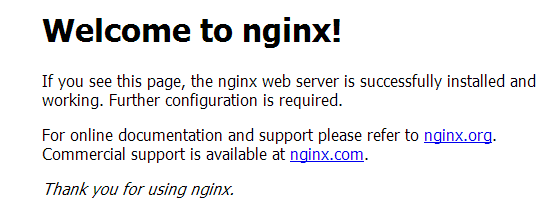
可以正常访问,当然前提是CentOS上的防火墙功能已经关闭。
-
使用wget命令和curl命令测试
wget命令:
|
1
2
3
4
5
6
7
8
9
10
|
[[email protected] tools]# wget 127.0.0.1
--2017-02-24 12:41:05-- http://127.0.0.1/
Connecting to 127.0.0.1:80... connected.HTTP request sent, awaiting response... 200 OKLength: 612 [text/html]
Saving to: aindex.htmla100%[======================================>] 612 --.-K/s in 0s
2017-02-24 12:41:05 (44.1 MB/s) - aindex.htmla saved [612/612]
|
currl命令:
|
1
2
3
4
5
6
7
8
9
10
11
12
13
14
15
16
17
18
19
20
21
22
23
24
25
26
|
[[email protected] tools]# curl 127.0.0.1
<!DOCTYPE html><html><head>
<title>Welcome to nginx!</title>
<style> body {
width: 35em;
margin: 0 auto;
font-family: Tahoma, Verdana, Arial, sans-serif;
}
</style>
</head>
<body><h1>Welcome to nginx!</h1>
<p>If you see this page, the nginx web server is successfully installed andworking. Further configuration is required.</p>
<p>For online documentation and support please refer to<a href="http://nginx.org/">nginx.org</a>.<br/>
Commercial support is available at<a href="http://nginx.com/">nginx.com</a>.</p>
<p><em>Thank you for using nginx.</em></p>
</body>
</html>
|
从上面的结果可以说明Nginx已经正常部署并运行。
4.进一步测试修改Nginx显示的页面
通过修改/application/nginx/html下的index.html文件,我们就可以改变Nginx主页显示的内容,操作如下:
|
1
2
3
4
5
6
7
8
9
|
[[email protected] tools]# cd /application/nginx/html/
[[email protected] html]# ls
50x.html index.html[[email protected] html]# mv index.html index.html.source
[[email protected] html]# echo "<h1>Hello, I'm xpleaf.</h1>">index.html
[[email protected] html]# ls
50x.html index.html index.html.source
[[email protected] html]# cat index.html
<h1>Hello, I'm xpleaf.</h1>
|
这时在宿主机操作系统上访问http://10.0.0.101/

可以看到已经显示我们编辑的页面了。
5.在实际场景中的应用
不管是用于学习还是在生产环境中使用,Nginx都十分重要,而好的开始是成功的一半,所以第一步当然是要把Nginx服务搭建好。
本文转自 xpleaf 51CTO博客,原文链接:http://blog.51cto.com/xpleaf/1901122,如需转载请自行联系原作者