快2个月没写博客,最近一个是忙着开发docker平台,另外一个是接手了公司私有云,所以比较忙。
公司最近有个新项目,想弄个技术的问答论坛,挑选了半天,选择ruby语言的discourse,这个是完全开源的,界面简洁,支持中文,有管理后台,满足需求。
discourse的地址是https://www.discourse.org
界面如下

系统环境
官方推荐使用ubuntu,并且安装的程序也是支持ubuntu系统,docker安装模式,所以我选择了云主机ubuntu 14.04系统,discourse是最新的1.5.0版本。
安装地址可以参考https://github.com/discourse/discourse/blob/master/docs/INSTALL-cloud.md
1、更新源
|
1
|
apt-get update |
2、安装依赖软件
|
1
|
apt-get install ruby git
|
3、安装docker
|
1
|
wget -qO- https://get.docker.com/ | sh
|
安装完成后可以使用docker version查看
|
1
2
3
4
5
6
7
8
9
10
11
12
13
14
15
16
|
Client: Version: 1.9.1
API version: 1.21
Go version: go1.4.2
Git commit: a34a1d5
Built: Fri Nov 20 13:12:04 UTC 2015
OS/Arch: linux/amd64
Server: Version: 1.9.1
API version: 1.21
Go version: go1.4.2
Git commit: a34a1d5
Built: Fri Nov 20 13:12:04 UTC 2015
OS/Arch: linux/amd64
|
当前我的是1.9.1版本
4、安装discourse
|
1
2
3
4
|
mkdir /data/discourse
git clone https://github.com/discourse/discourse_docker.git /data/discourse
cd /data/discourse
cp samples/standalone.yml containers/app.yml
|
ps:默认官方是放入/var目录里,我这里放入/data是因为这个目录是我云主机挂载的盘
|
1
2
3
4
5
6
7
8
9
10
|
[email protected]:~# df -h
Filesystem Size Used Avail Use% Mounted on/dev/vda1 18G 1.8G 15G 11% /
none 4.0K 0 4.0K 0% /sys/fs/cgroup
udev 3.9G 8.0K 3.9G 1% /dev
tmpfs 799M 412K 799M 1% /run
none 5.0M 0 5.0M 0% /run/lock
none 3.9G 0 3.9G 0% /run/shm
none 100M 0 100M 0% /run/user
/dev/vdb1 193G 60M 183G 1% /data
|
5、修改discourse配置
|
1
2
3
4
5
6
7
8
9
10
11
12
13
14
15
16
17
18
19
20
21
22
23
24
25
26
27
28
29
30
31
32
33
34
35
36
37
38
39
40
41
42
43
44
|
templates: - "templates/postgres.template.yml"
- "templates/redis.template.yml"
- "templates/web.template.yml"
- "templates/sshd.template.yml"
- "templates/web.ratelimited.template.yml"
- "templates/web.china.template.yml"
expose: - "80:80" # fwd host port 80 to container port 80 (http)
- "2222:22" # fwd host port 2222 to container port 22 (ssh)
params: db_default_text_search_config: "pg_catalog.english"
db_shared_buffers: "2GB"
db_work_mem: "40MB"
env:
LANG: en_US.UTF-8
UNICORN_WORKERS: 6
DISCOURSE_HOSTNAME: 'discuss.xxx.net'
DISCOURSE_SMTP_ADDRESS: smtp.163.com # (mandatory)
DISCOURSE_SMTP_PORT: 25 # (optional)
DISCOURSE_SMTP_USER_NAME: xxx # (optional)
DISCOURSE_SMTP_PASSWORD: 123123 # (optional, WARNING the char '#' in pw can cause problems!)
DISCOURSE_SMTP_AUTHENTICATION: login
DISCOURSE_SMTP_OPENSSL_VERIFY_MODE: none
DISCOURSE_SMTP_ENABLE_START_TLS: false # (optional, default true)
volumes: - volume:
host: /data/discourse/shared/standalone
guest: /shared
- volume:
host: /data/discourse/shared/standalone/log/var-log
guest: /var/log
hooks: after_code:
- exec:
cd: $home/plugins
cmd:
- git clone https://github.com/discourse/docker_manager.git
run: - exec: echo "Beginning of custom commands"
- exec: echo "End of custom commands"
- exec: awk -F\# '{print $1;}' ~/.ssh/authorized_keys | awk 'BEGIN { print "Authorized SSH keys for this container:"; } NF>=2 {print $NF;}'
|
下面是需要修改的
|
1
2
3
4
5
6
7
8
9
|
DISCOURSE_DEVELOPER_EMAILS是你邮件地址;DISCOURSE_HOSTNAME是你web端打开的地址,可以是公网IP,也可以是dns域名;DISCOURSE_SMTP_ADDRESS、DISCOURSE_SMTP_PORT、DISCOURSE_SMTP_USER_NAME、DISCOURSE_SMTP_PASSWORD是你邮箱信息,这个邮箱是用户注册或其他行为时,发送给用户进行验证的邮箱,其中密码DISCOURSE_SMTP_PASSWORD里不能包含#,否则会被识别有问题;
默认authentication是plain,但我测试使用163邮箱的话,无法登陆,所以改为login;默认enable_starttls_auto是开启tls验证,我这里也给改为false;
另外在template里加入一行 - "templates/web.china.template.yml"
不加入的话,默认使用ruby的库是国外的ruby.org镜像源,加上这个后是使用国内taobao的ruby镜像源具体配置参考注释,比如db_shared_buffers、db_work_mem、UNICORN_WORKERS根据你内存来配置。 |
6、生成镜像
默认是先下载一个公共的discourse/discourse镜像,然后会根据你的配置生成一个本地的镜像local_discourse/app,如下
|
1
2
3
4
|
REPOSITORY TAG IMAGE ID CREATED VIRTUAL SIZElocal_discourse/app latest 4272aa220d69 2 hours ago 1.877 GB
discourse/discourse 1.0.15 cb7b58c22b11 2 weeks ago 1.265 GB
|
下面是生成的命令
|
1
|
./launcher bootstrap app
|
|
1
2
3
4
|
86c397191c205624ded7181c06b1d73ea1856abe126a717354dc308d2964282acfbab5cb2ff9745616cb0e604c47644d2a7041445fda6b0da0aa697714bf466bSuccessfully bootstrapped, to startup use ./launcher start app
|
然后使用./launcher start app启动
|
1
2
3
|
CONTAINER ID IMAGE COMMAND CREATED STATUS PORTS NAMESd0b519f15db7 local_discourse/app "/sbin/boot" 35 seconds ago Up 33 seconds 0.0.0.0:80->80/tcp, 0.0.0.0:2222->22/tcp app
|
之后直接在web里输入域名或者ip就可以直接访问
7、配置管理员用户
参考https://meta.discourse.org/t/create-admin-account-from-console/17274
或者直接按照下面操作
进入容器
|
1
|
./launcher enter app
|
创建管理员账户
|
1
|
rake admin:create |
下面是官方的介绍
|
1
2
3
4
5
6
7
8
9
|
You will be asked for Email, Password and Confirm Password.
After providing required information a new account will be created with random username.Now you will be asked: Do you want to grant Admin privileges to this account? (Y/n). Press enter to continue.
You will see success message: Your account now has Admin privileges!.That's it, you have created a new account with Admin privileges. |
8、登陆验证
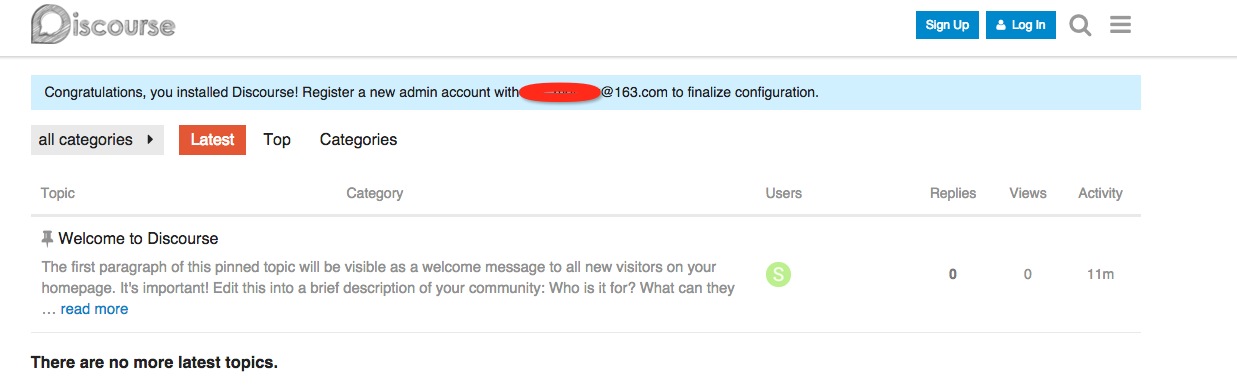
登陆后的界面为

9、修改为中文界面
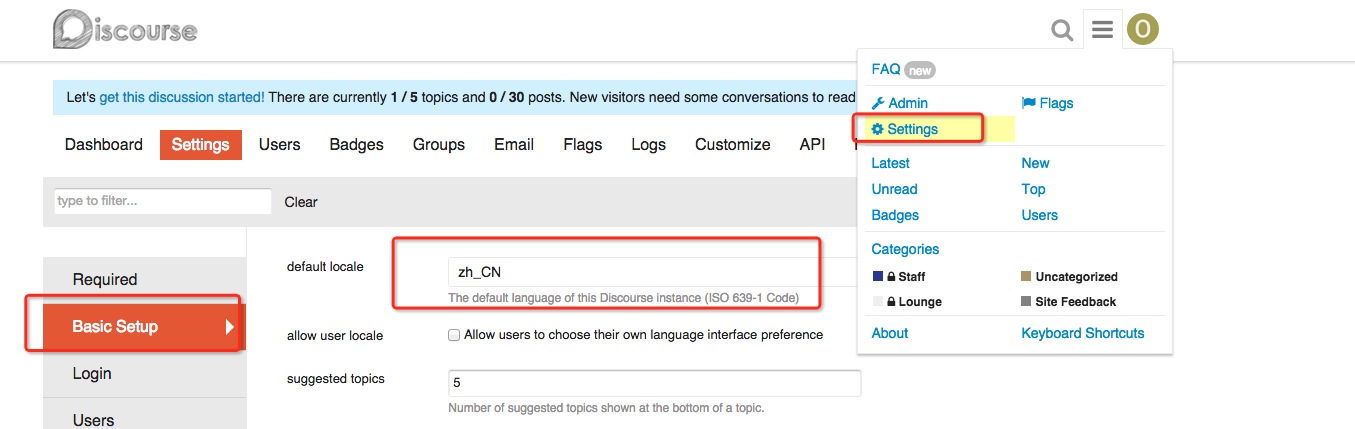
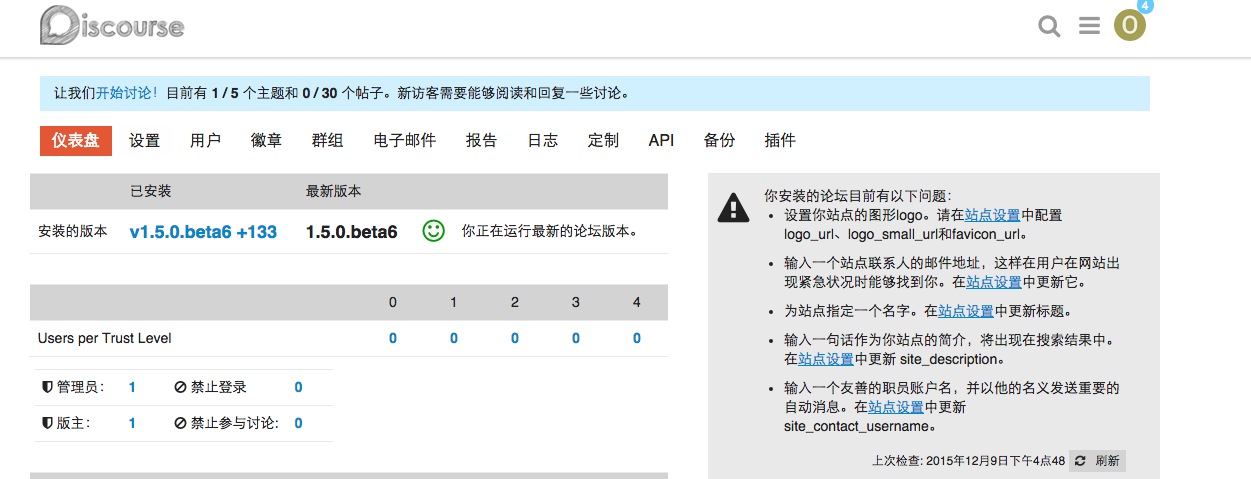
修改后刷新,然后显示为
10、FAQ
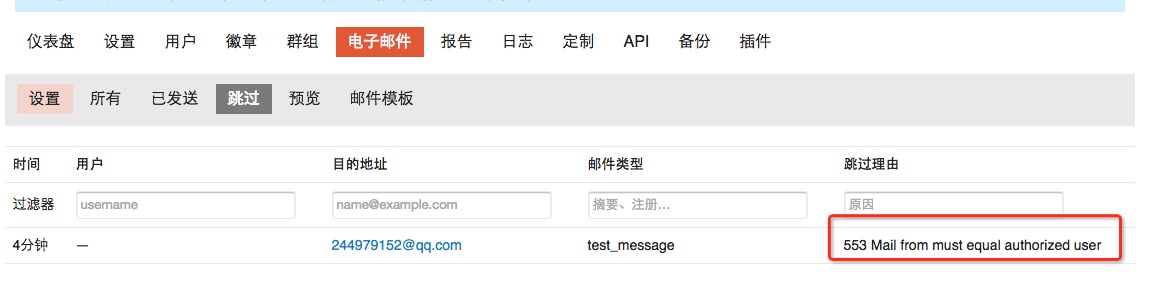
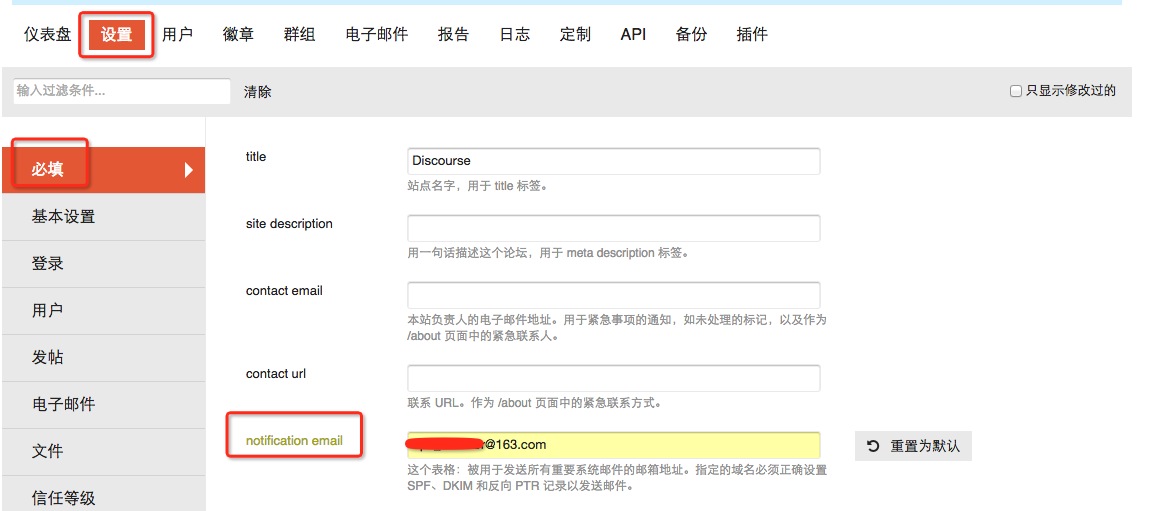
如果遇到无法发送验证邮件,检测问题为
553 Mail from must equal authorized user
本文转自 reinxu 51CTO博客,原文链接:http://blog.51cto.com/dl528888/1721248,如需转载请自行联系原作者