一、系统启动流程
首先POST开机加电自检-->BIOS(boot sequence)选择启动顺序-->GRUB(bootloader)引导-->加载内核kernel(initrd)-->启动SHELL
二、裁剪准备工作
1、首先在虚拟机添加一块硬盘,硬盘名称写一个好记得,以便后续需要时方便查找到。

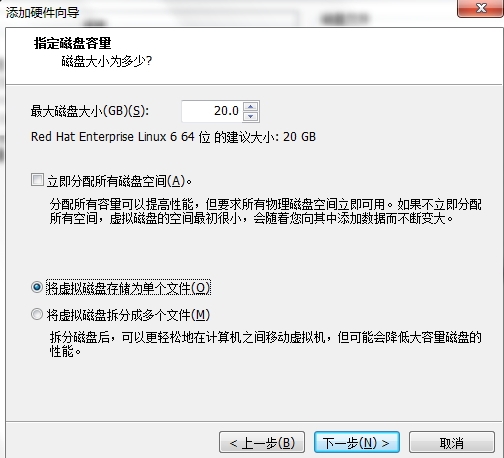
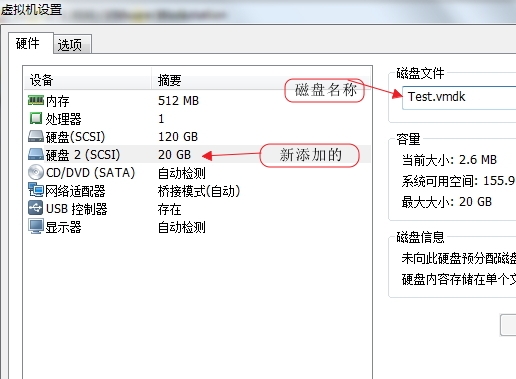
2、硬盘添加完成后,需要对硬盘进行格式化分区处理。
|
1
2
3
4
5
6
7
8
|
#查看添加的硬盘[Linux]#fdisk -l /dev/sd[a-z]
Disk /dev/sdb: 21.5 GB, 21474836480 bytes
255 heads, 63 sectors/track, 2610 cylinders
Units = cylinders of 16065 * 512 = 8225280 bytes
Sector size (logical/physical): 512 bytes / 512 bytes
I/O size (minimum/optimal): 512 bytes / 512 bytes
Disk identifier: 0x00000000
|
格式化分区处理,分两个主分区:一个500M的,剩余为一个分区
|
1
2
3
4
5
6
7
8
9
10
11
12
13
14
15
16
17
|
[Linux]#fdisk -l /dev/sdb
Device Boot Start End Blocks Id System
/dev/sdb1 1 65 522081 83 Linux
/dev/sdb2 66 2610 20442712+ 83 Linux
#格式化分区为ext4文件格式[Linux]#mke2fs -t ext4 /dev/sdb1
[Linux]#mke2fs -t ext4 /dev/sdb2
在/mnt下创建两个文件夹来挂载这两个分区
[Linux]#mkdir /mnt/{boot,sysroot}
挂载[Linux]#mount /dev/sdb1 /mnt/boot/
[Linux]#mount /dev/sdb2 /mnt/sysroot/
出现lost+found说明挂载成功
[Linux]#ls /mnt/boot/
lost+found
[Linux]#ls /mnt/sysroot/
lost+found
|
3、复制内核文件以及一些基本的命令至新硬盘中;内核文件复制至boot目录;命令复制sysroot目录;
|
1
2
3
4
5
|
复制时进行了重命名是方便后续操作,也可以不用重命名,但是需要注意两个文件的版本匹配[Linux]#cp /boot/vmlinuz-2.6.32-358.el6.x86_64 /mnt/boot/vmlinuz
[Linux]#cp /boot/initramfs-2.6.32-358.el6.x86_64.img /mnt/boot/initramfs.img
[Linux]#ls /mnt/boot/
initramfs.img lost+found vmlinuz
|
4、安装grub文件:命令grub-install
格式:grub-install --root-directory=/path(为boot上级目录) /dev/disk
|
1
2
3
4
5
6
7
8
9
10
11
|
[Linux]#grub-install --root-directory=/mnt /dev/sdb
Probing devices to guess BIOS drives. This may take a long time.
Installation finished. No error reported.This is the contents of the device map /mnt/boot/grub/device.map.
Check if this is correct or not. If any of the lines is incorrect,
fix it and re-run the script `grub-install'.
(fd0) /dev/fd0
(hd0) /dev/sda
(hd1) /dev/sdb
[Linux]#ls /mnt/boot/
grub initramfs.img lost+found vmlinuz
|
5、cp基本命令和命令所依赖的库文件至sysroot目录下,此处为自己写的脚本,由于不完善;在此不提供
|
1
2
3
4
5
6
7
8
9
10
11
12
13
14
15
16
17
18
|
[Linux]#sh cpcommand.sh
Enter a executable command:bashCopy successful!Enter a executable command:ifconfigCopy successful!Enter a executable command:ipCopy successful!Enter a executable command:lsCopy successful!Enter a executable command:catCopy successful!Enter a executable command:mkdirCopy successful!Enter a executable command:touchCopy successful!Enter a executable command:quitYou choose quit![Linux]#
|
|
1
2
3
4
5
6
7
8
9
10
11
12
13
14
15
16
17
18
19
20
21
22
23
24
25
26
27
28
29
30
31
32
33
34
35
36
37
38
39
40
41
42
43
44
|
#如下显示都已复制成功[Linux]#tree /mnt/
/mnt/
├── boot│ ├── grub│ │ ├── device.map
│ │ ├── e2fs_stage1_5│ │ ├── fat_stage1_5│ │ ├── ffs_stage1_5│ │ ├── iso9660_stage1_5│ │ ├── jfs_stage1_5│ │ ├── minix_stage1_5│ │ ├── reiserfs_stage1_5│ │ ├── stage1│ │ ├── stage2│ │ ├── ufs2_stage1_5│ │ ├── vstafs_stage1_5│ │ └── xfs_stage1_5│ ├── initramfs.img│ ├── lost+found
│ └── vmlinuz└── sysroot ├── bin
│ ├── bash
│ ├── cat
│ ├── ls
│ ├── mkdir
│ └── touch
├── lib64
│ ├── ld-linux-x86-64.so.2
│ ├── libacl.so.1
│ ├── libattr.so.1
│ ├── libcap.so.2
│ ├── libc.so.6
│ ├── libdl.so.2
│ ├── libpthread.so.0
│ ├── libresolv.so.2
│ ├── librt.so.1
│ ├── libselinux.so.1
│ └── libtinfo.so.5
├── lost+found
└── sbin
├── ifconfig
└── ip
|
6、编辑grub.conf文件来引导系统内核,里面内容的具体意思:
default:系统默认启动项
timeout:等待用户选择的时间,单位秒
title:启动菜单显示标志
root(hd0,0):根目录
kernel:内核路径,根下文件
root:挂载磁盘的根目录
selinux:系统内置安全软件,0代表关闭
init:系统引导文件
initrd:帮助内核挂载根
|
1
2
3
4
5
6
7
|
[Linux]#vi /mnt/boot/grub/grub.conf
default=0
timeout=5
title Test Linux System root (hd0,0)
kernel /vmlinuz ro root=/dev/sda2 selinux=0 init=/bin/bash
initrd /initramfs.img
|
7、创建根(/)也就是新磁盘/mnt/sysroot/下必要的文件夹:
|
1
2
3
4
5
6
7
8
9
10
11
12
13
14
15
16
17
18
19
20
21
22
23
24
25
26
27
28
29
30
31
32
33
34
35
36
37
38
39
|
[Linux]#mkdir -pv /mnt/sysroot/{etc/rc.d,root,proc,sys,lib,lib64,bin,sbin}
[Linux]#tree /mnt/sysroot/
/mnt/sysroot/
├── bin
│ ├── bash│ ├── cat│ ├── ls│ ├── sh -> /mnt/sysroot/bin/bash
│ └── vi├── etc│ └── rc.d├── lib├── lib64│ ├── ld-linux-x86-64.so.2
│ ├── libacl.so.1
│ ├── libattr.so.1
│ ├── libcap.so.2
│ ├── libc.so.6
│ ├── libdl.so.2
│ ├── libm.so.6
│ ├── libncurses.so.5
│ ├── libpthread.so.0
│ ├── libresolv.so.2
│ ├── librt.so.1
│ ├── libselinux.so.1
│ └── libtinfo.so.5
├── lost+found
├── proc├── root├── sbin│ ├── ifconfig│ └── ip├── sys└── usr └── bin
└── tree
#########################################################最后一定要记得执行同步命令[Linux]#sync
|
三、新建虚拟机进行测试
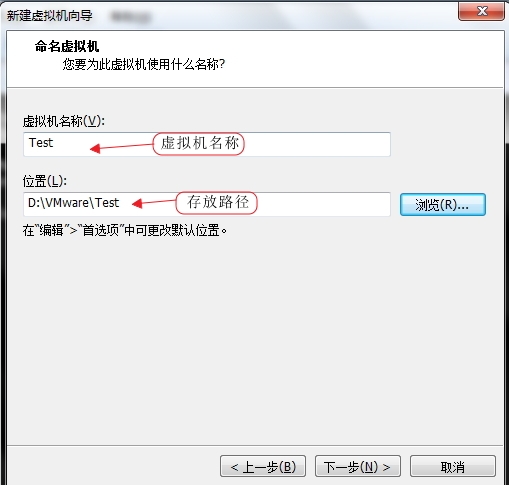
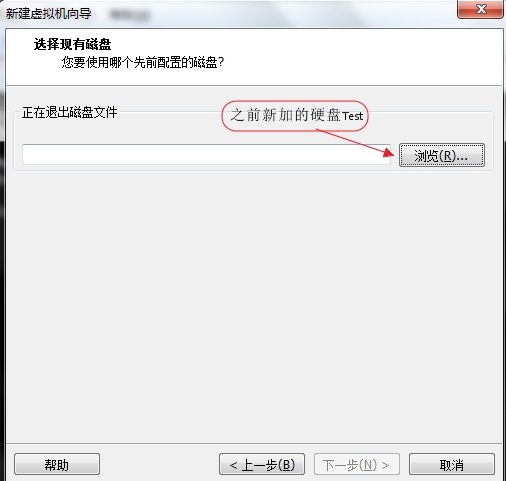
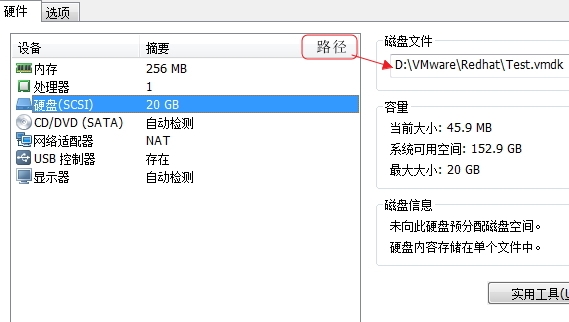
启动前先挂起之前的虚拟机或者卸载挂载的/mnt/boot/和/mnt/sysroot/这两个目录,否则会提示另一个正在使用磁盘;
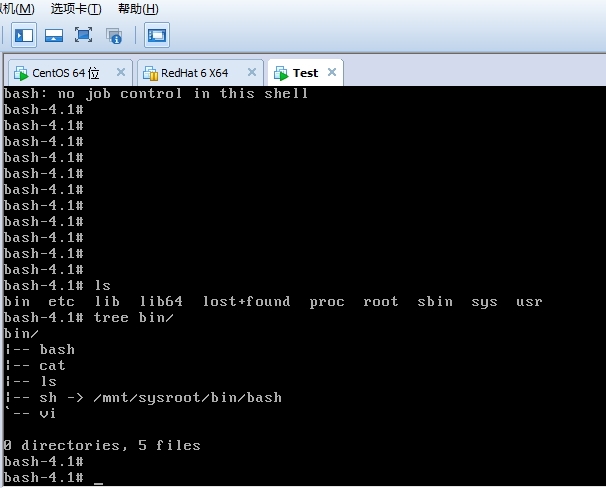
如果看到bash-这个就说明已经成功了,能基本进入。但是这个还不能配置IP地址和创建文件,因为grub里面挂载的是只读方式,且没有网卡,下面继续对网卡进行配置。
四、重新以读写模式挂载目录和自动加载网卡驱动
1、首先查看网卡模块类型
|
1
2
3
4
5
6
7
8
9
10
11
12
13
14
15
|
[Linux]#lsmod
Module Size Used byautofs4 26513 3
8021q 25349 0
garp 7152 1 8021q
stp 2218 1 garp
llc 5546 2 garp,stp
ipv6 317340 152
uinput 7992 0
microcode 112685 0
ppdev 8537 0
vmware_balloon 7199 0
parport_pc 22690 0
parport 36209 2 ppdev,parport_pc
e1000 170646 0 #这个就是我们需要的网卡名称
|
查看详细信息
|
1
2
3
4
5
6
7
|
[Linux]#modinfo e1000
filename: /lib/modules/2.6.32-431.el6.x86_64/kernel/drivers/net/e1000/e1000.ko
version: 7.3.21-k8-NAPI
license: GPLdescription: Intel(R) PRO/1000 Network Driver
author: Intel Corporation, <[email protected]>#最上面是网卡模块的路径,需要的就是这个路径 |
|
1
2
3
4
|
[Linux]#cd /lib/modules/2.6.32-431.el6.x86_64/kernel/drivers/net/e1000/e1000.ko /mnt/sysroot/lib/modules/
[Linux]#ls /mnt/sysroot/lib/modules/
e1000.ko#把网卡模块复制到该目录下为同名文件 |
2、在/sbin下写一个init脚本,引导系统重新挂载下根文件系统和自动装载网卡驱动,和配置IP地址。
|
1
2
3
4
5
6
7
8
9
10
11
12
13
14
15
|
[Linux]#vi /mnt/sysroot/sbin/init
#!/bin/bashecho -e "\033[36mWelcome to CentOS6.5 Test System\033[0m"
mount -n -t proc proc /proc
mount -n -t sysfs sysfs /sys
mount -n -o remount,rw /dev/sda2 /
insmod /lib/modules/e1000.ko
ifconfig lo 127.0.0.1/8
ifconfig eth0 192.168.1.100/24
/bin/bash
#首先给一个欢迎信息,然后挂载/proc和/sys目录#可参照/etc/fstab文件;和/etc/rc.d/rc.sysinit文件#在重新挂载根文件系统已读写方式。#在用insmod命令安装网卡,在配置IP。前提要先复制mount命令。#最后记得给这个文件执行权限 |
3、在重写下grub.conf配置文件,指定下init引导文件
|
1
2
3
4
5
6
7
|
[Linux]#vi /mnt/boot/grub/grub.conf
default=0
timeout=5
title CentOS Test! root(hd0,0)
kernel /vmlinuz ro root=/dev/sda2 selinux=0 init=/sbin/init
initrd /initramfs.img
|
完成后sync同步下,然后再按照之前的方式进行测试。
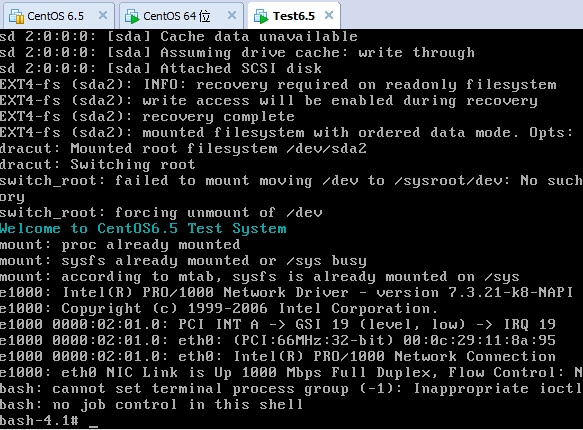
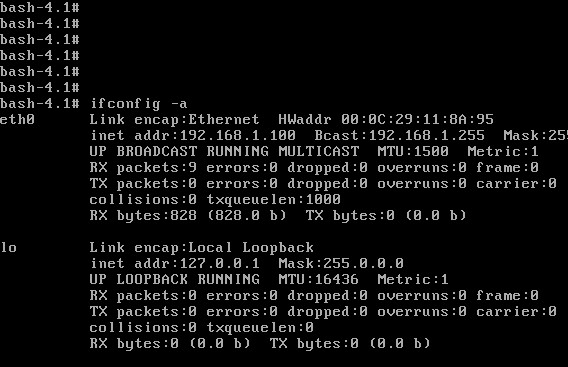
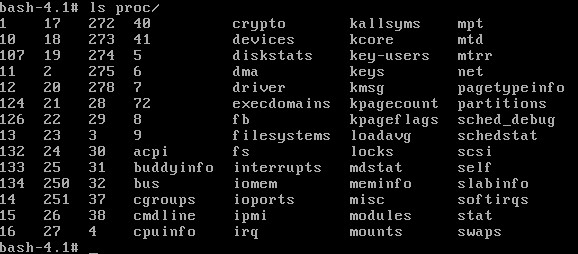

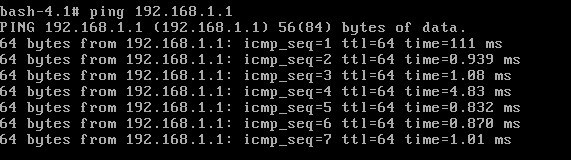
测试可以创建文件,网卡也是自动加载的,IP是配置文件里自动写入的,测试也是可以通的。至此,一个微型的linux系统已裁剪完成,其中复制命令的脚本是自己写的,由于不是很完善,这里就不予提供了,这中间还有很多不是很完善,如有错误,请及时指出。如有问题,也感谢及时反馈!
本文转自Mr_陈 51CTO博客,原文链接:http://blog.51cto.com/chenpipi/1370102,如需转载请自行联系原作者