This article demonstrates Power BI visuals for visualizing Coronavirus impact worldwide using various visuals such as a filled map, Word Cloud, Slicer, Q&A.
本文演示了Power BI可视化工具,它使用各种可视化工具(如填充地图,文字云,切片器,问答)可视化了全球冠状病毒的影响。
介绍 (Introduction)
World health organization declared Coronavirus (COVID-19) a pandemic. It is a disease spread in most of the countries. It is causing countries to seal their borders, cancel any mass gathering events, cancellation of concerts, meetings, sporting events, people to stay home, stock up groceries. It is impacting almost all categories economically like tourism, travel, aviation, petroleum. As per the recent article on Guardian, Corona could cut the world economy by $1tn.
世界卫生组织宣布冠状病毒(COVID-19)为大流行病。 它是一种在大多数国家/地区传播的疾病。 这导致各国封锁边界,取消任何群众集会,取消音乐会,会议,体育赛事,人们待在家里,积stock杂货。 它在经济上几乎影响了所有类别,如旅游,旅行,航空,石油。 根据《 卫报 》最近的一篇文章,电晕可能会使世界经济减少10亿美元。
You should follow the general guidelines offered by the WHO for ensuring safety from Coronavirus. In this article, we will focus on creating a Power BI Dashboard showcasing the Coronavirus impact worldwide.
您应遵循世界卫生组织提供的有关确保冠状病毒安全的一般指导原则。 在本文中,我们将重点放在创建Power BI仪表板,以展示冠状病毒在全球范围内的影响。
Note: We are creating this dashboard for demo and educational purposes only. You should validate the data from verified sources and stay safe!
注意 :我们正在创建此仪表板,仅用于演示和教育目的。 您应该验证来自已验证来源的数据并保持安全!
For this article, I am taking data from the 2019–20 coronavirus pandemic page of Wikipedia. First, let’s import the data into Power BI dashboard. Our data is in a web page so we can use a web data source. Launch Power BI Desktop and click on Get Data -> Web
对于本文,我将从Wikipedia的2019-20年冠状病毒大流行页面中获取数据。 首先,让我们将数据导入Power BI仪表板。 我们的数据在网页中,因此我们可以使用网络数据源。 启动Power BI Desktop,然后单击获取数据-> Web

In the Web source, specify the reference URL and click OK.
在Web源中,指定参考URL,然后单击“确定”。

On the next page, allow anonymous access for the web content. Click on Connect, as shown below.
在下一页上,允许匿名访问Web内容。 单击“连接”,如下所示。

It establishes a connection to Web URL.
它建立到Web URL的连接。

You get a table and a web view of the web page. Let’s go to Web view and select the table showing data that we want to import for our report. In this following screenshot, you can notice table 1 contains the required data for our dashboard.
您将获得一个表格和该网页的Web视图。 让我们转到Web视图,然后选择显示我们要为报告导入的数据的表。 在下面的屏幕截图中,您会注意到表1包含我们的仪表板所需的数据。

We can directly load this data or modify it per our requirement using Transform data. Let’s click on the transform data, and it opens Power Query Editor.
我们可以根据需要使用Transform data直接加载或修改此数据 。 让我们单击转换数据,它会打开Power Query Editor。
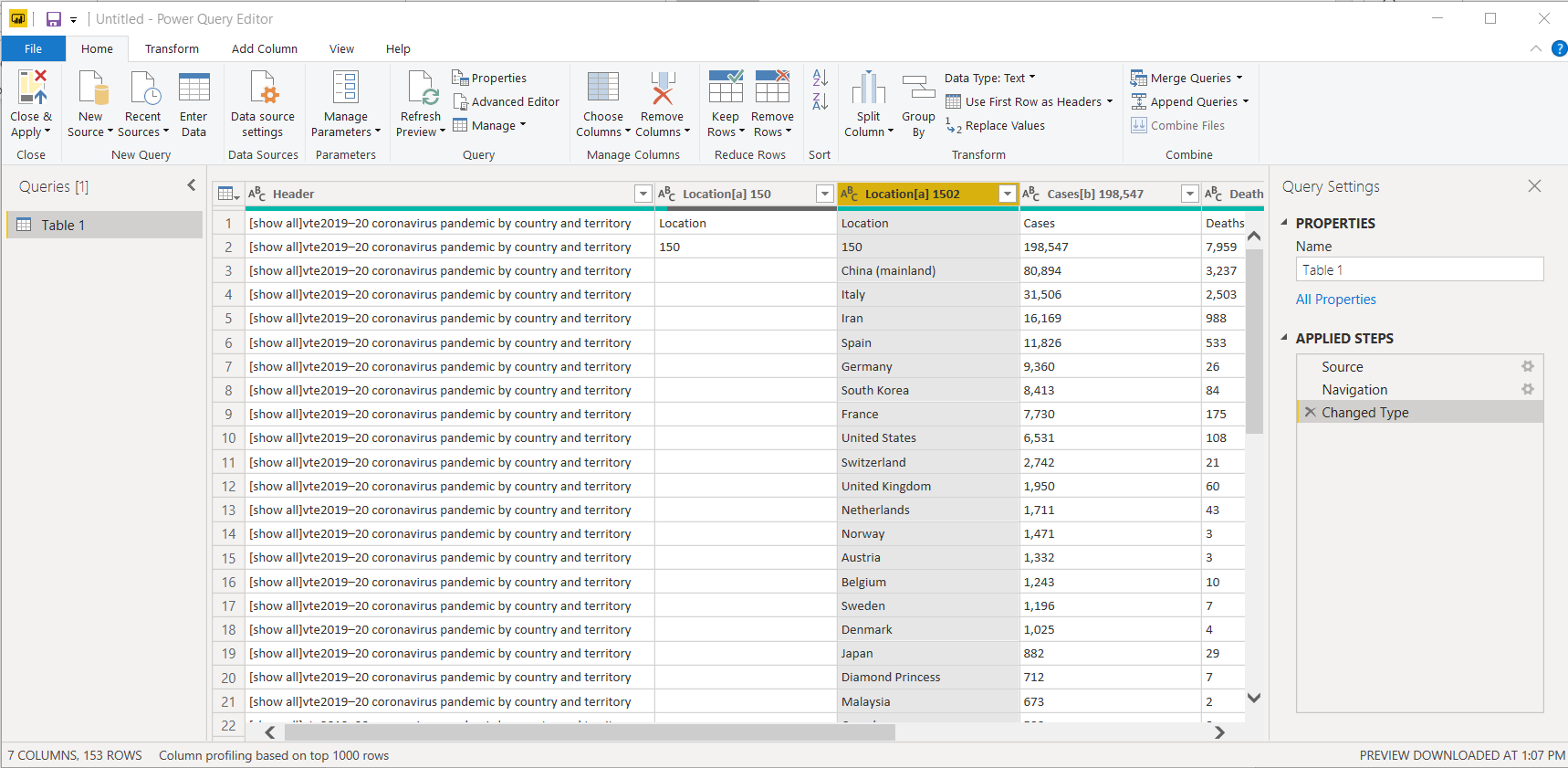
We do not require the first two columns in the report. Select these columns and click on Remove Columns.
我们不需要报告中的前两列。 选择这些列,然后单击“删除列”。
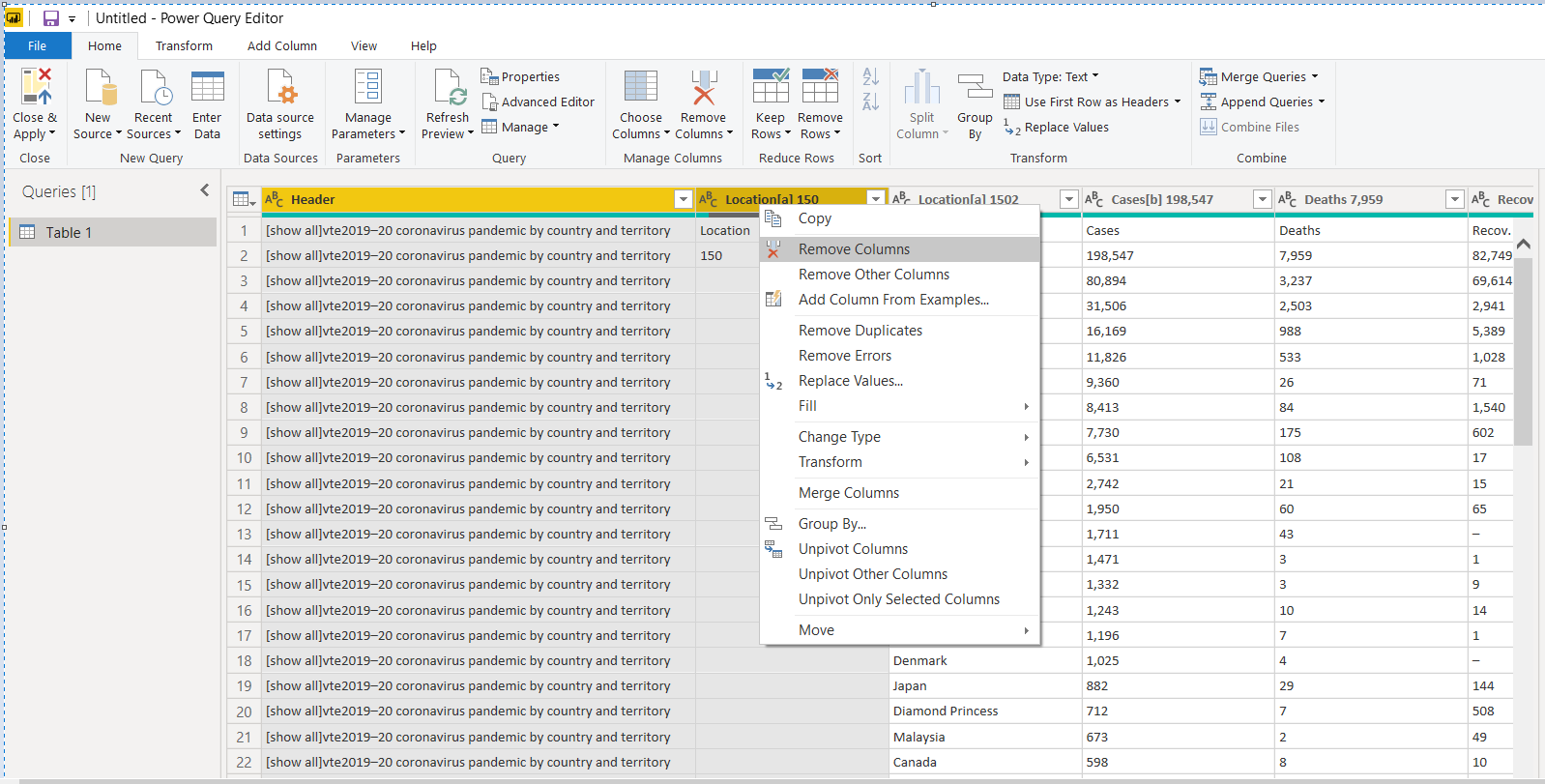
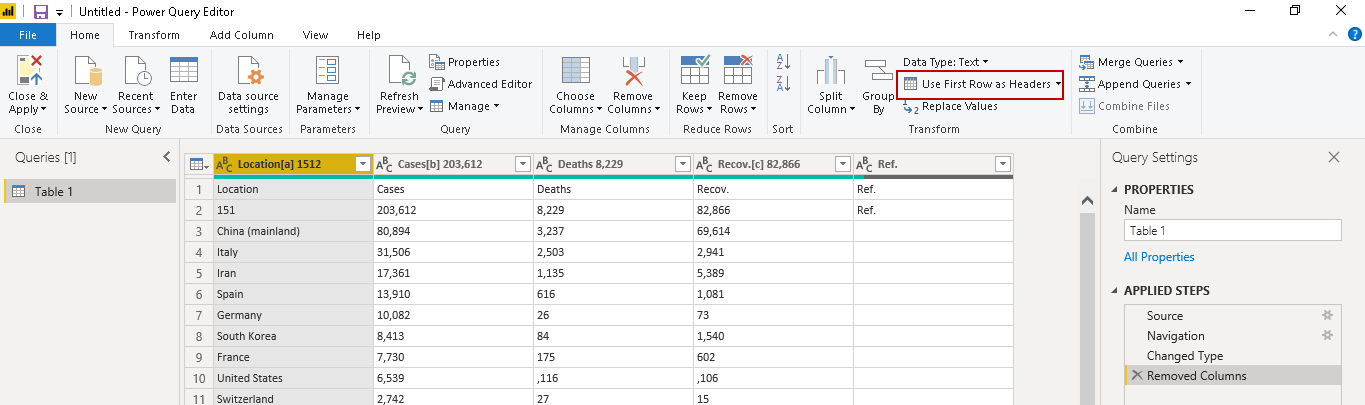
Once we removed the unwanted columns, we can make the first row as the column header. Click on Use first row as header as shown below.
删除不需要的列后,我们可以将第一行作为列标题。 单击“ 将第一行用作标题” ,如下所示。
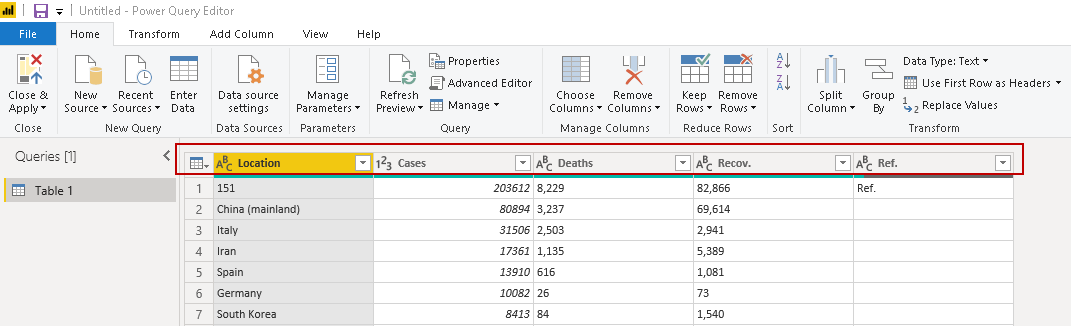
It changes the column header as per the following image.
它根据下图更改列标题。
We need to remove top rows as well in the data. Click on Remove Rows-> Remove Top Rows and specify 1 in the number of rows as shown below.
我们还需要删除数据中的顶部行。 单击“ 删除行”->“删除最上面的行”,然后在行数中指定1,如下所示。

It removes the top row, as shown below.
它将删除第一行,如下所示。
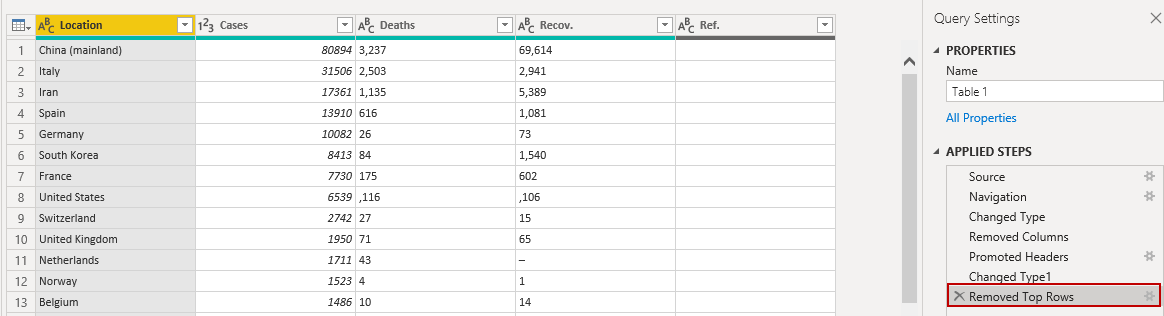
In the Location field, we have a few countries with the name in small brackets () as well. Let’s eliminate the small brackets text as well. Right-click on the Location column and select Split Column-> By Delimiter.
在位置字段中,我们还有几个国家/地区,其名称也放在小括号()中。 让我们也消除小括号中的文本。 右键单击“位置”列,然后选择“ 拆分列->按分隔符” 。

In the split column by delimiter menu, click on custom and specify small bracket[(] as a delimiter. We can use left-most delimiter in this case as it will split the text on the first occurrence of a small bracket.
在按分隔符分隔列菜单中,单击自定义并指定小括号[(]作为分隔符。在这种情况下,我们可以使用最左边的分隔符,因为它将在第一次出现小括号时拆分文本。

Click OK, and you get a new column for split data.
单击确定,您将获得一个用于拆分数据的新列。
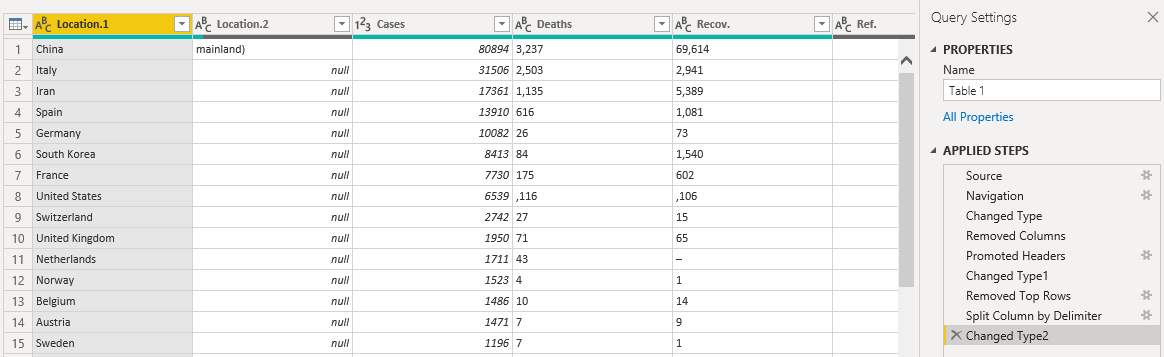
Right-click on the new column and Remove this column. Our data looks like below.
右键单击新列,然后删除该列。 我们的数据如下所示。
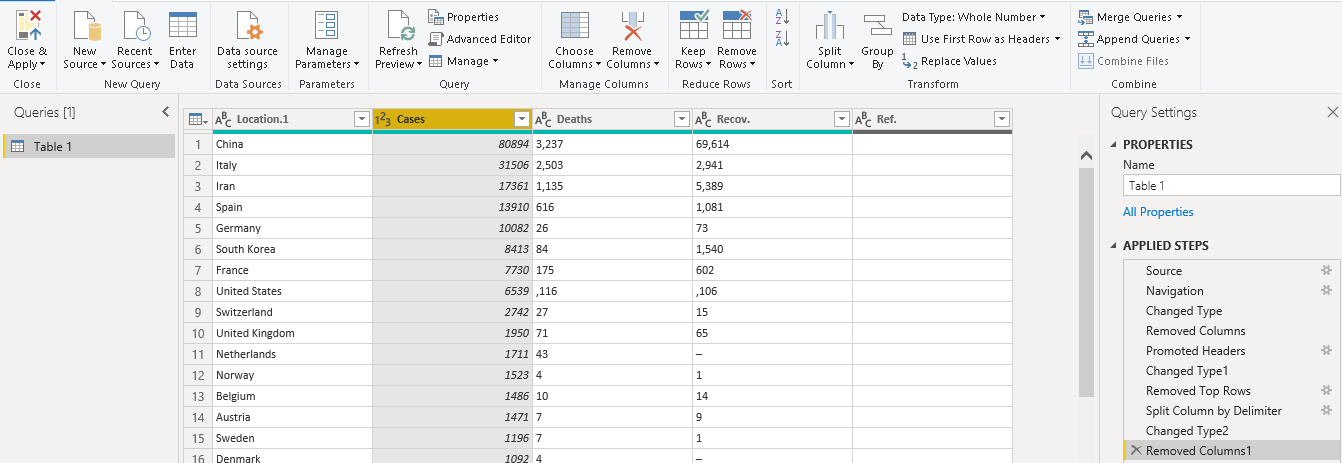
Click on Close & Apply. It saves the data and takes us back to the designer pane.
单击关闭并应用 。 它会保存数据并将我们带回到设计器窗格。

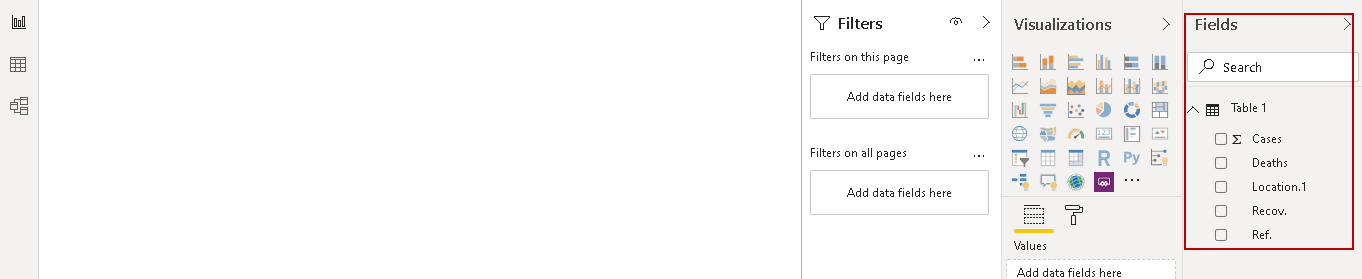
You can see data fields in the following image.
您可以在下图中看到数据字段。
在Power BI报表中添加填充的地图可视化 (Add a Filled Map Visualization in Power BI Report)
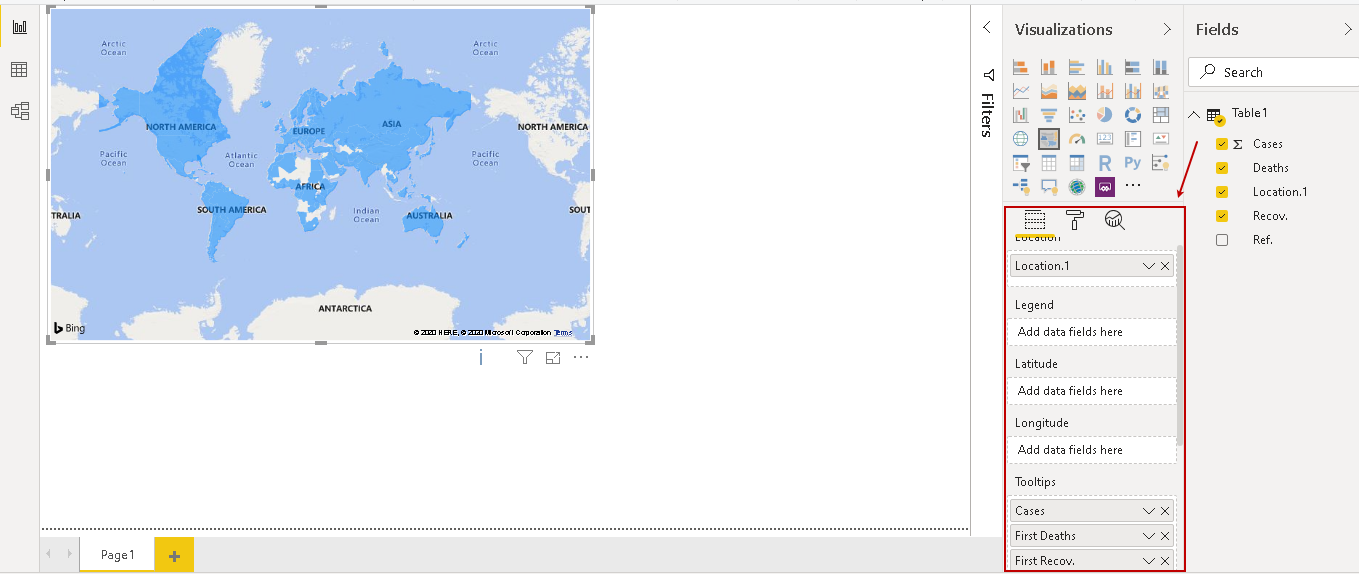
Click on a filled map visualization icon, adjust the position of the map visual and drag the fields into field map data columns as shown below. We get the following visual in the report.
单击填充的地图可视化图标 ,调整地图视觉的位置,然后将字段拖到字段地图数据列中,如下所示。 我们在报告中得到以下视觉效果。
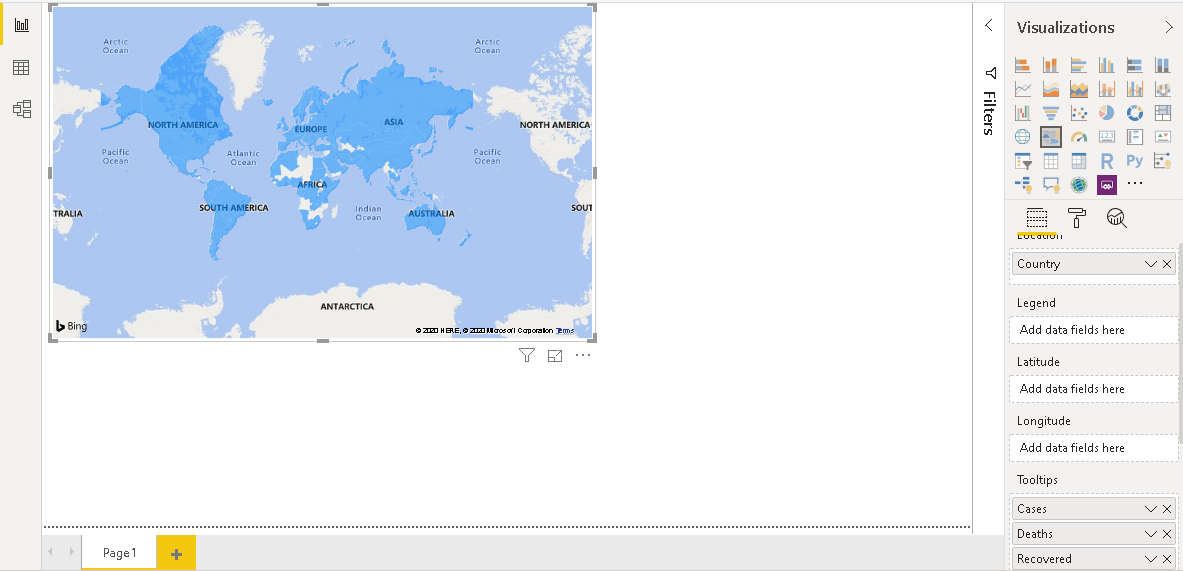
Rename the column from the map column as shown below.
如下所示,从地图列重命名该列。
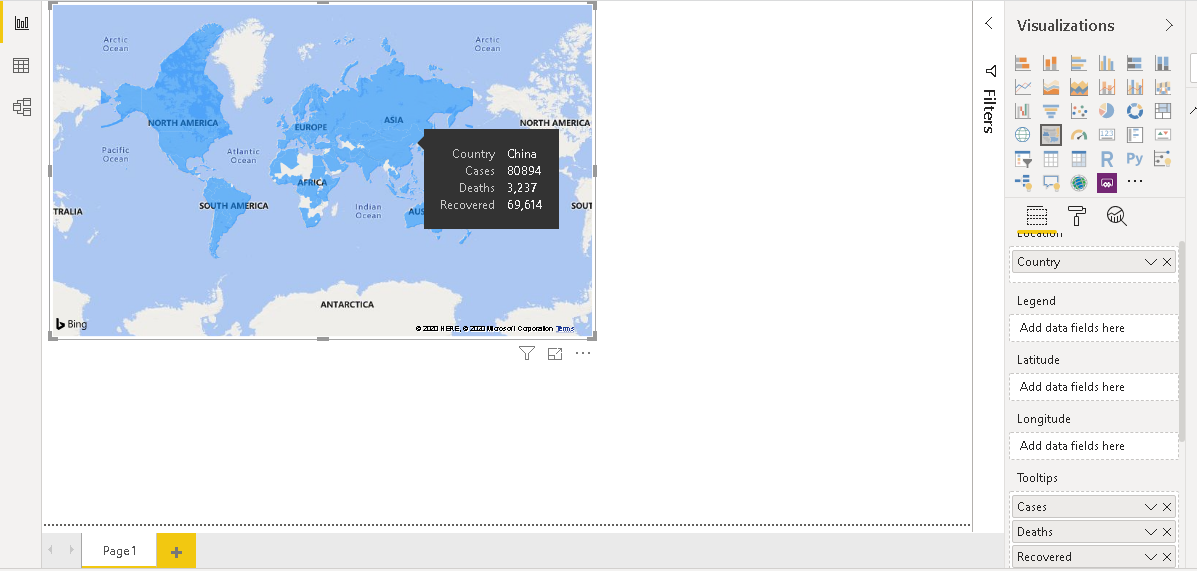
If we take the mouse pointer over any country, it shows the details in a tooltip.
如果将鼠标指针悬停在任何国家/地区上,它将在工具提示中显示详细信息。
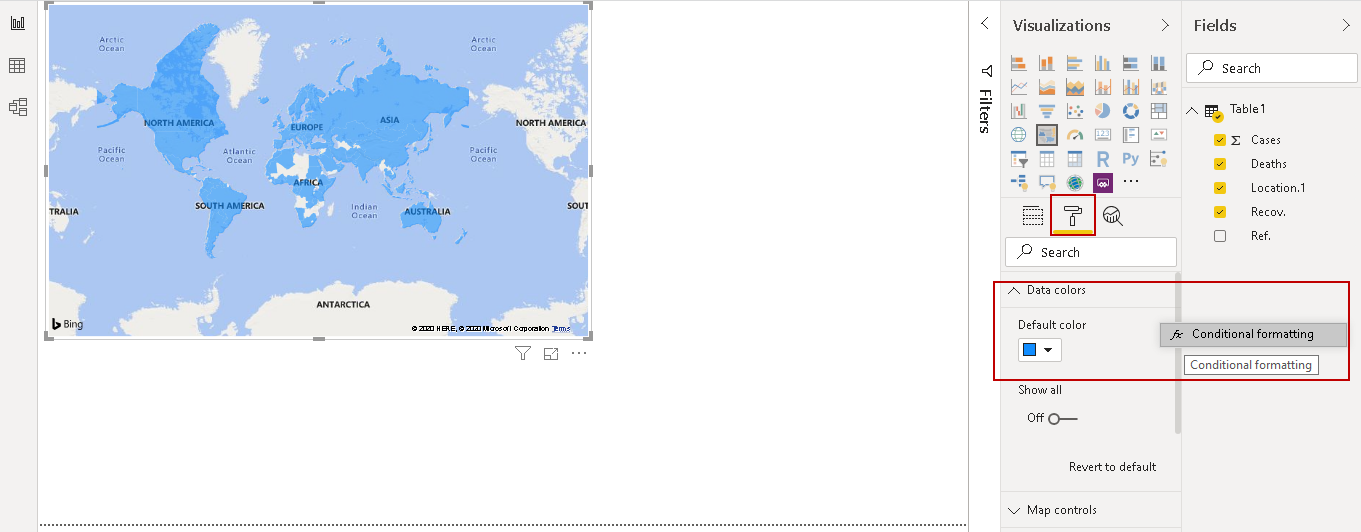
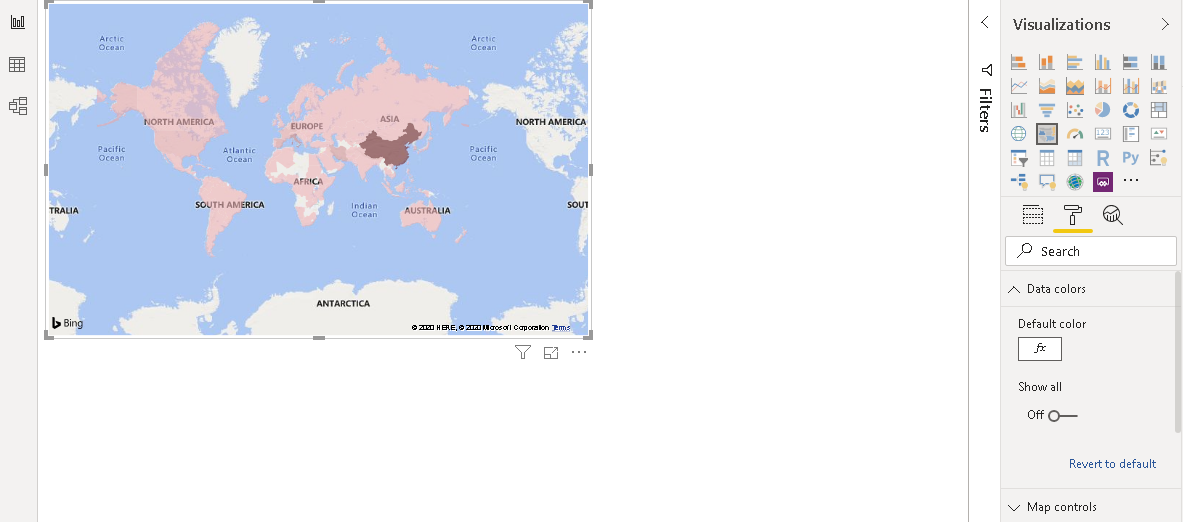
Currently, The Power BI Desktop report shows different colors for each country. We can define a color coding for better visualization. Go in the format area and click on Data colors-> Conditional formatting.
当前,Power BI Desktop报告为每个国家/地区显示不同的颜色。 我们可以定义颜色编码以实现更好的可视化。 进入格式区域,然后单击数据颜色->条件格式 。
Here, select the field such as cases and select the color range for the minimum to maximum values. You can choose the color coding as per your requirements.
在这里,选择字段(例如案例),然后选择最小值到最大值的颜色范围。 您可以根据需要选择颜色编码。

Now, you can visually distinguish the country based on the color code. For example, it shows the darkest color for China that is most impacted.
现在,您可以根据颜色代码在视觉上区分国家。 例如,它显示了受影响最深的中国深色。
添加词云可视化
(Add a Word Cloud Visualization
)
In the next step, we add a Word Cloud in this visual. You can refer to the article How to create a Word Cloud generator in Power BI Desktop. Word Cloud shows impacted countries based on total cases. Here, we see the largest font size for China as per the total reported cases.
在下一步中,我们在此视觉效果中添加词云。 您可以参考文章如何在Power BI Desktop中创建词云生成器 。 词云基于总案例显示受影响的国家。 在这里,根据报告的案例总数,我们看到了中国最大的字体大小。
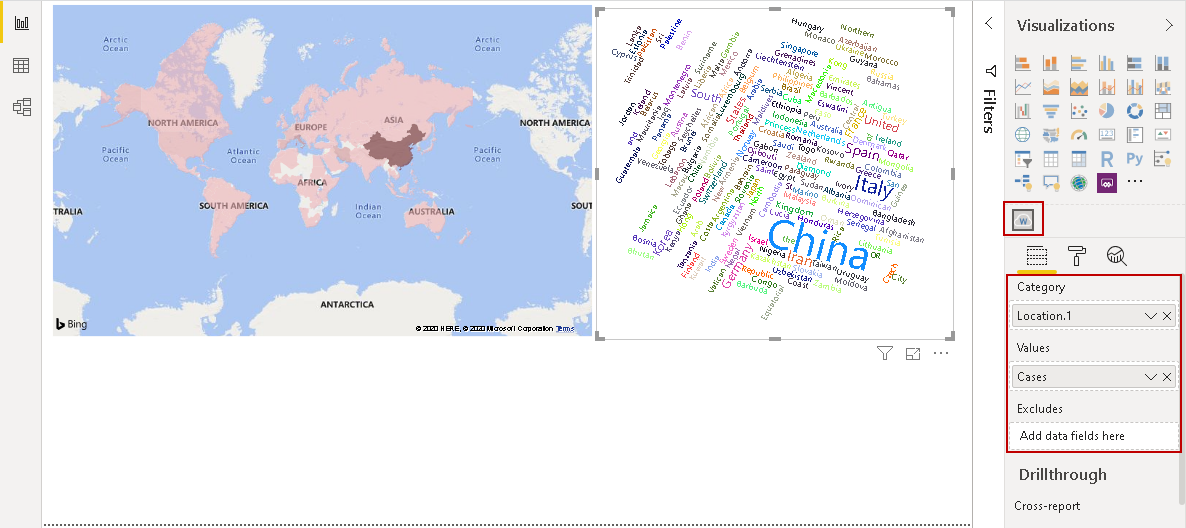
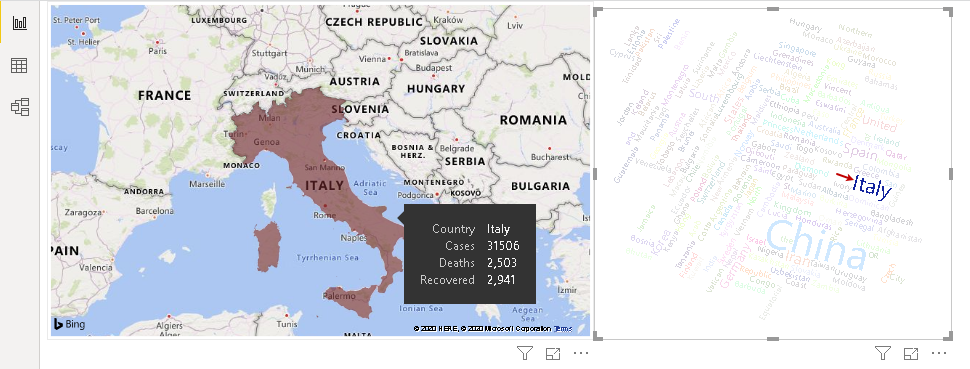
We can click on a particular country and the map chart zooms over that particular country. For example, let’s click on Italy, and it changes the visual as shown below.
我们可以单击一个特定的国家,地图就会放大该特定的国家。 例如,让我们单击“意大利”,它会更改外观,如下所示。
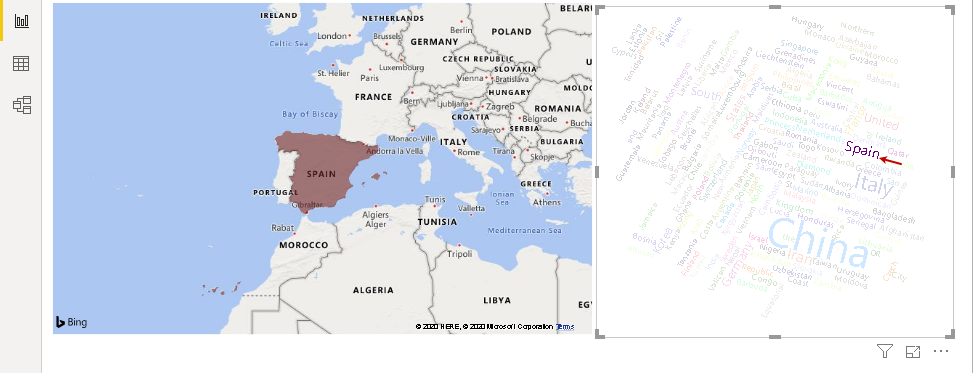
Similarly, click on Spain and map zooms over Spain. You can click on a blank area in the Word Cloud to move back to the original state.
同样,单击“西班牙”,地图将在西班牙范围内放大。 您可以单击词云中的空白区域以移回原始状态。
在Power BI Desktop报告中添加切片器 (Add a slicer in Power BI Desktop report)
We might want to look at data for a specific country. It might not be feasible for you to search on the map for a specific country. We can add a slicer visual for this purpose. Click on a slicer and drag the location column in the slicer data column. You get the following visuals.
我们可能希望查看特定国家/地区的数据。 您可能无法在地图上搜索特定国家/地区。 为此,我们可以添加切片器视觉效果。 单击切片器,然后将位置列拖动到切片器数据列中。 您将获得以下视觉效果。
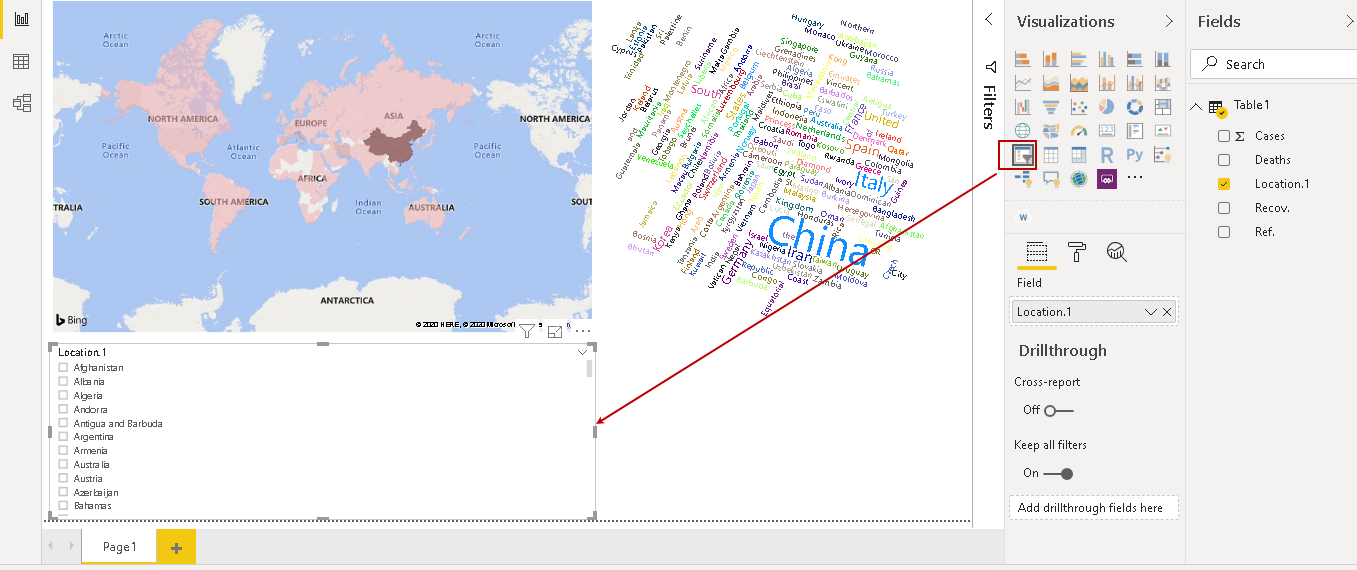
Let’s do some formatting for better visualization and gain insights.
让我们进行一些格式化,以更好地可视化并获得见解。
-
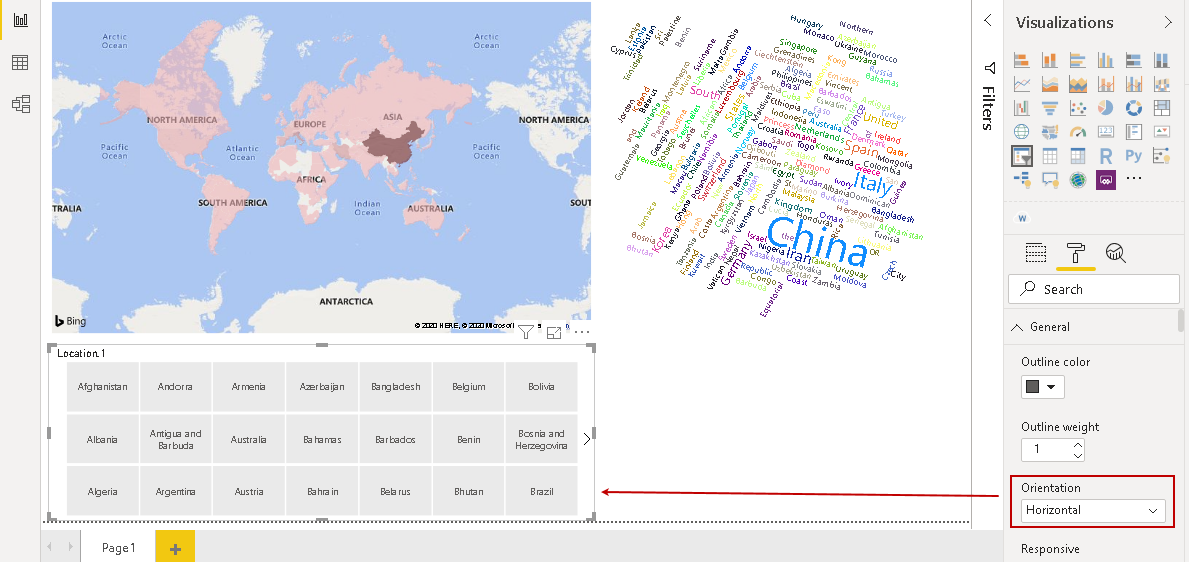
Change Orientation from vertical to horizontal in format chart property. It arranges the country names in a Horizontal tile format

在格式图表属性中将方向从垂直更改为水平。 它以“水平”图块格式排列国家/地区名称
-
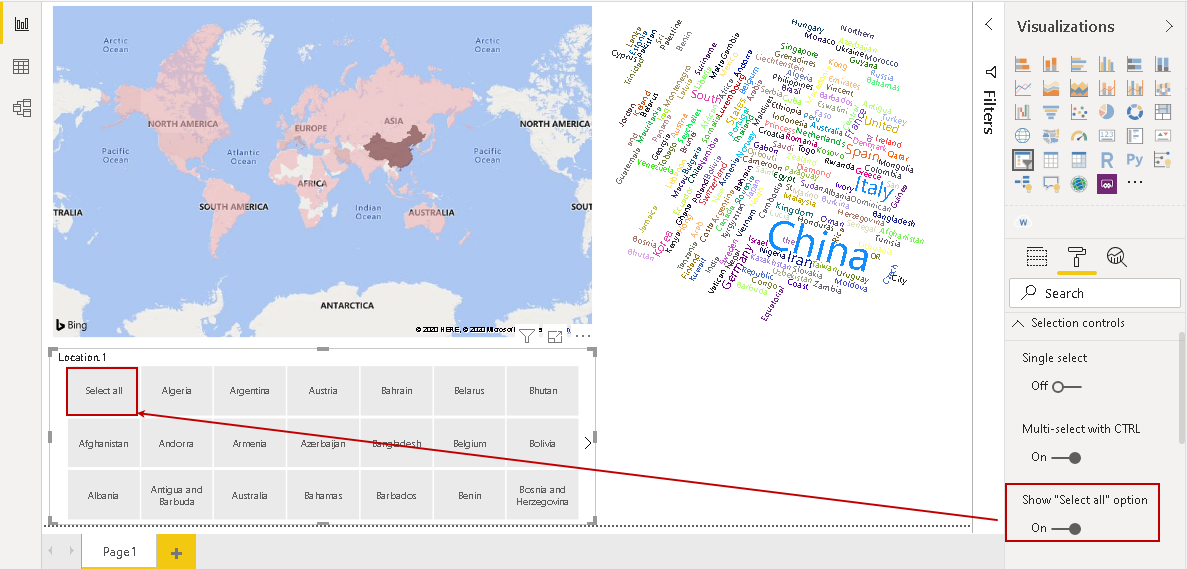
Add a Select all selection tile. By default, the slicer does not show select all selection tile. It is a good practice so we can look at all countries’ data together

添加全选选择图块。 默认情况下,切片器不显示“选择所有选择”图块。 这是一个好习惯,因此我们可以一起查看所有国家/地区的数据
-
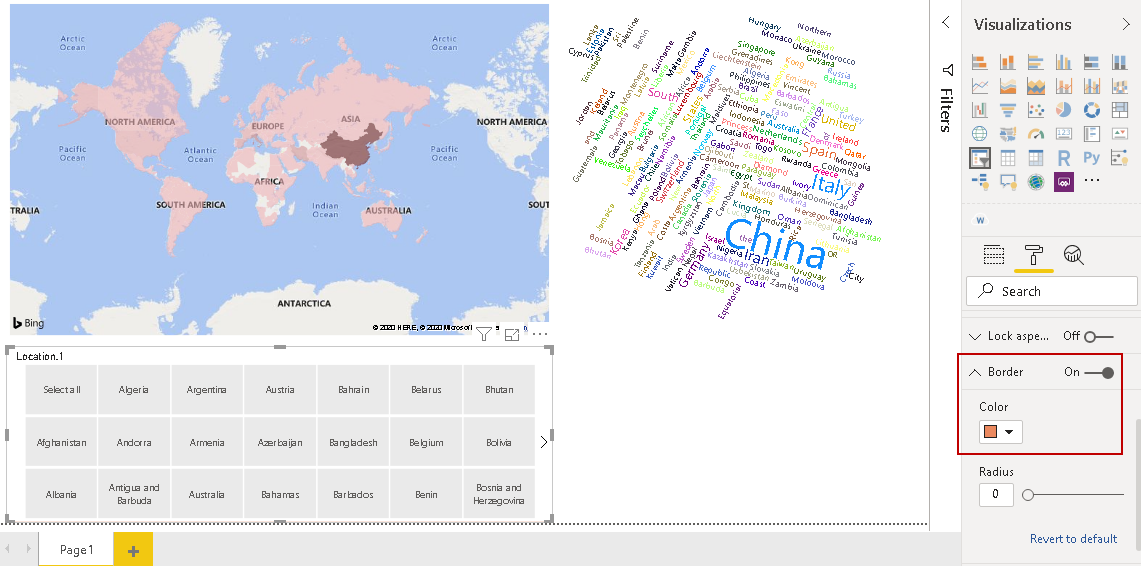
Enable border for slicer and choose a border color. It helps to distinguish slicer from other visuals in the report

为切片器启用边框并选择边框颜色。 它有助于将切片器与报告中的其他视觉效果区分开
-
Change the heading to an appropriate name. In the following screenshot, we renamed it to Select Country

将标题更改为适当的名称。 在以下屏幕截图中,我们将其重命名为“选择国家/地区”
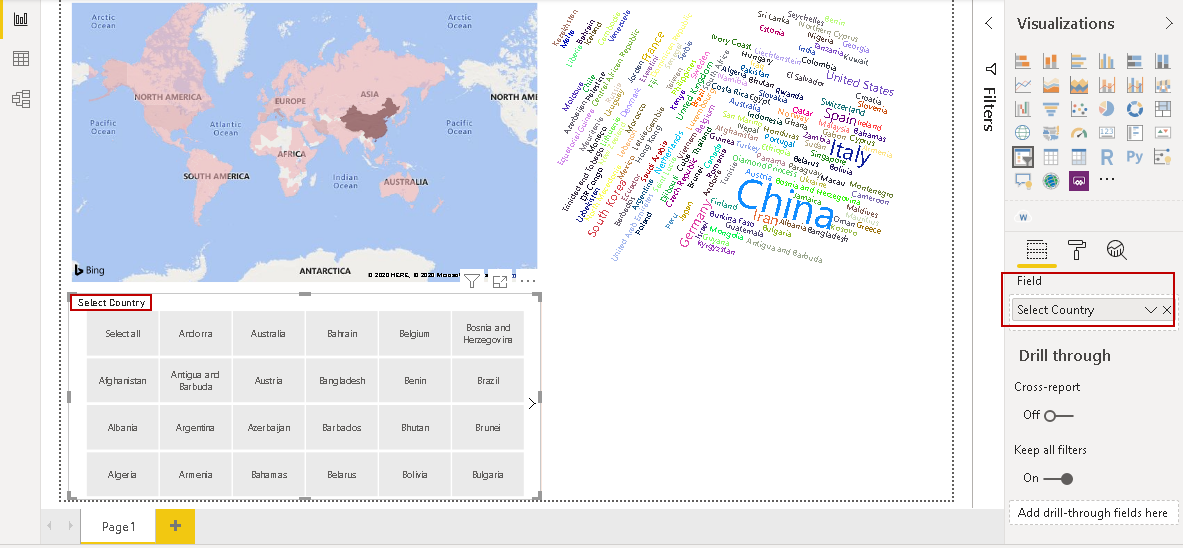
Now once we have done the formatting, click on a tile in the slicer. For example, once we click on Germany, it changes the Word Cloud and maps visually for that country.
现在,一旦完成格式化,请单击切片器中的图块。 例如,一旦我们单击德国,它就会更改词云并为该国家/地区可视化地图。

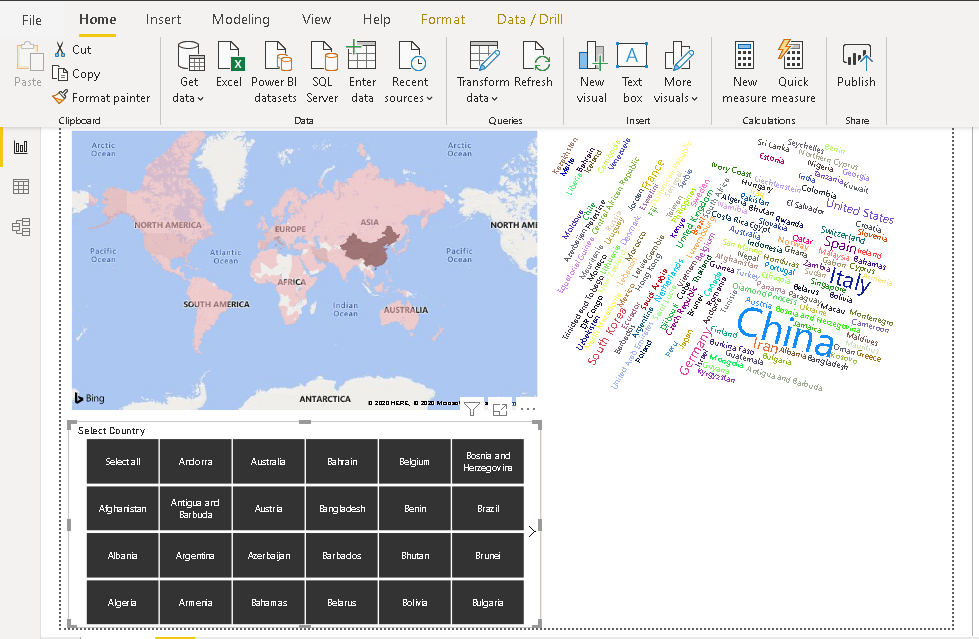
Now, click on Select all tile and it moves back to the original state showing all countries data in both Word cloud and Maps visual.
现在,单击“全选”图块,它会返回到原始状态,在Word cloud和Maps visual中显示所有国家/地区的数据。
在Power BI Desktop中添加卡片视觉 (Add a card visual in Power BI Desktop)
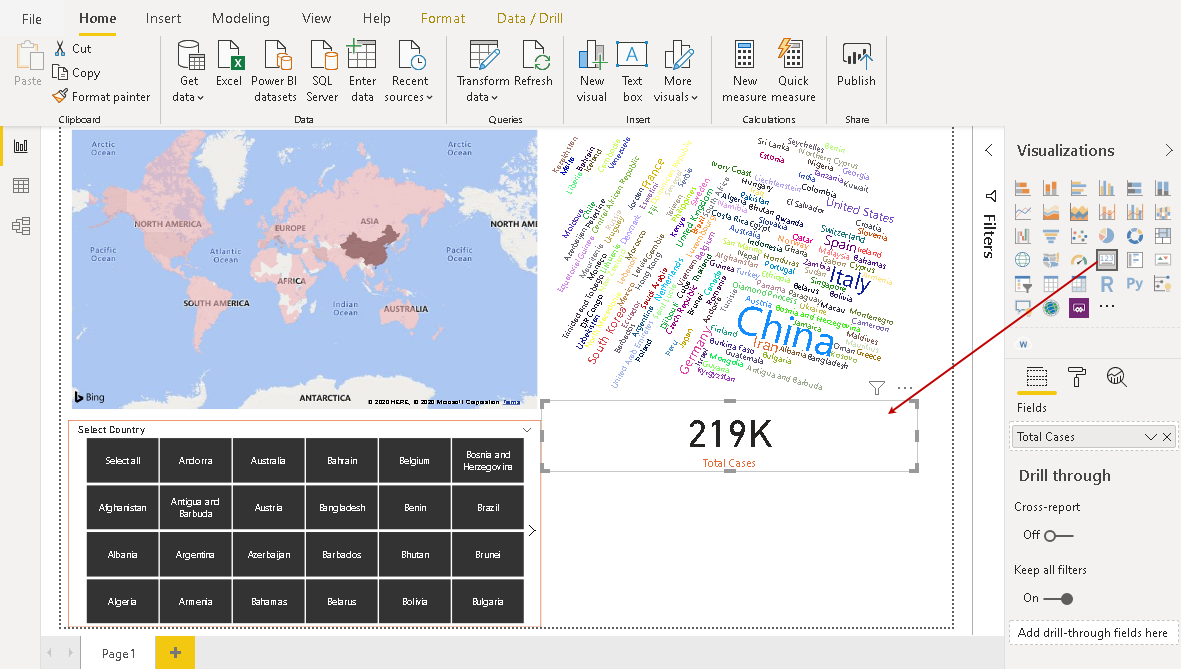
We can add a card in the report to showcase details such as the total number of cases, total recoveries. Click on a card, add the field (case), and it shows up the total cases in the tile.
我们可以在报告中添加一张卡片,以显示详细信息,例如案件总数,总回收率。 单击卡片,添加字段(案例),它会在图块中显示总案例。
Similarly, based on the requirement, you can add further card to add more details in your report.
同样,根据要求,您可以添加更多卡,以在报告中添加更多详细信息。
在Power BI报表中添加交互式问答 (Add interactive Q&A in Power BI report)
Power BI allows you to add the Q&A feature in the report, and you can ask questions against data set interactively. You can refer to the article Ask a Question feature in Power BI Desktop and Power BI Desktop Q&A data interaction examples for more details. Click on the Q&A icon in the visualizations and adjust the size of the Q&A pane.
Power BI允许您在报告中添加“问答”功能,并且可以以交互方式针对数据集提出问题。 您可以参考Power BI Desktop和Power BI Desktop Q&A数据交互示例中 的“提问功能 ”一文 ,了解更多详细信息。 单击可视化中的“ Q&A”图标,然后调整“ Q&A”窗格的大小。
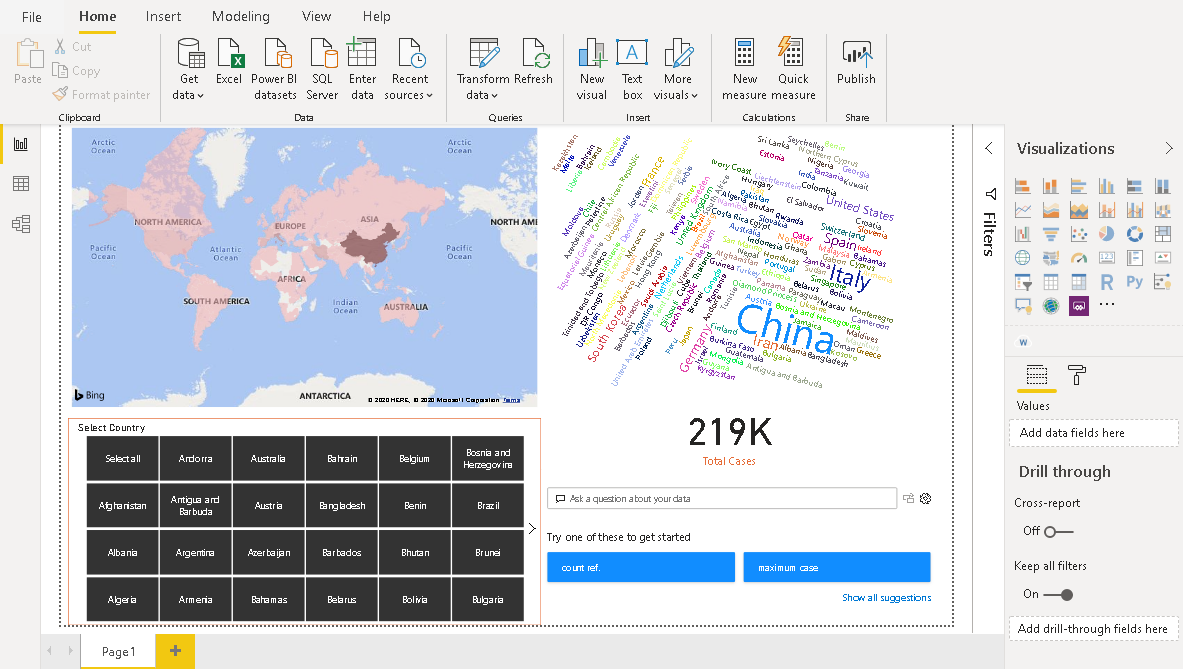
Suppose we want to know the total cases of a specific country. Once we start typing, it gives us suggestions to choose from a variety of options.
假设我们想知道一个特定国家的总数。 一旦开始键入,它会为我们提供建议,以从各种选项中进行选择。
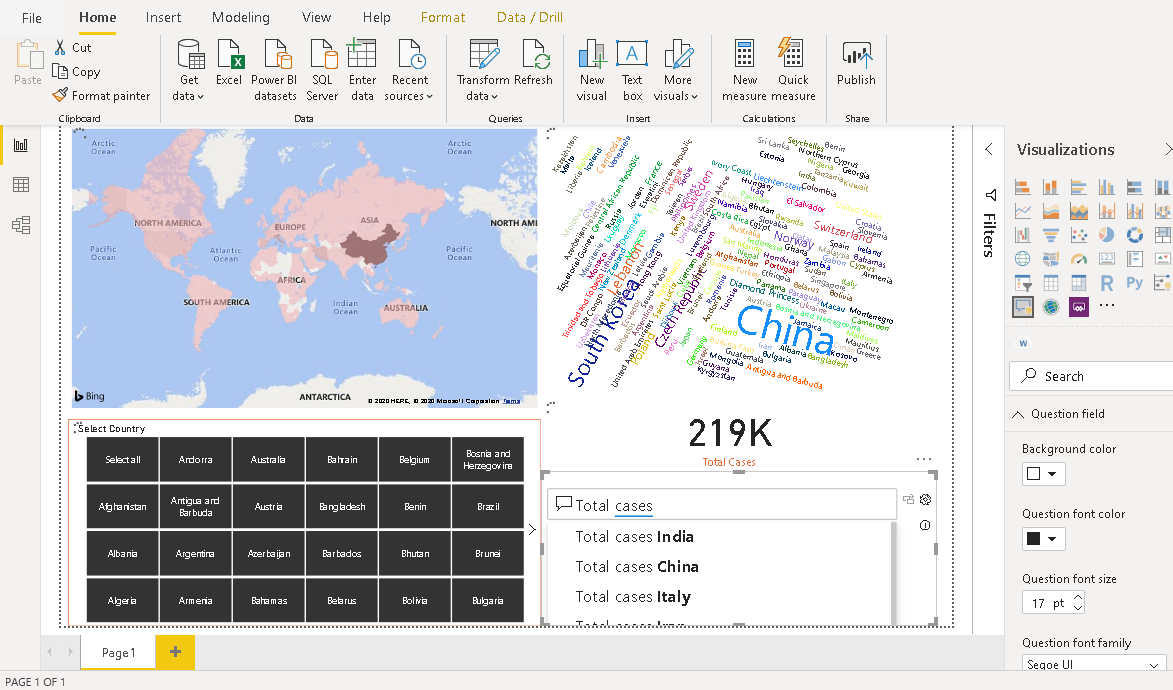
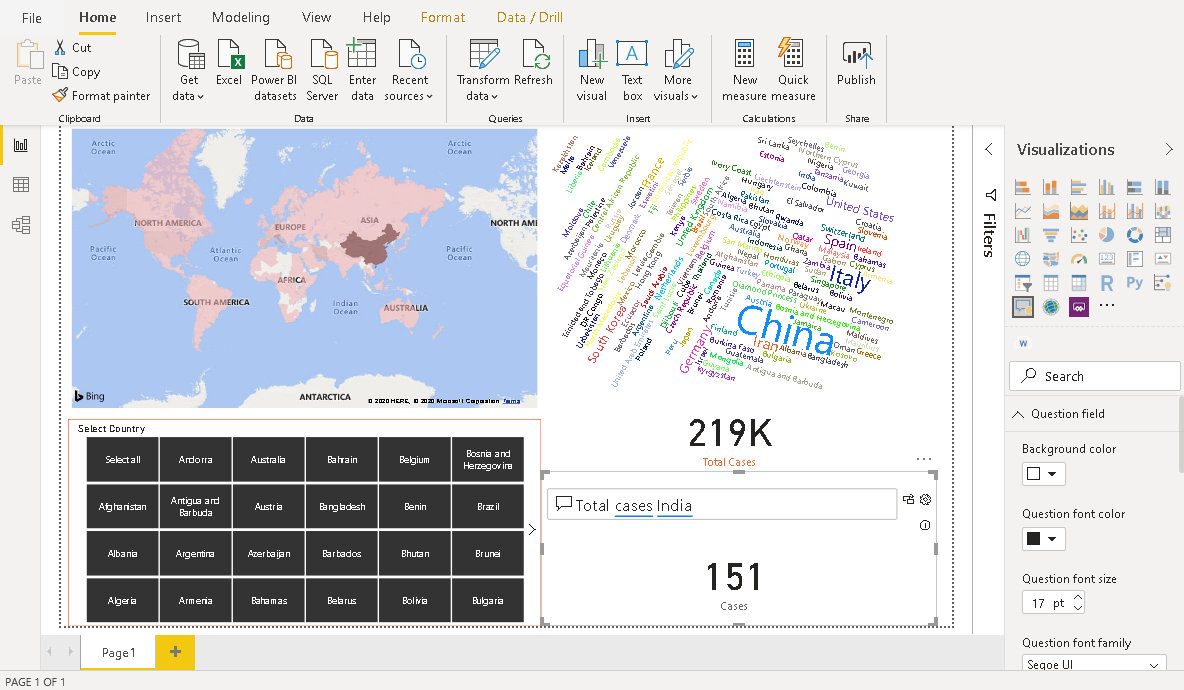
For example, we are interested to know the total cases in India. We can select this from suggestion or type it, and it gives you an answer for it.
例如,我们有兴趣了解印度的总病例。 我们可以从建议中选择它或键入它,它会为您提供答案。
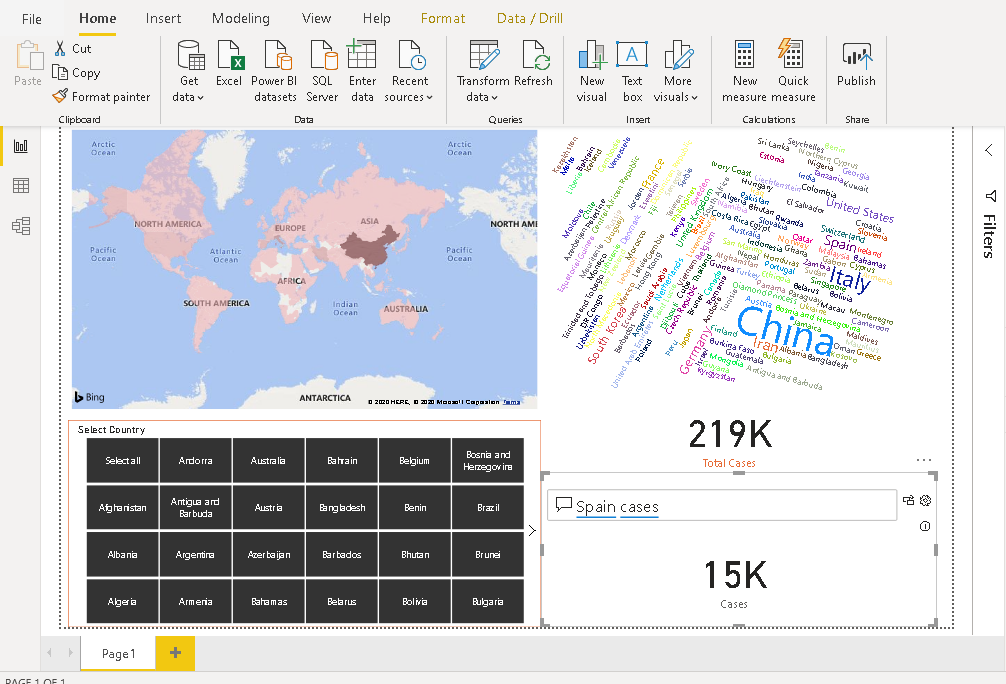
Similarly, in the following image, it shows total cases in Spain.
同样,在下图中,它显示了西班牙的总病例。
在报告中添加冠状病毒的症状和预防措施图表 (Add Coronavirus symptoms and preventions chart in the report)
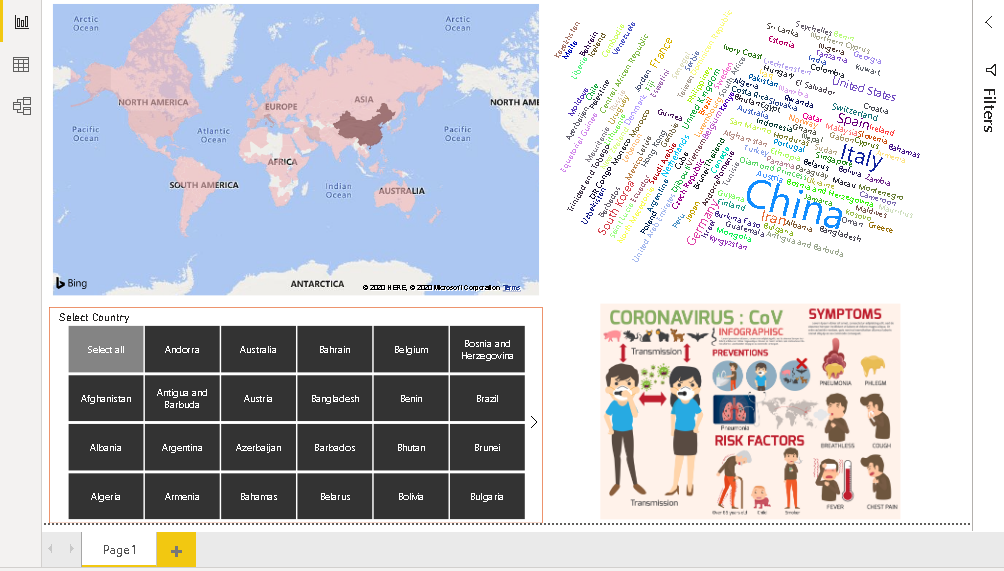
As we all know, Prevention is better than cure. It applies to the coronavirus disease as well. You might be interested in adding such information in your report for the informational purpose to users. To visualize it better, I removed Q&A and Card visualization from the report.
众所周知,预防胜于治疗。 它也适用于冠状病毒疾病。 您可能有兴趣在报告中添加此类信息,以供用户参考。 为了更好地可视化,我从报告中删除了“问答”和“卡”可视化。
For this section, I am taking an image from a specified URL.
对于本节,我将从指定的URL拍摄图像。
Click on an image in the menu and browse to the image location.
单击菜单中的图像,然后浏览到图像位置。
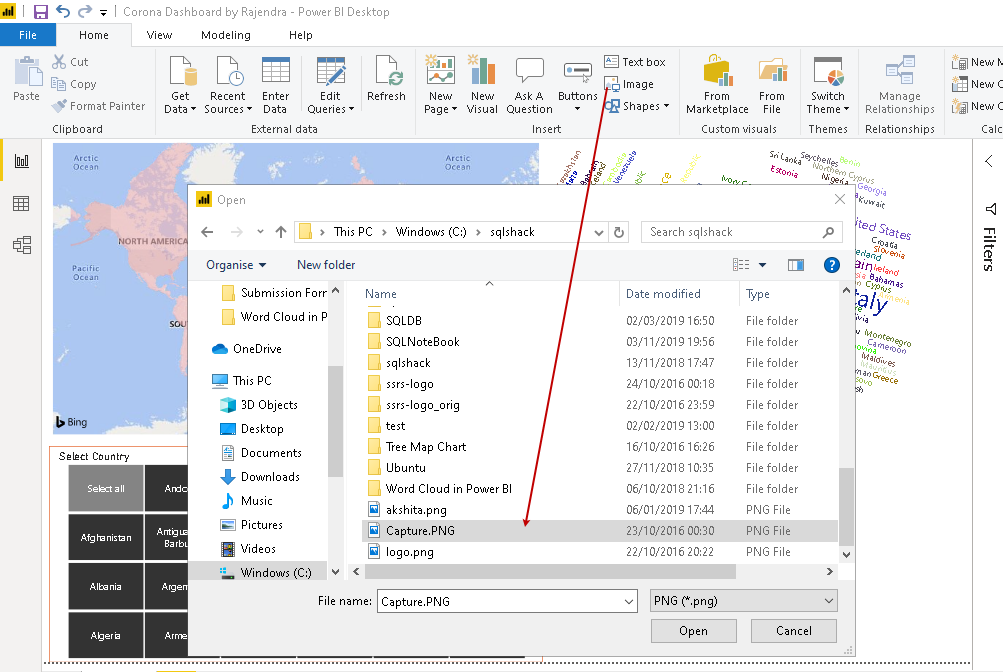
It imports the image in the Power BI report, and we can see Coronavirus preventions and symptoms in the visualization.
它将图像导入Power BI报告中,并且我们可以在可视化文件中看到冠状病毒的预防措施和症状。
结论 (Conclusion)
In this article, we created a Power BI Desktop dashboard for visualizing the impact of Coronavirus worldwide. It is a severe concern in all countries at this time. You should take necessary precautions and consult your doctor in case, you see any symptoms.
在本文中,我们创建了Power BI Desktop仪表板,以可视化冠状病毒在全球范围内的影响。 目前,这是所有国家都非常关注的问题。 如果发现任何症状,应采取必要的预防措施并咨询医生。
翻译自: https://www.sqlshack.com/visualize-coronavirus-impact-using-power-bi-dashboard/