一、简介
Docker 是一个开源的应用容器引擎,让开发者可以打包他们的应用以及依赖包到一个可移植的容器中,然后发布到任何流行的 Linux 机器上,也可以实现虚拟化。容器是完全使用沙箱机制,相互之间不会有任何接口(类似 iPhone 的 app)。几乎没有性能开销,可以很容易地在机器和数据中心中运行。
Docker的理念:一个容器只运行一个服务
Docker官网口号包含了Build,Shipand Run Any App,Anywhere,即任何应用,都可以构建、发布、运行于任何环境,将环境的影响因素降至最低,统一地掌控整个应用的生命周期。
Docker的官方文档:http://docs.docker.com/
二、安装
|
1
2
3
4
5
6
7
8
9
10
11
12
13
14
15
16
17
18
19
|
1、安装epel源
注释:默认CentOS6.x提供的yum源里没有docker的安装包,在这里我们借助EPEL源。# rpm -ivh http://dl.fedoraproject.org/pub/epel/6/x86_64/epel-release-6-8.noarch.rpm# sed -i '[email protected]^#@@' /etc/yum.repos.d/epel.repo# sed -i '[email protected]@#[email protected]' /etc/yum.repos.d/epel.repo2、安装docker
# yum -y remove docker# yum install docker-io 3、启动docker守护进程
# service docker start# chkconfig docker on4、检查docker是否已经正确安装并运行
# docker info5、查看docker的版本
# docker -v |
三、命令参数
1、docker命令帮助参数
|
1
2
3
4
5
6
7
8
9
10
11
12
13
14
15
16
17
18
19
20
21
22
23
24
25
26
27
28
29
30
31
32
33
34
35
36
37
38
39
40
41
|
[[email protected] ~]# docker
Usage: docker [OPTIONS] COMMAND [arg...]Commands: attach Attach to a running container
build Build an image from a Dockerfile
commit Create a new image from a container's changes
cp Copy files/folders from a container's filesystem to the host path
create Create a new container
diff Inspect changes on a container's filesystem
events Get real time events from the server
exec Run a command in a running container
export Stream the contents of a container as a tar archive
history Show the history of an image
images List images
import Create a new filesystem image from the contents of a tarball
info Display system-wide information
inspect Return low-level information on a container
kill Kill a running container
load Load an image from a tar archive
login Register or log in to a Docker registry server
logout Log out from a Docker registry server
logs Fetch the logs of a container
port Lookup the public-facing port that is NAT-ed to PRIVATE_PORT
pause Pause all processes within a container
ps List containers
pull Pull an image or a repository from a Docker registry server
push Push an image or a repository to a Docker registry server
restart Restart a running container
rm Remove one or more containers
rmi Remove one or more images
run Run a command in a new container
save Save an image to a tar archive
search Search for an image on the Docker Hub
start Start a stopped container
stop Stop a running container
tag Tag an image into a repository
top Lookup the running processes of a container
unpause Unpause a paused container
version Show the Docker version information
wait Block until a container stops, then print its exit code
|
2、比较常用命令参数
|
1
2
3
4
5
6
7
8
9
10
11
12
13
14
15
16
17
18
19
20
21
22
23
24
25
26
27
28
29
30
31
32
33
34
35
36
37
38
39
40
41
42
43
44
45
46
47
48
49
50
51
52
53
54
55
56
|
查看Docker的版本信息# docker version在Docker Hub上搜索一个指定镜像# docker search在Docker Hub上搜索一个指定镜像并至少有10颗星# docker search -s 10 ubuntu从一个Docker的注册服务器上拉取一个镜像或一个私有仓库# docker pull ubuntu查看镜像列表# docker images在一个新的容器中运行一个命令# docker run移除一个或多个镜像# docker rmi移除一个或多个容器# docker rm附着一个运行的容器# docker attach运行一个命令在一个运行的容器中# docker exec从一个Dockerfile文件中构建一个镜像# docker build查看镜像构建历史# docker history查看容器更为详细的配置信息# docker inspect保存一个镜像对归档tar中
# docker save从一个归档tar中加载一个镜像
# docker load启动、停止、重启一个运行的容器# docker start| stop| restart杀掉一个正在运行的容器# docker kill额外补充进入容器命令:docker attach:登陆到运行的容器中docker exec:在宿主机上运行命令到容器内部,类似在打开一个容器的终端
docker nsenter:连接到容器,需要容器PID |
四、创建ssh镜像和镜像打包
1、从Docker Hub上下载ubuntu镜像
|
1
2
3
4
|
[[email protected] ~]# docker pull ubuntu:14.04
[[email protected] ~]# docker images
REPOSITORY TAG IMAGE ID CREATED VIRTUAL SIZEubuntu 14.04 b7cf8f0d9e82 3 days ago 188.3 MB |
2、基于镜像创建一个容器
|
1
2
3
4
|
[[email protected] ~]# docker run -it ubuntu:14.04 /bin/bash
[[email protected] ~]# docker ps -a
CONTAINER ID IMAGE COMMAND CREATED STATUS PORTS NAMES88b6a8dfae4e ubuntu:14.04 "/bin/bash" 3 minutes ago Up 3 minutes modest_yalow
|
3、进入容器安装ssh服务
|
1
2
3
4
5
6
7
8
9
|
[email protected]:/# apt-get update && apt-get install -y openssh-server
[email protected]:/# echo 'root:redhat' | chpasswd
[email protected]:/# mkdir /var/run/sshd
[email protected]:/# sed -i 's/PermitRootLogin without-password/PermitRootLogin yes/' /etc/ssh/sshd_config
[email protected]:/# sed '[email protected]\s*required\s*[email protected] optional [email protected]' -i /etc/pam.d/sshd
[email protected]:/# exit
[[email protected] ~]# docker ps -l
CONTAINER ID IMAGE COMMAND CREATED STATUS PORTS NAMES88b6a8dfae4e ubuntu:14.04 "/bin/bash" 10 minutes ago Exited (130) 18 seconds ago modest_yalow
|
4、构建一个ssh的镜像
|
1
2
3
4
5
6
|
[[email protected] ~]# docker commit 88b6a8dfae4e zhengyas/ubuntu:sshd
3f2225df36ff67cbda098318e83128f3965758eba3e4609a094c172b0c3b03c4[[email protected] ~]# docker images
REPOSITORY TAG IMAGE ID CREATED VIRTUAL SIZEzhengyas/ubuntu sshd 3f2225df36ff 21 seconds ago 251.1 MB
ubuntu 14.04 b7cf8f0d9e82 3 days ago 188.3 MB |
5、基于新镜像运行一个ssh容器
|
1
2
3
4
5
|
[[email protected] ~]# docker run -d -p 2222:22 zhengyas/ubuntu:sshd /usr/sbin/sshd -D
7ef47903cdb77ad9d98fd0dd3b102473d10ad3abea5311c030177db9ea9984c1[[email protected] ~]# docker ps -l
CONTAINER ID IMAGE COMMAND CREATED STATUS PORTS NAMES7ef47903cdb7 zhengyas/ubuntu:sshd "/usr/sbin/sshd -D" 4 seconds ago Up 4 seconds 0.0.0.0:2222->22/tcp hungry_ritchie
|
6、测试ssh容器是否能够正常连接
|
1
2
3
4
5
6
7
8
9
10
11
12
13
14
15
16
17
18
19
20
21
22
23
24
25
26
27
28
29
30
31
32
33
34
35
36
37
|
[[email protected] ~]# ssh root192.168.0.104 -p 2222
ssh: Could not resolve hostname root192.168.0.104: Name or service not known
[[email protected] ~]# ssh [email protected] -p 2222
The authenticity of host '[192.168.0.104]:2222 ([192.168.0.104]:2222)' can't be established.
RSA key fingerprint is 0e:1e:4e:67:f3:4b:5a:c4:c2:f5:7b:e7:f0:2e:14:72.Are you sure you want to continue connecting (yes/no)? yes
Warning: Permanently added '[192.168.0.104]:2222' (RSA) to the list of known hosts.
[email protected]'s password: Welcome to Ubuntu 14.04 LTS (GNU/Linux 3.2.0-61-generic x86_64)
* Documentation: https://help.ubuntu.com/
The programs included with the Ubuntu system are free software;
the exact distribution terms for each program are described in the
individual files in /usr/share/doc/*/copyright.
Ubuntu comes with ABSOLUTELY NO WARRANTY, to the extent permitted byapplicable law.[email protected]:~# ifconfig
eth0 Link encap:Ethernet HWaddr 02:42:ac:11:00:03 inet addr:172.17.0.3 Bcast:0.0.0.0 Mask:255.255.0.0
inet6 addr: fe80::42:acff:fe11:3/64 Scope:Link
UP BROADCAST RUNNING MTU:1500 Metric:1
RX packets:47 errors:0 dropped:0 overruns:0 frame:0
TX packets:40 errors:0 dropped:0 overruns:0 carrier:0
collisions:0 txqueuelen:0
RX bytes:5638 (5.6 KB) TX bytes:6521 (6.5 KB)
lo Link encap:Local Loopback inet addr:127.0.0.1 Mask:255.0.0.0
inet6 addr: ::1/128 Scope:Host
UP LOOPBACK RUNNING MTU:65536 Metric:1
RX packets:0 errors:0 dropped:0 overruns:0 frame:0
TX packets:0 errors:0 dropped:0 overruns:0 carrier:0
collisions:0 txqueuelen:0
RX bytes:0 (0.0 B) TX bytes:0 (0.0 B)
|
7、镜像持久化,俗称镜像打包
镜像打包(Save)
|
1
|
[[email protected] ~]# docker save zhengyas/ubuntu > /root/sshd.tar
|
镜像导入(Load)
|
1
2
3
4
5
6
7
8
9
10
11
12
13
14
15
16
17
18
19
20
21
22
23
24
|
实验模拟1、删除此sshd容器[[email protected] ~]# docker ps -a
CONTAINER ID IMAGE COMMAND CREATED STATUS PORTS NAMES7ef47903cdb7 zhengyas/ubuntu:sshd "/usr/sbin/sshd -D" 14 minutes ago Up 14 minutes 0.0.0.0:2222->22/tcp hungry_ritchie
[[email protected] ~]# docker stop 7ef47903cdb7
7ef47903cdb7[[email protected] ~]# docker rm 7ef47903cdb7
7ef47903cdb72、删除sshd镜像[[email protected] ~]# docker rmi zhengyas/ubuntu:sshd
Untagged: zhengyas/ubuntu:sshd
Deleted: 3f2225df36ff67cbda098318e83128f3965758eba3e4609a094c172b0c3b03c4[[email protected] ~]# docker images
REPOSITORY TAG IMAGE ID CREATED VIRTUAL SIZEubuntu 14.04 b7cf8f0d9e82 3 days ago 188.3 MB3、导入打包的镜像[[email protected] ~]# docker load < /root/sshd.tar
[[email protected] ~]# docker images
REPOSITORY TAG IMAGE ID CREATED VIRTUAL SIZEzhengyas/ubuntu sshd 3f2225df36ff 18 minutes ago 251.1 MB
ubuntu 14.04 b7cf8f0d9e82 3 days ago 188.3 MB |
五、基于Dockerfile来创建mysql镜像
1、创建Dockerfile文件
|
1
2
3
4
5
6
7
8
9
10
11
12
13
14
15
|
[[email protected] ~]# mkdir mysql_ubuntu
[[email protected] ~]# cd mysql_ubuntu/
[[email protected] mysql_ubuntu]# cat Dockerfile
FROM ubuntu:14.04RUN apt-get updateRUN apt-get -y install mysql-client mysql-server
RUN sed -i -e"s/^bind-address\s*=\s*127.0.0.1/bind-address = 0.0.0.0/" /etc/mysql/my.cnf
ADD ./startup.sh /opt/startup.sh
EXPOSE 3306CMD ["/bin/bash", "/opt/startup.sh"]
|
2、创建mysql服务启动脚本文件
|
1
2
3
4
5
6
7
8
9
10
11
12
13
14
15
16
17
|
[[email protected] mysql_ubuntu]# cat startup.sh
#!/bin/bashif [ ! -f /var/lib/mysql/ibdata1 ]; then
mysql_install_db
/usr/bin/mysqld_safe &
sleep 10s
echo "GRANT ALL ON *.* TO [email protected]'%' IDENTIFIED BY 'changeme' WITH GRANT OPTION; FLUSH PRIVILEGES" | mysql
killall mysqld
sleep 10s
fi/usr/bin/mysqld_safe |
3、构建mysql镜像
|
1
|
# docker build -t zhengys/mysql . |
4、查看镜像
|
1
2
3
|
[[email protected] ~]# docker images
REPOSITORY TAG IMAGE ID CREATED VIRTUAL SIZEzhengys/mysql latest f58add96ecb7 About a minute ago 338.9 MB
|
6、基于新镜像创建mysql容器
|
1
2
3
4
5
6
7
8
9
10
11
12
13
|
[[email protected] ~]# mkdir /data/mysql -p
[[email protected] ~]# docker run -d -p 3306:3306 -v /data/mysql:/var/lib/mysql zhengys/mysql
0112ba90e4a30a13e4f3af26f4a5bcd73e91ae3afa881a36fadd34cd953d0ada[[email protected] ~]# docker ps -l
CONTAINER ID IMAGE COMMAND CREATED STATUS PORTS NAMES0112ba90e4a3 zhengys/mysql:latest "/bin/bash /opt/star 4 seconds ago Up 3 seconds 0.0.0.0:3306->3306/tcp reverent_hawking
[[email protected] ~]# ll /data/mysql/
total 28680-rw-rw----. 1 103 106 18874368 Apr 25 17:46 ibdata1-rw-rw----. 1 103 106 5242880 Apr 25 19:09 ib_logfile0-rw-rw----. 1 103 106 5242880 Apr 25 17:45 ib_logfile1drwx------. 2 103 root 4096 Apr 25 17:45 mysqldrwx------. 2 103 106 4096 Apr 25 17:45 performance_schema |
7、测试mysql容器
|
1
2
3
4
5
6
7
8
|
[[email protected] ~]# mysql -uadmin -p123456 -h192.168.0.104 -P 3306 -e 'show databases'
+--------------------+| Database |+--------------------+| information_schema || mysql || performance_schema |+--------------------+ |
或者提供一个登陆mysql客户端脚本
run-client.sh
|
1
2
3
4
5
6
7
8
9
|
#!/bin/shTAG="mysql"
CONTAINER_ID=$(docker ps | grep $TAG | awk '{print $1}')
IP=$(docker inspect $CONTAINER_ID | python -c 'import json,sys;obj=json.load(sys.stdin);print obj[0]["NetworkSettings"]["IPAddress"]')
mysql -u admin -p -h $IP |
六、简化Docker和lxc
1、Lxc和Docker结构图
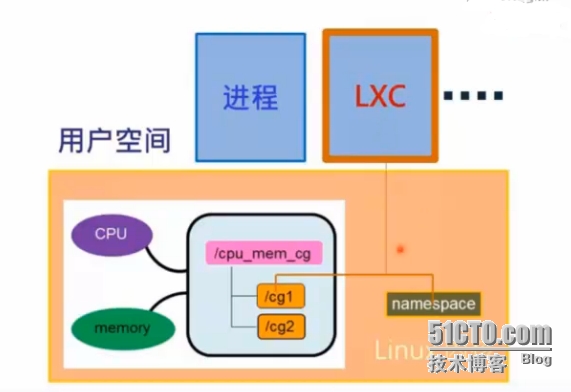
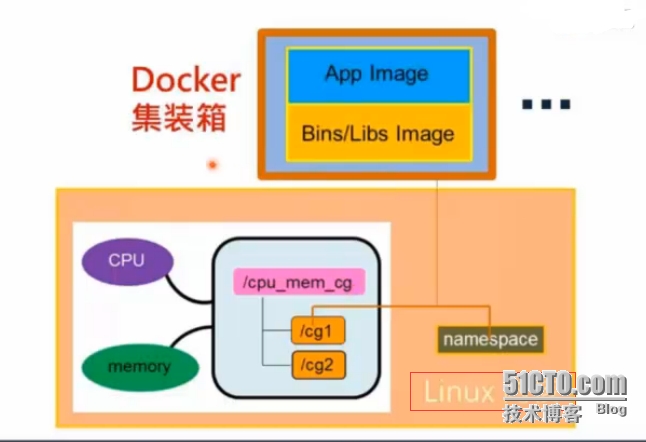
Linux = linux内核 + 用户空间(Lxc)
Lxc(Linux Container):linux容器 = Cgroup + Namespaces
Docker集装箱 = Lxc + images
lxc功能包括资源管理和隔离机制。
资源管理:通过cgroup限制cpu和内存的使用
隔离机制:用户空间namespace都是独立的
LXC包集成了这些linux内核机制提供了一个用户空间容器对象,即是针对某一应用提供资源隔离和控制轻量级虚拟系统。
Docker对container的使用基本是建立在lxc基础之上的,然而lxc存在的问题是难以移动-难以通过标准化模板制作、重建、复制和移动container。
LXC依赖namespace来实现隔离性的。
让每个容器都有自已的命名空间,确保不同容器之间不会相互影响,让每个容器成为拥有自已进程和网络空间的虚拟环境,都成为一个独立运行的单位。
此外,lxc由内核cgroup来对各个容器(进程)使用的系统资源做严格的限制。
-
算算时间,学习Docker也有半个月时间了,到现在为止给我的第一感觉仍然是不习惯,或许是用传统虚拟化用习惯了,或许是自已对Docker研究过于肤浅,或许自已根本没有入门等等一些原因,在没有接触到Docker之前自已玩过lxc,使用起来特别顺手,网上都说Docker自动化了lxc的管理过程,能够自动在线下载相应的发行版本rootfs
-
Docker的火热程度,使我们做IT的不得不去深入研究、学习
好吧!今天就先到这里,后续会继续更大家聊聊Docker技术.
本文转自zys467754239 51CTO博客,原文链接:http://blog.51cto.com/467754239/1638301,如需转载请自行联系原作者