Powershell DSC的一个强悍之处就在于他是一个跨平台的产品。并不仅仅可以在windows上执行,他还可以管理交换机,存储,Linux等等。这个主要是通过OMI服务器来实现的。
OMI的主要目的就是一个标准化的管理架构来管理一系列的服务。
OMI's primary goal is to provide a rich, high-performance, standards-based management stack that is suitable for a wide range of management applications. This includes cloud management, storage management, server hardware management, device management, and network management, on both large and small systems (embedded and mobility).
关于OMI可以参考,这是一个开源的平台
理论不多说,直接上手试试看。
下面以CentOS 7 为例进行一个推送的实验。
基本流程如下:
1.在节点上安装OMI服务器
2.在节点上安装DSC的组件
3.配置服务器上的DSC资源
4.配置mof文件然后推送到节点
首先需要安装一些必要的安装包
Putty登陆到一个CentOS 7的虚拟机上
|
1
2
3
4
|
yum groupinstall 'Development Tools'
yum install pam-devel
yum install openssl-devel
yum install wget
|
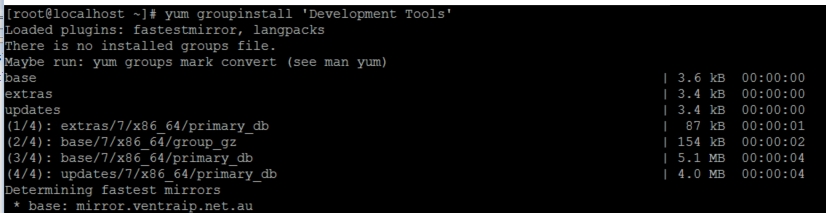
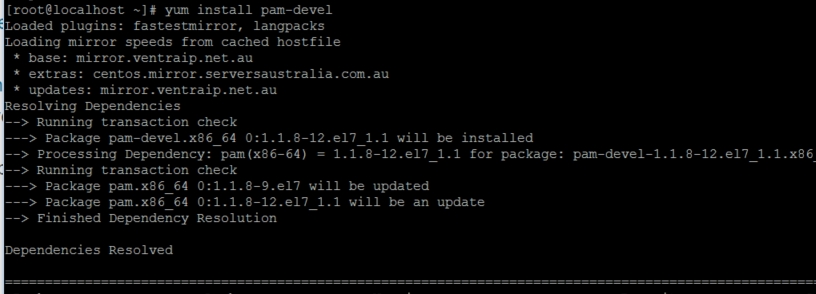
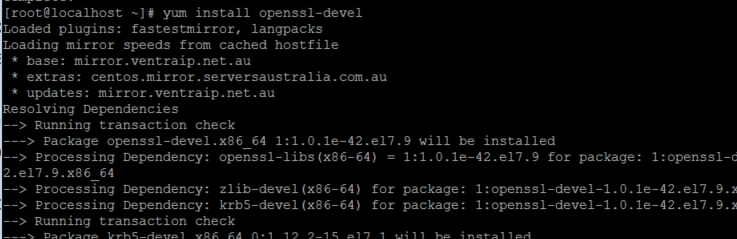
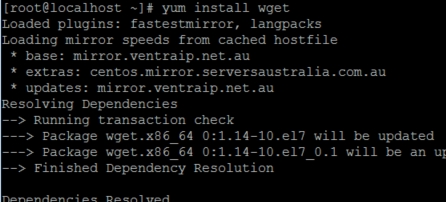
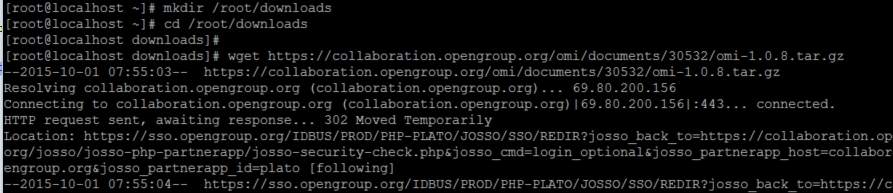
然后下载解压OMI的安装包
|
1
2
3
4
|
mkdir /root/downloads
cd /root/downloads
wget https://collaboration.opengroup.org/omi/documents/30532/omi-1.0.8.tar.gz
tar -xvf omi-1.0.8.tar.gz
|
配置安装OMI
|
1
2
3
4
|
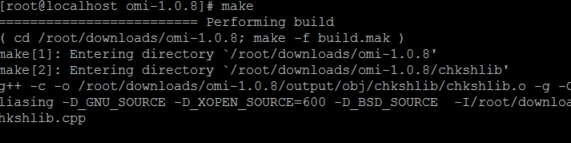
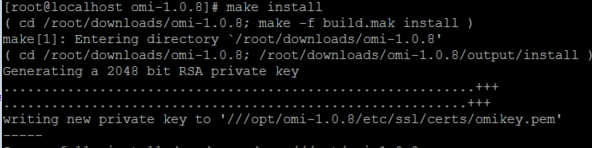
cd omi-1.0.8/
./configure
makemake install
|


安装python和Linux DSC的组件
|
1
2
3
4
5
6
7
8
9
|
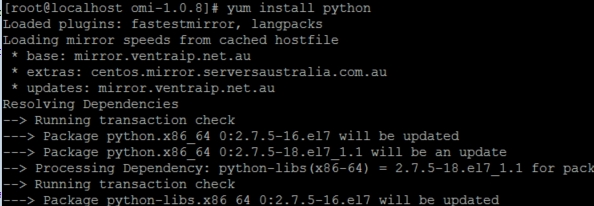
yum install python
yum install python-devel
cd /root/downloads
wget https://github.com/MSFTOSSMgmt/WPSDSCLinux/releases/download/v1.0.0-CTP/PSDSCLinux.tar.gz
tar -xvf PSDSCLinux.tar.gz
mv ./dsc/* ./
ls -l
makemake reg
|
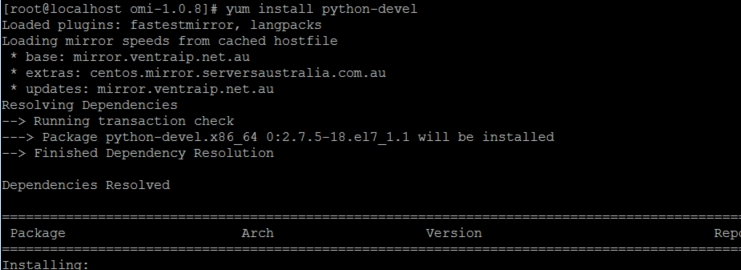
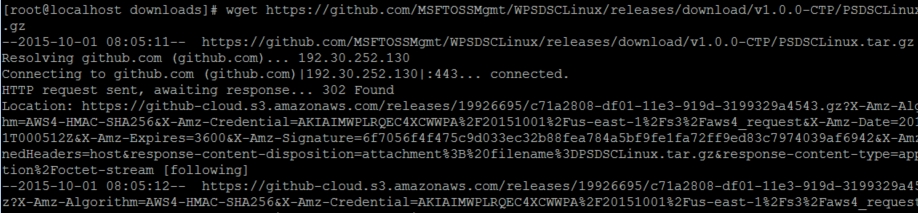
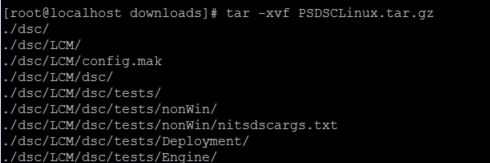
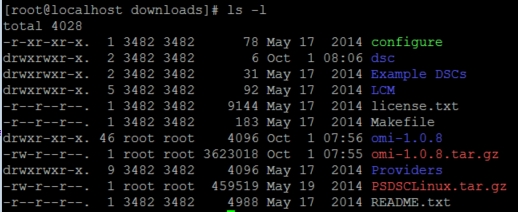
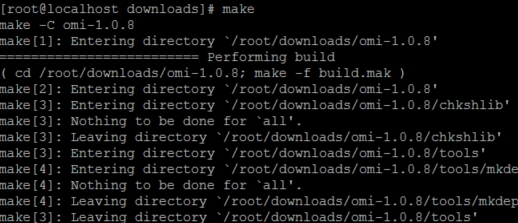
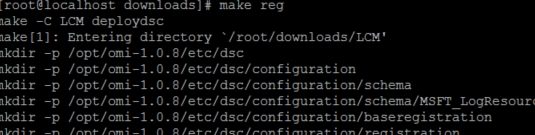
最后启动OMI服务器就行了
|
1
|
OMI_HOME=/opt/omi-1.0.8 /opt/omi-1.0.8/bin/omiserver -d
|
现在来配置服务器的DSC
首先需要下载对应的Linux资源
https://github.com/MSFTOSSMgmt/WPSDSCLinux/releases/download/v1.0.0-CTP/nx-PSModule.zip.
下载之后解压拷贝到 C:\Windows\System32\WindowsPowerShell\v1.0\Modules
然后查看是否已经成功加载, 可以看见多了几个nx开头的资源,我这个貌似不是最新版,从微软网页上可以看见更多的资源。
nxFile, 管理文件
nxPackage, 添加删除Package
nxScript, 运行脚本
nxService,管理服务
nxUser, 管理用户
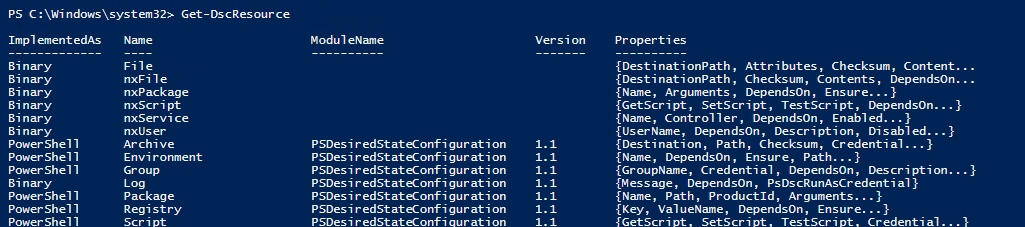
接下来配置一个测试用的配置文件,这里我创建了创建了一个文件和一个用户
|
1
2
3
4
5
6
7
8
9
10
11
12
13
14
15
16
17
18
19
20
21
22
|
Configuration MyDSCDemo{ Import-DSCResource -module nx
Node "10.2.1.79"{
nxFile myTestFile
{
Ensure = "Present"
Type = "File"
DestinationPath = "/tmp/dsctest"
Contents="This is my DSC Test!"
}
# Install packages if they are not installed
nxUser test {
username="test"
ensure="Present"
password="password"
}
}
}mydscdemo -outputpath c:\temp\demo |
为了连接到OMI服务器,我们需要创建一个CIM的session,默认端口是5986/5985,记得在Linux上打开对应的防火墙策略。
|
1
2
3
4
|
$securePass=ConvertTo-SecureString -string "Goat2015" -AsPlainText -Force
$cred= New-Object System.Management.Automation.PSCredential "root", $SecurePass
$opt = New-CimSessionOption -UseSsl:$true -SkipCACheck:$true -SkipCNCheck:$true -SkipRevocationCheck:$true
$demo1=New-CimSession -Credential:$cred -ComputerName 10.2.1.79 -Port:5986 -Authentication:basic -SessionOption:$opt -OperationTimeoutSec:90
|
直接推送,咦,报错?!!!
经过检查,这个东西其实是一个bug或者说是不兼容。WMF 5.0 Preview(DSC 2.0)会自动生成configrationName 和 Name, 而这个语法在4.0(DSC 1.0)和Linux上不存在,因此会报错。

处理方法很简单,要么手动删掉,要么用4.0的机器生成一个。
再次推送,成功!

登陆Putty,查看确认
cat /tmp/dsctest

cat /etc/passwd
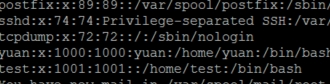
实验成功。