变换
Canvas中的“变形”,主要指的是坐标系的变换,而不是路径的变换。这与 QML 元素变换非常相似,都可以实现坐标系统的scale(缩放)、rotate(旋转)和translate(平移);不同的是,变换的原点是画布原点。例如,如果以一个路径的中心点为定点进行缩放,那么,你需要现将画布原点移动到路径中心点。我们也可以使用变换函数实现复杂的变换。理解“变换是针对坐标系的”这一点非常重要,有时候可以避免很多意外的结果。
1
2
3
4
5
6
7
8
9
10
11
12
13
14
15
16
17
18
19
20
|
import QtQuick 2.0
Canvas {
id: root
width: 240; height: 120
onPaint: {
var ctx = getContext("2d")
ctx.strokeStyle = "blue"
ctx.lineWidth = 4
ctx.translate(120, 60)
ctx.strokeRect(-20, -20, 40, 40)
// draw path now rotated
ctx.strokeStyle = "green"
ctx.rotate(Math.PI / 4)
ctx.strokeRect(-20, -20, 40, 40)
ctx.restore()
}
}
|
运行结果如下:
通过调用resetTransform()函数,可以将变换矩阵重置为单位矩阵:
组合
组合意思是,将你绘制的图形与已存在的像素做一些融合操作。canvas支持几种组合方式,使用globalCompositeOperation可以设置组合的模式。如下代码所示,我们可以看到组合的相应表现:
1
2
3
4
5
6
7
8
9
10
11
12
13
14
15
16
17
18
19
20
21
22
23
24
25
26
27
28
29
30
31
32
33
34
35
36
37
|
import QtQuick 2.0
Canvas {
id: root
width: 600; height: 450
property var operation : [
'source-over', 'source-in', 'source-over',
'source-atop', 'destination-over', 'destination-in',
'destination-out', 'destination-atop', 'lighter',
'copy', 'xor', 'qt-clear', 'qt-destination',
'qt-multiply', 'qt-screen', 'qt-overlay', 'qt-darken',
'qt-lighten', 'qt-color-dodge', 'qt-color-burn',
'qt-hard-light', 'qt-soft-light', 'qt-difference',
'qt-exclusion'
]
onPaint: {
var ctx = getContext('2d')
for(var i=0; i<operation.length; i++) {
var dx = Math.floor(i%6)*100
var dy = Math.floor(i/6)*100
ctx.save()
ctx.fillStyle = '#33a9ff'
ctx.fillRect(10+dx,10+dy,60,60)
// TODO: does not work yet
ctx.globalCompositeOperation = root.operation[i]
ctx.fillStyle = '#ff33a9'
ctx.globalAlpha = 0.75
ctx.beginPath()
ctx.arc(60+dx, 60+dy, 30, 0, 2*Math.PI)
ctx.closePath()
ctx.fill()
ctx.restore()
}
}
}
|
代码运行结果如下:
像素缓存
使用canvas,你可以将canvas内容的像素数据读取出来,并且能够针对这些数据做一些操作。
使用createImageData(sw, sh)或getImageData(sx, sy, sw, sh)函数可以读取图像数据。这两个函数都会返回一个ImageData对象,该对象具有width、height和data等变量。data包含一个以 RGBA 格式存储的像素一维数组,其每一个分量值的范围都是 [0, 255]。如果要设置画布上面的像素,可以使用putImageData(imagedata, dx, dy)函数。
另外一个获取画布内容的方法是,将数据保存到一个图片。这可以通过Canvas的函数save(path)或toDataURL(mimeType)实现,后者会返回一个图像的 URL,可以供Image元素加载图像。
1
2
3
4
5
6
7
8
9
10
11
12
13
14
15
16
17
18
19
20
21
22
23
24
25
26
27
28
29
30
31
32
33
34
35
36
37
38
39
40
41
42
43
44
45
46
47
|
import
QtQuick
2.0
Rectangle
{
width:
240;
height:
120
Canvas
{
id:
canvas
x:
10;
y:
10
width:
100;
height:
100
property
real
hue:
0.0
onPaint:
{
var
ctx
=
getContext("2d")
var
x
=
10
+
Math.random(80)*80
var
y
=
10
+
Math.random(80)*80
hue
+=
Math.random()*0.1
if(hue
>
1.0)
{
hue
-=
1
}
ctx.globalAlpha
=
0.7
ctx.fillStyle
=
Qt.hsla(hue,
0.5,
0.5,
1.0)
ctx.beginPath()
ctx.moveTo(x+5,y)
ctx.arc(x,y,
x/10,
0,
360)
ctx.closePath()
ctx.fill()
}
MouseArea
{
anchors.fill:
parent
onClicked:
{
var
url
=
canvas.toDataURL('image/png')
print('image
url=',
url)
image.source
=
url
}
}
}
Image
{
id:
image
x:
130;
y:
10
width:
100;
height:
100
}
Timer
{
interval:
1000
running:
true
triggeredOnStart:
true
repeat:
true
onTriggered:
canvas.requestPaint()
}
}
|
在上面的例子中,我们创建了两个画布,左侧的画布每一秒产生一个圆点;鼠标点击会将画布内容保存,并且生成一个图像的 URL,右侧则会显示这个图像。
Canvas 绘制
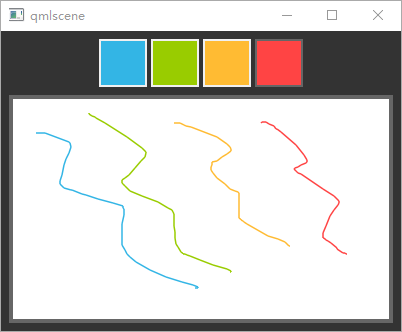
下面我们利用Canvas元素创建一个画板程序。我们程序的运行结果如下所示:

窗口上方是调色板,用于设置画笔颜色。色板是一个填充了颜色的矩形,其中覆盖了一个鼠标区域,用于检测鼠标点击事件。
1
2
3
4
5
6
7
8
9
10
11
12
13
14
15
16
17
18
19
20
21
|
Row {
id: colorTools
anchors {
horizontalCenter: parent.horizontalCenter
top: parent.top
topMargin: 8
}
property color paintColor: "#33B5E5"
spacing: 4
Repeater {
model: ["#33B5E5", "#99CC00", "#FFBB33", "#FF4444"]
ColorSquare {
id: red
color: modelData
active: parent.paintColor === color
onClicked: {
parent.paintColor = color
}
}
}
}
|
调色板所支持的颜色保存在一个数组中,画笔的当前颜色则保存在paintColor属性。当用户点击调色板的一个色块,该色块的颜色就会被赋值给paintColor属性。
为了监听鼠标事件,我们在画布上面覆盖了一个鼠标区域,利用鼠标按下和位置改变的信号处理函数完成绘制:
1
2
3
4
5
6
7
8
9
10
11
12
13
14
15
16
17
18
19
20
21
22
23
24
25
26
27
28
29
30
31
32
33
34
35
36
|
Canvas
{
id:
canvas
anchors
{
left:
parent.left
right:
parent.right
top:
colorTools.bottom
bottom:
parent.bottom
margins:
8
}
property
real
lastX
property
real
lastY
property
color
color:
colorTools.paintColor
onPaint:
{
var
ctx
=
getContext('2d')
ctx.lineWidth
=
1.5
ctx.strokeStyle
=
canvas.color
ctx.beginPath()
ctx.moveTo(lastX,
lastY)
lastX
=
area.mouseX
lastY
=
area.mouseY
ctx.lineTo(lastX,
lastY)
ctx.stroke()
}
MouseArea
{
id:
area
anchors.fill:
parent
onPressed:
{
canvas.lastX
=
mouseX
canvas.lastY
=
mouseY
}
onPositionChanged:
{
canvas.requestPaint()
}
}
}
|
鼠标左键按下时,其初始位置保存在lastX和lastY两个属性。鼠标位置的改变会请求画布进行重绘,该请求则会调用onPaint()处理函数。
最后,为了绘制用户笔记,在onPaint()处理函数中,我们首先创建了一个新的路径,将其移动到最后的位置,然后我们从鼠标区域获得新的位置,在最后的位置与新的位置之间绘制直线,同时,将当前鼠标位置(也就是新的位置)设置为新的最后的位置。
从 HTML5 移植
由于 QML 的Canvas对象由 HTML 5 的 canvas 标签借鉴而来,将 HTML 5 的 canvas 应用移植到 QML Canvas也是相当容易。我们以
Mozilla 提供的繁华曲线页面为例,演示移植的过程。可以在这里看到该页面的运行结果。下面是
HTML 5 canvas 的脚本部分:
1
2
3
4
5
6
7
8
9
10
11
12
13
14
15
16
17
18
19
20
21
22
23
24
25
26
27
28
29
30
31
|
function draw() {
var ctx = document.getElementById('canvas').getContext('2d');
ctx.fillRect(0,0,300,300);
for (var i=0;i<3;i++) {
for (var j=0;j<3;j++) {
ctx.save();
ctx.strokeStyle = "#9CFF00";
ctx.translate(50+j*100,50+i*100);
drawSpirograph(ctx,20*(j+2)/(j+1),-8*(i+3)/(i+1),10);
ctx.restore();
}
}
}
function drawSpirograph(ctx,R,r,O){
var x1 = R-O;
var y1 = 0;
var i = 1;
ctx.beginPath();
ctx.moveTo(x1,y1);
do {
if (i>20000) break;
var x2 = (R+r)*Math.cos(i*Math.PI/72) - (r+O)*Math.cos(((R+r)/r)*(i*Math.PI/72))
var y2 = (R+r)*Math.sin(i*Math.PI/72) - (r+O)*Math.sin(((R+r)/r)*(i*Math.PI/72))
ctx.lineTo(x2,y2);
x1 = x2;
y1 = y2;
i++;
} while (x2 != R-O && y2 != 0 );
ctx.stroke();
}
draw();
|
这里我们只解释如何进行移植,有关繁花曲线的算法则不在我们的阐述范围之内。幸运的是,我们需要改变的代码很少,因而这里也会很短。
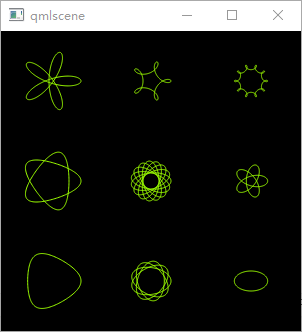
HTML 按照顺序执行,draw() 会成为脚本的入口函数。但是在 QML 中,绘制必须在 onPaint 中完成,因此,我们需要将 draw() 函数的调用移至 onPaint。通常我们会在 onPaint 中获取绘制上下文,因此,我们将给 draw() 函数添加一个参数,用于接受Context2D对象。事实上,这就是我们所有的修改。移植之后的 QML 如下所示:
1
2
3
4
5
6
7
8
9
10
11
12
13
14
15
16
17
18
19
20
21
22
23
24
25
26
27
28
29
30
31
32
33
34
35
36
37
38
39
40
41
42
|
import
QtQuick
2.2
Canvas
{
id:
root
width:
300;
height:
300
onPaint:
{
var
ctx
=
getContext("2d");
draw(ctx);
}
function
draw
(ctx)
{
ctx.fillRect(0,
0,
300,
300);
for
(var
i
=
0;
i
<
3;
i++)
{
for
(var
j
=
0;
j
<
3;
j++)
{
ctx.save();
ctx.strokeStyle
=
"#9CFF00";
ctx.translate(50
+
j
*
100,
50
+
i
*
100);
drawSpirograph(ctx,
20
*
(j
+
2)
/
(j
+
1),
-8
*
(i
+
3)
/
(i
+
1),
10);
ctx.restore();
}
}
}
function
drawSpirograph
(ctx,
R,
r,
O)
{
var
x1
=
R
-
O;
var
y1
=
0;
var
i =
1;
ctx.beginPath();
ctx.moveTo(x1,
y1);
do
{
if
(i
>
20000)
break;
var
x2
=
(R
+
r)
*
Math.cos(i
*
Math.PI
/
72)
-
(r
+
O)
*
Math.cos(((R
+
r)
/
r)
*
(i
*
Math.PI
/
72))
var
y2
=
(R
+
r)
*
Math.sin(i
*
Math.PI
/
72)
-
(r
+
O)
*
Math.sin(((R
+
r)
/
r)
*
(i
*
Math.PI
/
72))
ctx.lineTo(x2,
y2);
x1
=
x2;
y1
=
y2;
i++;
}
while
(x2
!=
R-O
&&
y2
!=
0
);
ctx.stroke();
}
}
|
运行一下这段代码: