Docker with boot2docker for Windows Tutorial
This tutorial walks you through the basics of using a Java app server (WildFly) via a Linux container, running on Windows with boot2docker. We have been testing this tutorial on Windows 7 and 8.1, you will notice that the screenshots come from either of those versions as this document has been tested and maintained.
There are notes for people running on Macs as well.
First follow installation steps for boot2docker:

Unless you already have VirtualBox installed, install all the components.
Mac: The docker and boot2docker binaries are in
/usr/local/binwhich you can access from your terminal. Windows: The boot2docker binary lands inC:\Program Files\Boot2Dockerfor Windows
Tip 1: where does the boot2docker VM ISO land on a Windows?
Windows: C:\Users\Burr\.boot2docker\boot2docker.iso
Mac: ~/.boot2docker/boot2docker.iso
Tip 2: where does the boot2docker instance land on Windows installation of VirtualBox
C:\Users\Burr\VirtualBox VMs\boot2docker-vm
Tip 3: Window Size Width 160 - docker ps is best displayed with lots of width
You can make this change on the Boot2Docker Start command window as well

Tip 4: VirtualBox before boot2docker init

VirtualBox installed prior to boot2docker has no mention of boot2docker until we use
boot2docker init. Also, if you have previously installed boot2docker, you can often useboot2docker upgradeto simply update to the latest version.
Explore Docker
-
Look for and select the
Boot2Docker Startmenu option in your Start MenuOr use start.sh to launch the command prompt (not the normal Windows command prompt)
You should be able to double-click on start.sh in C:\Program Files\Boot2Docker for Windows
If you successfully launch start.sh, it will execute
up,statusandip, therefore you can skip to step 8 below. Do make note of the IP address that is printed out, you will need it later.If there are error messages (and there normally are for a brand new installation), read steps 2 through 7 for some alternative ways to get boot2docker up and happy
-
You might also execute boot2docker commands from the Windows (DOS) Command Prompt aka "cmd.exe" and type
boot2docker versionNote: We have seen this fail on some systems. There will be some workarounds listed in step 3 below.
Tip: on Windows 8.1, the Command Prompt is accessible if you hit the Windows key and X then C on the keyboard
-
boot2docker initYou should see the boot2docker-vm listed in VirtualBox Manager
Note: This might result in
error in run: Error generating new SSH Key into C:\Users\Burr\.ssh\id_boot2docker: exec: "ssh-******": executable file not found in %PATH%If so, then fall back to the Boot2Docker Start menu option calling "start.sh".
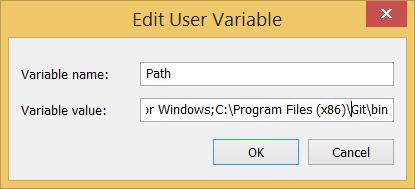
There is another SSH related error that shows up, basically ssh.exe can not be found in the %PATH%. Use Control Panel to add the C:\Program Files(x86)\Git\bin to your PATH
-
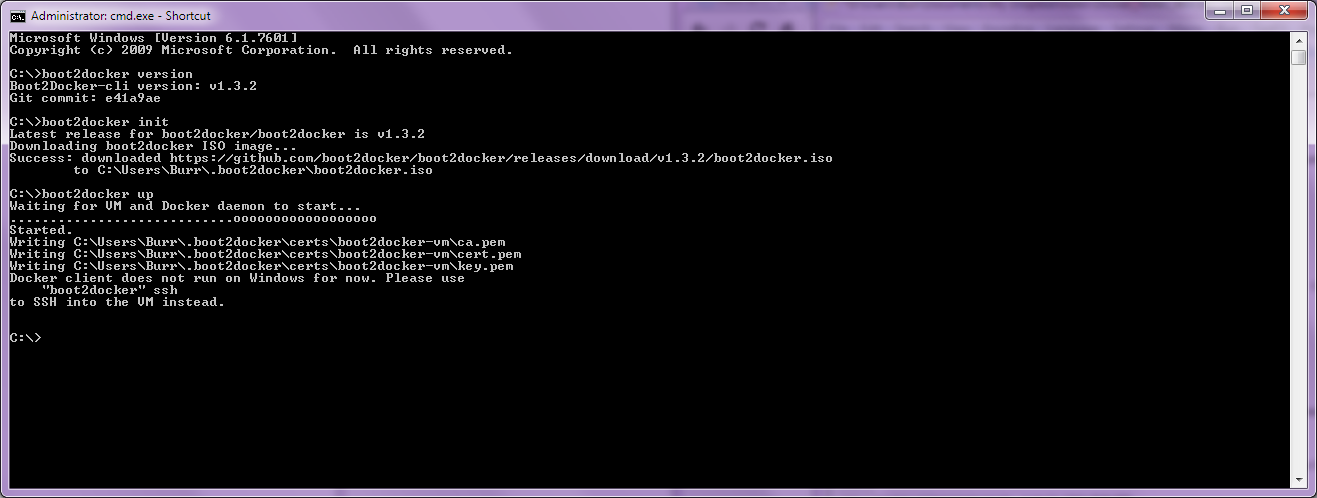
boot2docker upLook for the following on Windows:
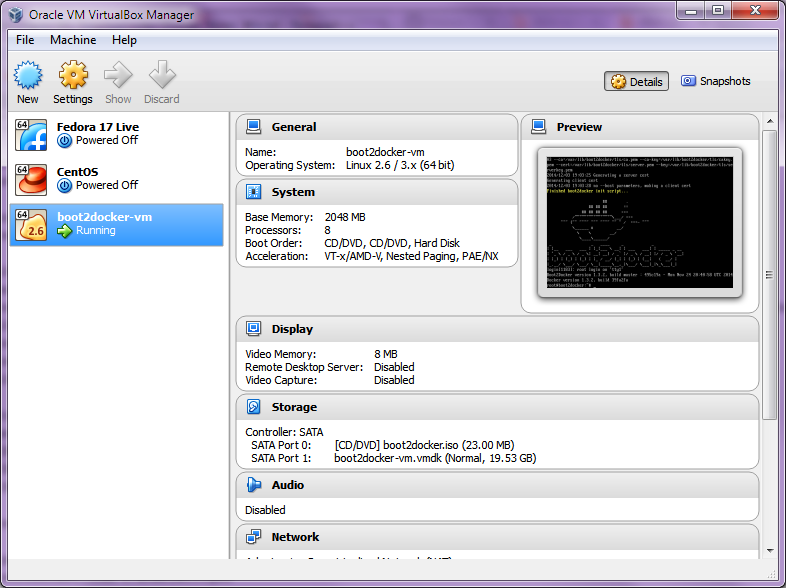
Now, if you check the VirtualBox GUI you will see the
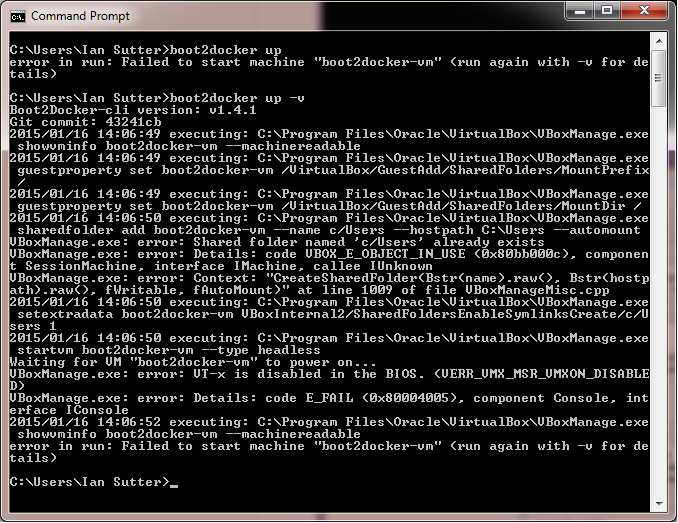
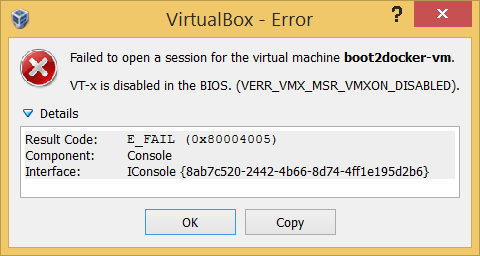
boot2docker-vmrunning:Watch out for "VT-x is disabled in BIOS" errors If virtualization has not been enabled in your machines BIOS, you could see the following error:
Or, if you hit the Start button inside the VirtualBox Manager directly
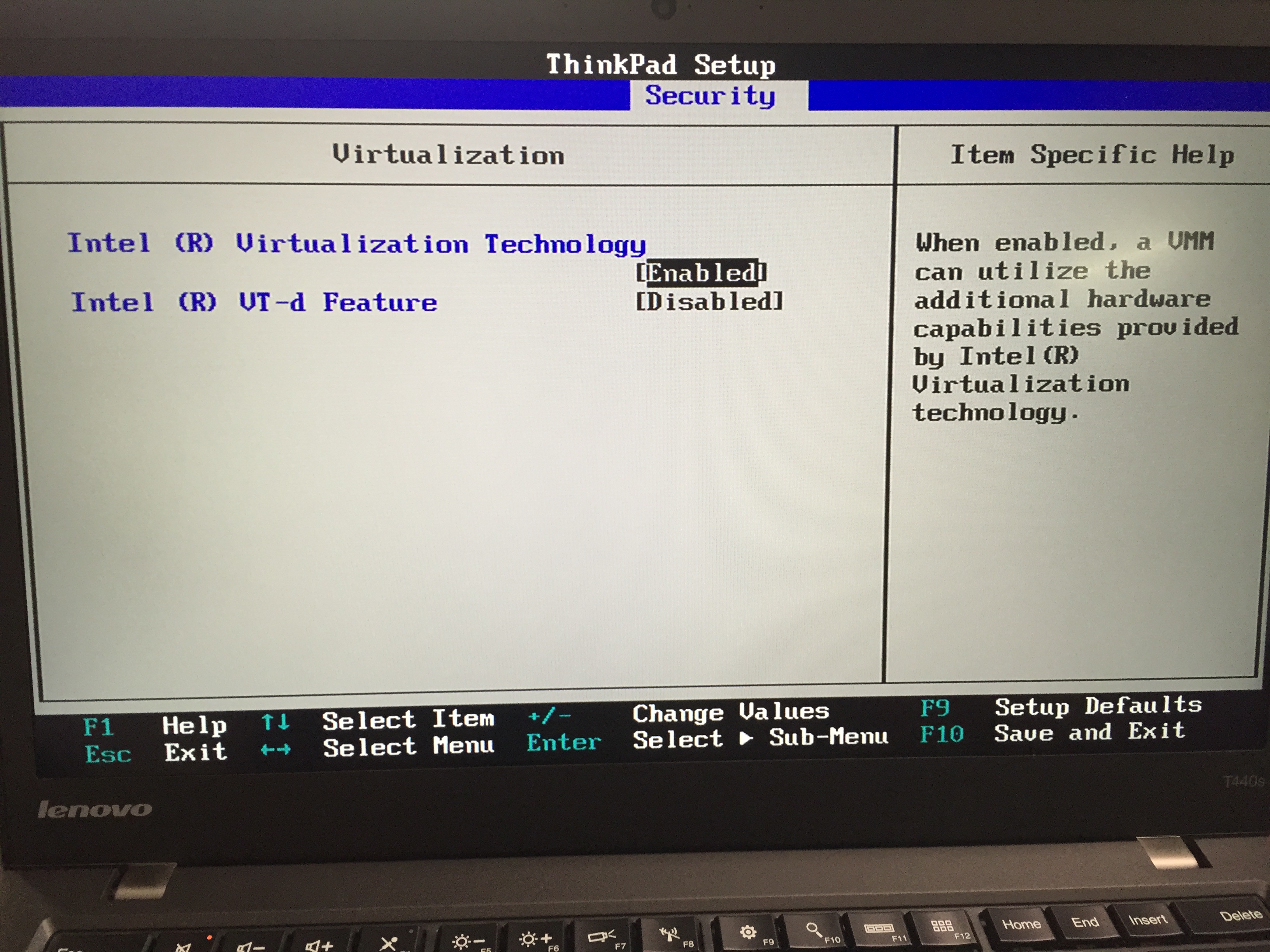
If you see this error, you will need to update your BIOS settings accordingly.
BIOS for Lenovo T440s
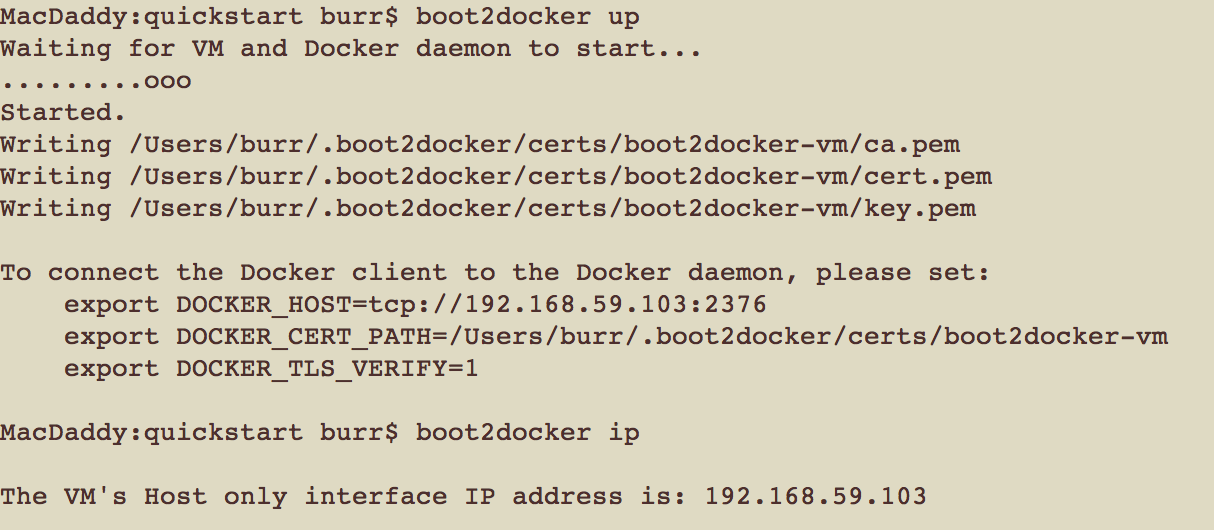
Watch for the following on Mac OSX:
Copy and paste the export statements you are provided with in to your terminal. If you get this step wrong, when you try further commands, you may see an error message like:
-
boot2docker statusNote: When it is time to shutdown, run
boot2docker down -
boot2docker ipYou will need this later!
-
boot2docker sshFrom this point forward, you will be inside of a Linux shell, using Linux commands
-
docker version -
docker info -
docker -
docker images -
docker ps -a -
docker run centos /bin/echo "Hello World"This will take some time if this is the first run of the "centos" image
If you run the same command again, you will notice that is runs immediately, no download required. A Docker container starts incredibly fast when compared to traditional virtual machine technology.
To prove that point, run the same command again.
Note: the container stops as soon as it finishes the /bin/echo command
-
On Windows, with boot2docker 1.3.x, the Users directory is shared as
/c/Usersls /c/UsersThis shared folder will allow you to add and edit files using your traditional Windows tools instead of having to learn vi or nano.
Using your File Explorer, create a
demosub-directory to your home directory and then use als -lto see it via the boot2docker-vm (in this exampleBurris the username):ls -l /c/Users/Burr/demoIn this screenshot, I already some sample projects in my C:\Users\Burr\demo directory
Note: We won't be using "demo" in this tutorial, the goal here was to let you see the connection between /c/Users and C:\Users
-
docker run -i -t centos /bin/bash-i means interactive and -t allows your keyboard inputYou can also use
-itas well as-i -t. Remember this trick - if you have an app server failing to start, you can see the console output and review the logs by using "-it"If this is your first time running the centos image, it may take over a minute to download.
You are now running inside of the Centos-based container, to prove that point, use the following command
cat /etc/system-releaseType
exitto leave the container and drop back into the boot2docker-vm shell. -
docker psThere should be no currently running containers since
exitterminated the last centos container -
docker ps -abut there have been previously run containers
-
docker imagesshows local images
-
docker pull centos/wildflyDocker Hub contains a large number of pre-configured images that are ready to use via a simple "pull" e.g. https://registry.hub.docker.com/u/centos/wildfly/
rundoes an implicit "pull" if the image is not already downloadedDocker images are typically identified by two words
"owner"/"imagename"Thecentos/wildflyimage includes nice documentation on how to use it - we will be following several of those steps next. -
docker run -it centos/wildflyThe
tis important so you canCtrl-Cto stop wildfly and the container.Hit
Ctrl-Cand run adocker psto see that the container has been stopped.In this particular case, the WildFly instance does not expose any ports to the outside world, let's try that next.
-
docker run -it -p 8080:8080 centos/wildflyIf you remember the IP address you can use your favorite browser to hit the server. If you forgot to make note of your IP address earlier, you can open another session into boot2docker. Just go back to the Windows Start menu and select
Boot2Docker Startor run start.sh. You might wish to keep both boot2docker sessions open as it allows you to docker run an app server via "-it" in one window and then "docker ps" or "docker logs" in another window.Press
Ctrl-Cto terminate the WildFly container. -
docker history centos/wildflyThe history command allows you to see more detail into how the image was crafted





Modify the image and provide our own custom Java application
-
If you remember way back to
ls /c/Users/Burr/demo, theUsersdirectory on your Windows host is shared with the boot2docker-vm (thanks to VirtualBox Guest Additions). In your home directory, create a directory calleddocker_projectsthat is a sibling ofdemo. You can create the directory from within the boot2docker-vm with the following command (or just use File Explorer).mkdir /c/Users/Burr/docker_projectsUse your home directory name in place of "Burr"
and then create a sub-directory called
myappmkdir /c/Users/Burr/docker_projects/myappYou can create the "myapp" directory via Windows Explorer or the boot2docker-vm shell
and then change to the directory, it is important that you do this inside of the boot2docker-vm shell
cd /c/Users/Burr/docker_projects/myapp -
In the
myappdirectory, create a text file calledDockerfile, with no extension.On Windows you might use the Atom editor from Atom.io for text editing.
-
Edit the newly created
Dockerfileand add the following two lines:FROM centos/wildfly COPY javaee6angularjs.war /opt/wildfly/standalone/deployments/Note: On Macs, we have seen Wildfly have a permissions problem with the .war. The workaround is to switch to Root and use chown to make the ajustment to the .war file by adding the following two lines:
USER root
RUN chown wildfly:wildfly /opt/wildfly/standalone/deployments/javaee6angularjs.war
The trailing "/" does matter
You can find
javaee6angularjs.warathttps://github.com/burrsutter/docker_tutorial/blob/master/javaee6angularjs.war?raw=trueDownload the war and copy it to themyappdirectory. -
Back in the boot2docker ssh session
docker build --tag=myapp .the trailing "." is important
Use the docker
docker imagescommand to see if the image was created -
Let's see if that worked
docker run -it -p 8080:8080 myappyou should see the deployment of
javaee6angularjs.warin the wildfly console logging -
And test the app via your browser http://192.168.59.105:8080/javaee6angularjs
The IP address in my screenshots change from time to time as this document has been maintained. Just make sure to remember YOUR IP address as seen via start.sh or boot2docker ip
Now it is time for a victory dance around the room! You have your first Java EE application deployed as part of a Docker container. Remember, Ctrl-C to shut down the app server.


Extra Credit
-
Run detached
You could also use a
-dinstead of-itto run the container detached, in the backgrounddocker run -d -p 8080:8080 myappIf detached, you will need to use
docker psto see the active containers and then usedocker stop CONTAINER_IDanddocker rm CONTAINER_IDNote: Docker automatically generated the name "agitated_hawking" which you can use instead of the CONTAINER_ID
-
Container naming
Adding a --name=some_name allows you to give override the default name of agitated_hawking or whatever was randomly assigned to your container by Docker
docker run --name=myapp_is_running -d -p 8080:8080 myapp -
Viewing logs
docker logs myapp_is_runningand you can
docker stop myapp_is_runningwhen it is time to shutdown the -d detached app server container -
Dive into a live container
 docker exec -it myapp_is_running bash

 cd /opt/wildfly/standalone/log
 tail server.log
This is a very useful technique if you find things are misbehaving and you wish poke around inside the running container.


Cleanup
OPTIONAL - Clean Slate: If you wish to completely clean up and run through the above steps again:
-
Remove/Delete all containers
docker rm `docker ps -a -q`the back ticks are important! You might also need to "stop" or "kill" any containers that are running and will not remove.
docker ps -a
docker stop CONTAINER_ID
docker kill CONTAINER_ID
Replace CONTAINER_ID with the id seen in the
docker psresults. -
Remove/Delete all images
docker rmi `docker images -a -q`watch those back ticks again
-
Exit the boot2docker-vm shell, back at the Windows Command Prompt
boot2docker down
boot2docker destroy
or if boot2docker from the command line is causing you problems, there is "Delete Boot2Docker VM" Start menu option which maps to delete.sh
and to re-make the boot2docker-vm
boot2docker init
boot2docker up
On Windows
C:\Users\burr\.boot2dockercontain files associated with your installation and I have seen .boot2docker not be uninstalled properly, manual deletion may be necessary
Check out the follow-on tutorial for adding MySQL.https://github.com/burrsutter/docker_mysql_tutorial
from:https://github.com/burrsutter/docker_tutorial