Many people use more than just one computer throughout the day. Perhaps you
have a home desktop computer, a laptop, and even a work computer. Chances are,
you use each of these computers to access the web. What can be frustrating is
attempting to keep your bookmarks in order. On just one machine alone this can
be daunting, but to have them organized across all machines is even tougher.
Luckily there are some great free options out there for effortlessly keeping
your bookmarks synced for whatever browser you are using, and we’ve compiled a
list of three, just for you.
Google Chrome – Integrated Syncing
 If you are using Google Chrome, you don’t even need to
install any addition software. Google Chrome has bookmark syncing baked directly
into the browser. Enabling it is as simple as plugging in your Google account
information.
If you are using Google Chrome, you don’t even need to
install any addition software. Google Chrome has bookmark syncing baked directly
into the browser. Enabling it is as simple as plugging in your Google account
information.
At the top right of the browser, click on the wrench button, then find
“Synchronize my bookmarks…”
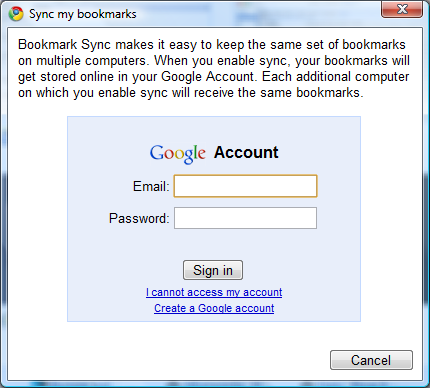
 A new box will pop up which will ask for your Google
account login info.
A new box will pop up which will ask for your Google
account login info.
 After entering your Google credentials, bookmark syncing
will be handled automatically from this point on. Simply go to any other
computer that you’d like to keep bookmarks in sync with, and follow the same
steps with the same Google account. Bookmarks should be
merged, so if you have different bookmarks on multiple computers,
everything will mesh together, then you can use the Bookmark manager to organize
(ctrl+shift+b in Chrome). Be sure to double check that bookmarks are
merging and not being replaced, just in case you have important
bookmarks on one of your computers. Carefully read the prompts as you set up the
syncing.
After entering your Google credentials, bookmark syncing
will be handled automatically from this point on. Simply go to any other
computer that you’d like to keep bookmarks in sync with, and follow the same
steps with the same Google account. Bookmarks should be
merged, so if you have different bookmarks on multiple computers,
everything will mesh together, then you can use the Bookmark manager to organize
(ctrl+shift+b in Chrome). Be sure to double check that bookmarks are
merging and not being replaced, just in case you have important
bookmarks on one of your computers. Carefully read the prompts as you set up the
syncing.
Google stores your synced bookmarks on Google Docs, which means if you are
ever on another computer that you aren’t syncing with (perhaps a public
computer) you can always go to docs.google.com to get access to
your bookmarks from any web connect computer (just remember to log out of your
Google account when you are done!)
Mozilla Firefox – Weave
 Weave is an official project from Mozilla which is
designed to keep your Firefox sessions in perfect sync. Weave does a little bit
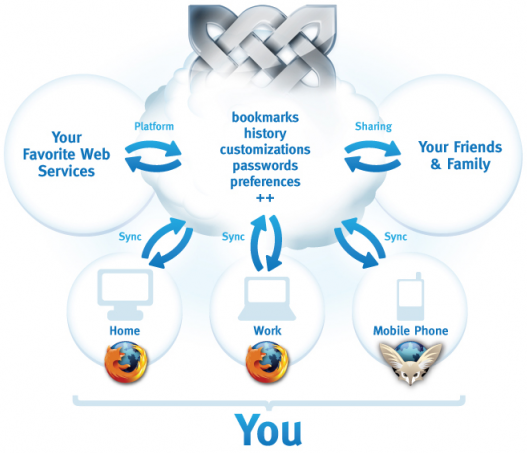
more than just syncing bookmarks. Have a look at this diagram which is featured
on the Weave
website.
Weave is an official project from Mozilla which is
designed to keep your Firefox sessions in perfect sync. Weave does a little bit
more than just syncing bookmarks. Have a look at this diagram which is featured
on the Weave
website.
 Weave is a Firefox add-on which can be easily installed
by visiting the Weave website and clicking “Get it now!” You’ll
need to be running the latest version of the Firefox browser (to check, go to
the “Help” menu at the top of the browser, and find “Check for updates”). Once
the add-on is installed, you need to set up a Weave account:
Weave is a Firefox add-on which can be easily installed
by visiting the Weave website and clicking “Get it now!” You’ll
need to be running the latest version of the Firefox browser (to check, go to
the “Help” menu at the top of the browser, and find “Check for updates”). Once
the add-on is installed, you need to set up a Weave account:
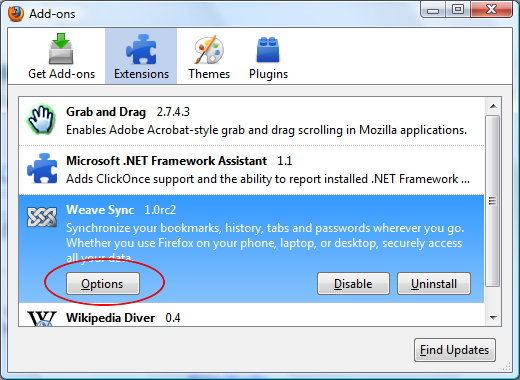
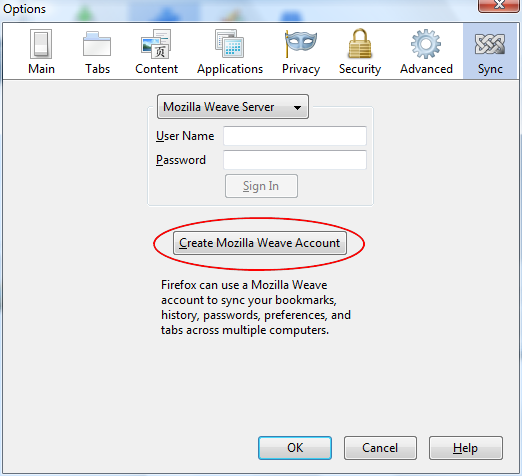
 Start by opening the add-ons manager and clicking on
“Options” on the Weave Sync add-on.
Start by opening the add-ons manager and clicking on
“Options” on the Weave Sync add-on.
 Click the button to create a Mozilla Weave account.
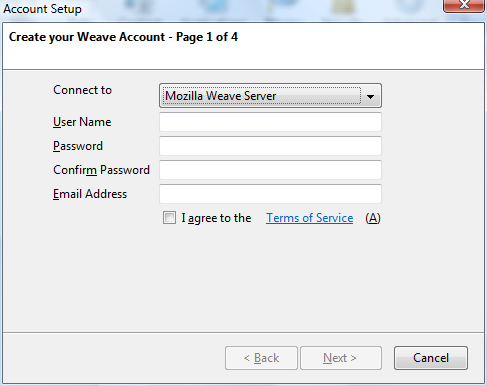
 Fill in the required information and hit next. After
this window, you’ll have a few more fields to fill out until everything it set
up.
Fill in the required information and hit next. After
this window, you’ll have a few more fields to fill out until everything it set
up.
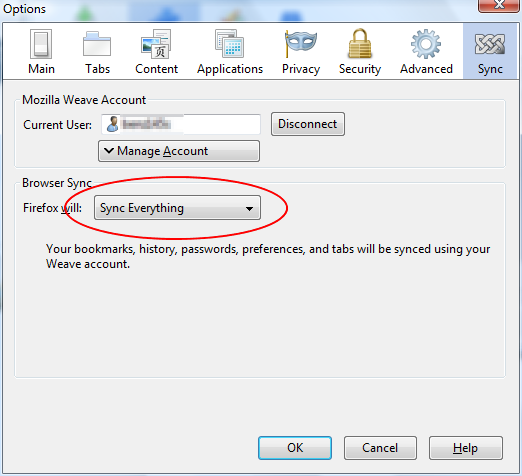
 Once the account is set up, use the dropdown box to
decide what Weave will do for you. You can choose between syncing everything, or
choose “Use my custom settings” to decide exactly what gets synced. Once this is
done, install the add-on in the same way on other computers that you’d like to
sync with and use the account that you just created to fill out the User Name
and Password fields in the first step.
Once the account is set up, use the dropdown box to
decide what Weave will do for you. You can choose between syncing everything, or
choose “Use my custom settings” to decide exactly what gets synced. Once this is
done, install the add-on in the same way on other computers that you’d like to
sync with and use the account that you just created to fill out the User Name
and Password fields in the first step.
Xmarks – Multi-browser bookmark syncing
 If you use Firefox or Google Chrome exclusively across
all of your computers, the two above options will probably work well for you.
However, there are a myriad of reasons that someone might use more than one
browser across multiple computers, or even on the same computer. If you find
yourself in this group, Xmarks is the solution for you. Xmarks (formerly
Foxmarks) started as a very good Firefox-only bookmark syncing add-on. It has
since then evolved to support the four major browsers, most recently Chrome.
Follow the links below to get the Xmarks add-on for your favorite browsers and
start syncing bookmarks:
If you use Firefox or Google Chrome exclusively across
all of your computers, the two above options will probably work well for you.
However, there are a myriad of reasons that someone might use more than one
browser across multiple computers, or even on the same computer. If you find
yourself in this group, Xmarks is the solution for you. Xmarks (formerly
Foxmarks) started as a very good Firefox-only bookmark syncing add-on. It has
since then evolved to support the four major browsers, most recently Chrome.
Follow the links below to get the Xmarks add-on for your favorite browsers and
start syncing bookmarks:
Again, you’ll need to install Xmarks on each computer and for each browser
that you’d like to sync with. You’ll create an Xmarks account to keep everything
in order, and if you find yourself on a computer which doesn’t have Xmarks
installed, you can visit my.xmarks.com to access your
bookmarks.