简介
mesosphere
mesos
marathon
zookeeper:
为master的mesos/marathon的配置文件,这保证master更轻量级。
大概为这几个概念,能找到这里的基本上都是知道他们是干啥的,这里不废话了。不懂的可自行脑补。
环境:
| Hostname |
Function | IP Address |
| master1 |
Mesos master | 172.18.2.94 |
| master2 | Mesos master | 172.18.2.95 |
| master3 | Mesos master | 172.18.2.96 |
| slave1 | Mesos slave | 172.18.2.97 |
| slave2 | Mesos slave | 172.18.2.98 |
| slave3 | Mesos slave | 172.18.2.99 |
| slave4 | Mesos slave |
172.18.2.100 |
描述:
首先,master为3台机器,做zookeeper集群做配置管理(mesos/marathon/zookeeper),然后3个master节点做高可用、Marathon同理。
提前工作
①关掉selinux
|
1
|
setenforece 0 (配置文件自行修改) |
②关掉firewalld
|
1
|
systemctl disable firewalld.service |
③清空防火墙
|
1
|
iptables -F |
Master Nodes Setup
Package Installation
这里为了简单起便,将使用yum来装,当然你可以自己编译,效果一样。其他的还有docker仓库直接装的,方法很多,看你环境吧。
Setup Repositories
|
1
|
rpm -Uvh http://repos.mesosphere.io/el/7/noarch/RPMS/mesosphere-el-repo-7-1.noarch.rpm
|
Install
|
1
2
|
yum -y install mesosphere-zookeeper
yum -y install mesos marathon
|
Configuration
ZooKeeper
①,先给每台机器zookeeper打标签:
|
1
2
3
|
echo 1 > /etc/zookeeper/conf/myid
PS:有些可能在 /var/lib/zookeeper/myid
|
注意:myid中的每台机器不同,对应下面配置文件中的server.$NUM
在/etc/zookeeper/conf/zoo.cfg配置文件中追加以下内容:
|
1
2
3
|
server.1=172.18.2.94:2888:3888server.2=172.18.2.95:2888:3888server.3=172.18.2.96:2888:3888 |
解释下这个后边的$IP,$PORT1,$PORT2
|
1
2
3
|
IP不解释$PORT1 因为三台为高可用,肯定有个master,这个端口是master起的;$PORT2 为他们互相检查、看谁当master检查用的。 |
然后就可以重启zookeeper服务了(端口为2181)
|
1
|
systemctl start zookeeper |
Mesos
ZooKeeper
在每个节点上,需要配置zookeeper的地址,像这样写进/etc/mesos/zk
|
1
|
zk://172.18.2.94:2181,172.18.2.95:2181,172.18.2.96:2181/mesos
|
Quorum
我不确定这个是不是BUG,因为这个官方要求参数,3台master的情况下,这个配置应该为2的,但是当你设置成2的时候,3台master一直会去争抢leader,导致slave节点无法注册,所以这里我们将它搞为1
|
1
|
echo 1 > /etc/mesos-master/quorum
|
Hostname
这里说下,我们把主机名master$num 写进hosts解析里面,然后把各自的主机名写进这个文件中
|
1
|
echo $master > /etc/mesos-master/hostname
|
需要将本机的ip写进配置文件中
|
1
|
echo $host > /etc/mesos-master/ip
|
然后mesos的配置这里就ok了,但是你得注意一点,把他自身的一些东西给处理下
|
1
2
|
systemctl stop mesos-slave.servicesystemctl disable mesos-slave.service |
然后重启mesos
|
1
|
systemctl restart mesos-master.service |
Marathon
首先,创建下他的配置文件的路径(yum装的没给我们创建)
|
1
|
mkdir -p /etc/marathon/conf
|
Hostname
把mesos的直接拷过来就好了
|
1
|
cp /etc/mesos-master/hostname /etc/marathon/conf
|
ZooKeeper
这里有2点:①配置marathon自己的zk,另外还需要连接mesos自己的,因为他要过去调度任务呀
|
1
2
3
4
|
cp /etc/mesos/zk /etc/marathon/conf/master
cp /etc/marathon/conf/master /etc/marathon/conf/zk
vim /etc/marathon/conf/zk 内容:zk://172.18.2.94:2181,172.18.2.95:2181,172.18.2.96:2181/marathon
|
然后重启marathon
|
1
|
systemctl restart marathon.service |
Master is ok !
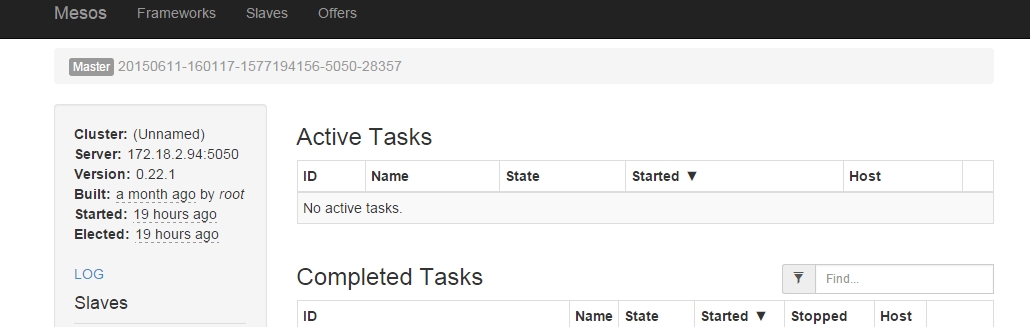
mesos访问地址:
|
1
|
172.18.2.94:5050 |
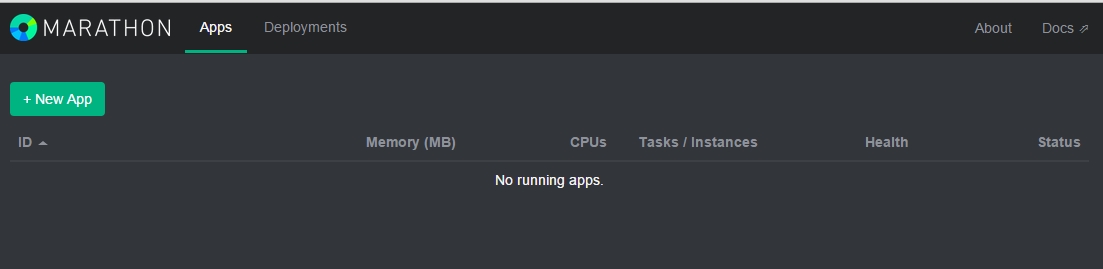
marathon访问地址:
|
1
|
172.18.2.94:8080 |
Slave Node Setup
Package Installation
Setup Repositories
|
1
|
rpm -Uvh http://repos.mesosphere.io/el/7/noarch/RPMS/mesosphere-el-repo-7-1.noarch.rpm
|
Install from package
|
1
|
yum -y install mesos
|
Configuration
Mesos
首先要关掉master
|
1
2
|
systemctl stop mesos-master.servicesystemctl disable mesos-master.service |
ZooKeeper
配置zookeeper的地址,因为说过他们会向zookeeper注册,配置同master /etc/mesos/zk
|
1
|
zk://172.18.2.94:2181,172.18.2.95:2181,172.18.2.96:2181/mesos
|
Hostname
同理,这里为/etc/mesos-slave/hostname
需要将本机的ip写进配置文件中
|
1
|
echo $host > /etc/mesos-slave/ip
|
Start Services
|
1
|
systemctl restart mesos-slave.service |
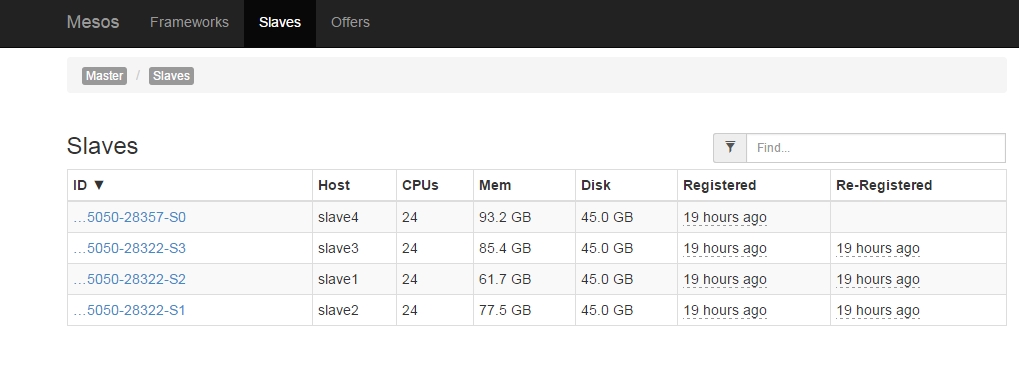
然后,到mesos管理端,去查看slave的注册情况
Starting Services on Mesos and Marathon
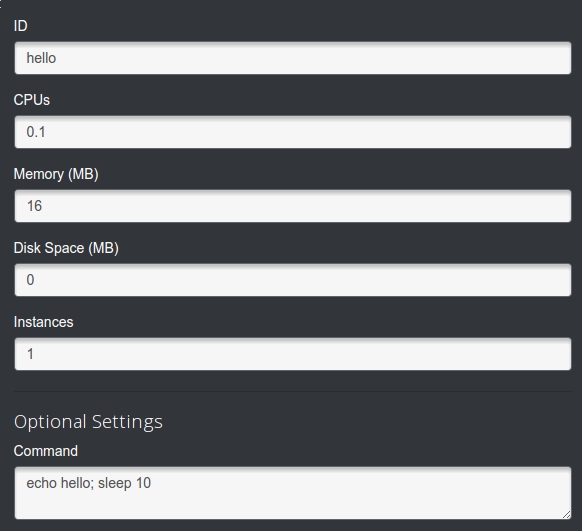
这里不做复杂的演示,只做简单的。
WEB UI
master1:5050

Starting a Service through the API
首先准备一个json文件(hello2.json)
|
1
2
3
4
5
6
7
8
9
|
{ "id": "hello2",
"cmd": "echo hello; sleep 10",
"mem": 16,
"cpus": 0.1,
"instances": 1,
"disk": 0.0,
"ports": [0]
}
|
然后调用api
|
1
|
|

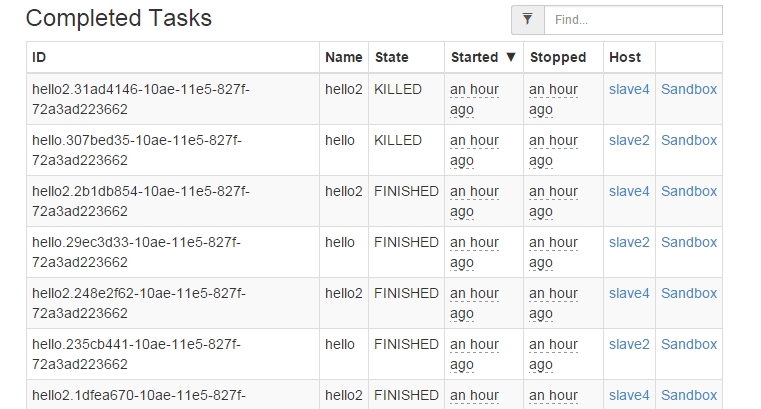
就到这里吧,太久没写了,找不到感觉。
细节地方大家注意好就行