OpenLiveWriter客户端下载请见附件

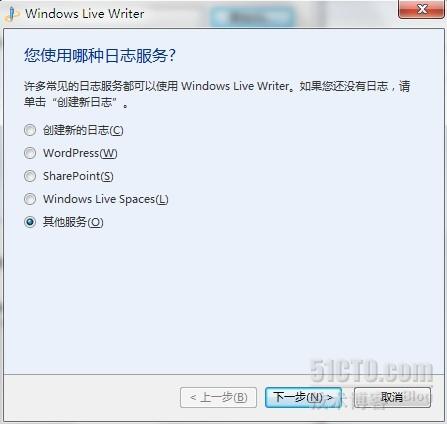
打开客户端:使用Windows Live Writer时会出现向导界面,快速引导我们配置博客空间,如图:

选择“Other services”
用Windows Live Writer在51CTO写博客(2018年2月24日更新)

设置博客帐户:

1、在您的日志网址中输入:您的博客地址/xmlrpc.php

2、输入你的用户名与密码。

用Windows Live Writer在51CTO写博客(2018年2月24日更新)

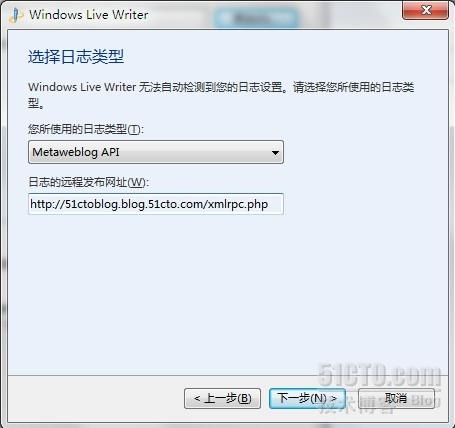
设置日志的远程发布url :

1、在日志类型菜单中选择“Metaweblog API”;

2、在日志的远程发布url中输入"https://blog.51cto.com/xmlrpc.php"。
用Windows Live Writer在51CTO写博客(2018年2月24日更新)

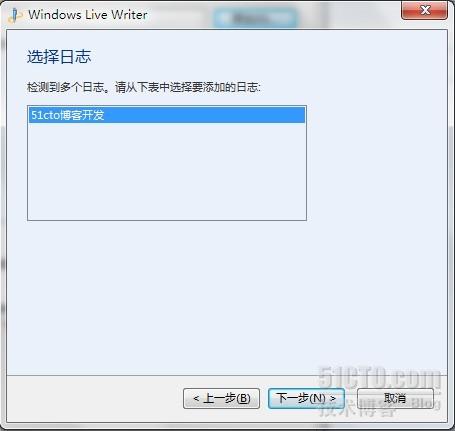
选择您要添加的日志。

用Windows Live Writer在51CTO写博客(2018年2月24日更新)

Open live writter 会进行检测,

用Windows Live Writer在51CTO写博客(2018年2月24日更新)


用Windows Live Writer在51CTO写博客(2018年2月24日更新)

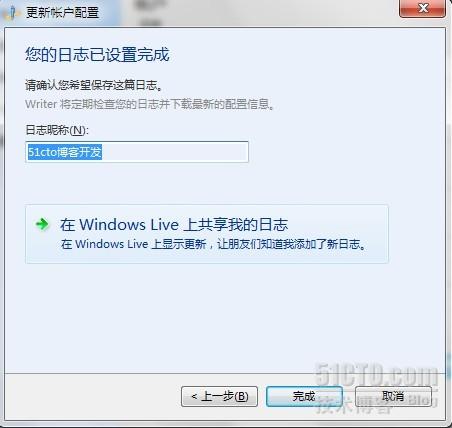
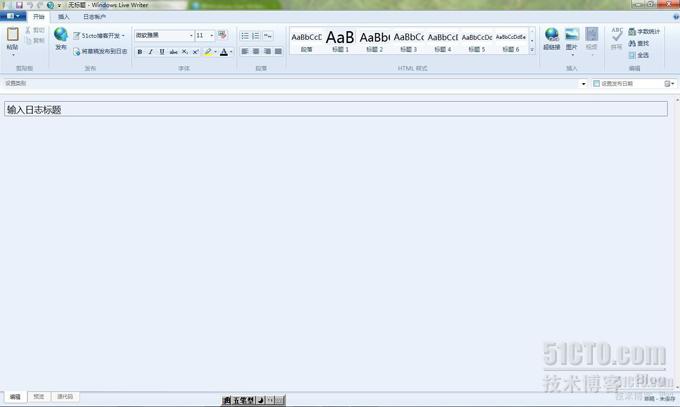
配置成功!可以来发布博文吧~

用Windows Live Writer在51CTO写博客(2018年2月24日更新)

【温馨提示】

配置好客户端后,类别里没有提供“创作类型”,导致提示501错误发布不成功,原因可能有三个:

1. 博客地址后未加后缀xmlrpc.php,必须确保2个地址都添加了后缀;

2. 日志类型选择错误,应选择“Metaweblog API”;

3. 文章创作类型跟文章分类操作有误。正确的操作方式是先选择创作类型,再选择文章分类,最后发布即可。


转载于:https://blog.51cto.com/51ctoblog/442776

相关文章:

  • 2021-06-07
  • 2021-09-19
  • 2021-10-08
  • 2021-06-20
  • 2022-12-23
  • 2022-02-21
  • 2022-12-23
猜你喜欢
  • 2021-05-11
  • 2021-12-16
  • 2021-07-10
  • 2022-01-19
  • 2021-09-08
  • 2021-06-15
  • 2022-03-07
相关资源
相似解决方案