在这篇文章中我们将详细介绍 jQuery Mobile 的按钮。在 jQuery Mobile 中所有按钮的样式一般都是文本居中,圆角,有阴影的效果,还包括一个可选的图标。
让我们来看看这些按钮是如何工作的。
Step 1: 首先创建一个 .html 页面来演示 jQuery Mobile 的按钮图标
Step 2: .html 的页面内容如下,这里我们使用了 Microsoft CDN
03 |
<html xmlns="http://www.w3.org/1999/xhtml">
|
05 |
<meta charset="utf-8" />
|
06 |
<meta name="viewport" content="width=device-width, initial-scale=1"/>
|
08 |
<script src="http://ajax.aspnetcdn.com/ajax/jQuery/jquery-1.7.2.min.js" type="text/javascript"></script>
|
09 |
<scriptsrc="http://ajax.aspnetcdn.com/ajax/jquery.mobile/1.1.0/jquery.mobile-1.1.0.js" type="text/javascript"></script>
|
10 |
<linkhref="http://ajax.aspnetcdn.com/ajax/jquery.mobile/1.1.0/jquery.mobile-1.1.0.css" rel="stylesheet" type="text/css" />
|
11 |
<linkhref="http://ajax.aspnetcdn.com/ajax/jquery.mobile/1.1.0/jquery.mobile.structure-1.1.0.min.css" rel="stylesheet" type="text/css" />
|
Step 3: 然后将下列代码放在 .html 页面的 body 块中
03 |
<a href="javascript:void(0)" data-role="button" data-icon="delete">Delete</a>
|
04 |
<a href="javascript:void(0)" data-role="button" data-icon="plus">Plus</a>
|
05 |
<a href="javascript:void(0)" data-role="button" data-icon="minus">Minus</a>
|
06 |
<a href="javascript:void(0)" data-role="button" data-icon="check">Check</a>
|
07 |
<a href="javascript:void(0)" data-role="button" data-icon="grid">Grid</a>
|
08 |
<a href="javascript:void(0)" data-role="button" data-icon="forward">Foward</a>
|
09 |
<a href="javascript:void(0)" data-role="button" data-icon="refresh">Refresh</a> <a href="javascript:void(0)" data-role="button" data-icon="gear">Gear</a>
|
10 |
<a href="javascript:void(0)" data-role="button" data-icon="arrow-l">Left Arrow</a>
|
11 |
<a href="javascript:void(0)" data-role="button" data-icon="arrow-r">Right Arrow</a>
|
12 |
<a href="javascript:void(0)" data-role="button" data-icon="arrow-u">Up Arrow</a> <a href="javascript:void(0)" data-role="button" data-icon="arrow-d">Down Arrow</a>
|
13 |
<a href="javascript:void(0)" data-role="button" data-icon="home">Home</a>
|
14 |
<a href="javascript:void(0)" data-role="button" data-icon="alert">Alert</a>
|
15 |
<a href="javascript:void(0)" data-role="button" data-icon="star">Star</a>
|
16 |
<a href="javascript:void(0)" data-role="button" data-icon="info">Info</a>
|
17 |
<a href="javascript:void(0)" data-role="button" data-icon="refresh">Refresh</a>
|
18 |
<a href="javascript:void(0)" data-role="button" data-icon="back">Back</a>
|
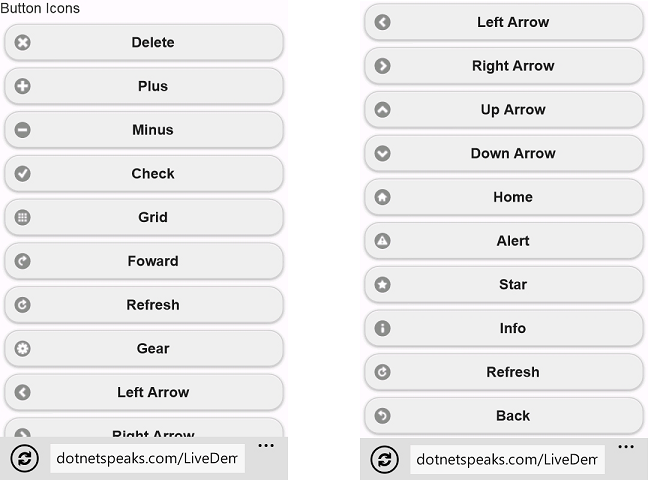
Step 4: 页面执行的效果如下,下图是在 Windows Phone 手机上看到的效果:

你也可以在手机中打开如下地址来查看实际效果:
http://www.osctools.net/jsbin/awlwhydj/1
Step 5: 创建另外一个 html 文件,重复上面第二个步骤来演示不带文本的按钮
Step 6: 将下列代码放在 body 块中
1 |
<li>Icons with no text</li>
|
3 |
<a href="javascript:void(0)" data-role="button" data-icon="delete"data-iconpos="notext">Delete</a>
|
4 |
<a href="javascript:void(0)" data-role="button" data-icon="plus" data-iconpos="notext">Plus</a>
|
5 |
<a href="javascript:void(0)" data-role="button" data-icon="minus"data-iconpos="notext">Minus</a>
|
6 |
<a href="javascript:void(0)" data-role="button" data-icon="check"data-iconpos="notext">Check</a>
|
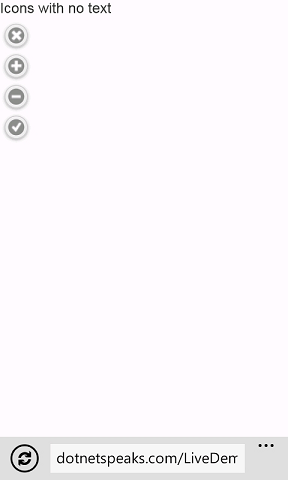
Step 7: 下图是页面执行的效果:

点击下面地址查看效果:
http://www.osctools.net/jsbin/whbvelkj/1
Step 8: 再创建另外的 html 页面,重复第二个步骤来暗示 Inline 按钮和按钮分组
Step 9: 将下列代码放在上一步 html 文件中的 body 标签内
02 |
<a href="javascript:void(0)" data-role="button" data-icon="delete"data-inline="true">Delete</a>
|
03 |
<a href="javascript:void(0)" data-role="button" data-icon="plus" data-inline="true">Plus</a>
|
04 |
<a href="javascript:void(0)" data-role="button" data-icon="minus"data-inline="true">Minus</a>
|
05 |
<a href="javascript:void(0)" data-role="button" data-icon="check"data-inline="true">Check</a>
|
07 |
<li>Horizontal Grouping</li>
|
09 |
<div data-role="controlgroup" data-type="horizontal">
|
10 |
<a href="javascript:void(0)" data-role="button" data-inline="true">Button 1</a>
|
11 |
<a href="javascript:void(0)" data-role="button" data-inline="true">Button 2</a>
|
12 |
<a href="javascript:void(0)" data-role="button" data-inline="true">Button 2</a>
|
15 |
<li>Normal Grouping</li>
|
17 |
<div data-role="controlgroup">
|
18 |
<a href="javascript:void(0)" data-role="button">Button 1</a>
|
19 |
<a href="javascript:void(0)" data-role="button">Button 2</a>
|
20 |
<a href="javascript:void(0)" data-role="button">Button 2</a>
|
Step 10: 执行效果如下:

在线演示:http://www.osctools.net/jsbin/gyjslcfi/1
Step 11: 演示无阴影、无圆角的图标定位按钮
Step 12: 代码如下
03 |
<a href="javascript:void(0)" data-role="button" data-shadow="false"data-icon="delete" data-inline="true">Delete</a>
|
04 |
<a href="javascript:void(0)" data-role="button" data-shadow="false"data-icon="plus" data-inline="true">Plus</a>
|
08 |
<a href="javascript:void(0)" data-role="button" data-corners="false"data-icon="minus" data-inline="true">Minus</a>
|
09 |
<a href="javascript:void(0)" data-role="button" data-corners="false"data-icon="check" data-inline="true">Check</a>
|
11 |
<li>Icon Position</li>
|
13 |
<a href="javascript:void(0)" data-role="button" data-iconpos="right"data-icon="grid" data-inline="true">Grid</a>
|
14 |
<a href="javascript:void(0)" data-role="button" data-iconpos="left"data-icon="forward" data-inline="true">Foward</a>
|
15 |
<a href="javascript:void(0)" data-role="button" data-iconpos="bottom"data-icon="refresh" data-inline="true">Refresh</a>
|
16 |
<a href="javascript:void(0)" data-role="button" data-iconpos="top"data-icon="gear" data-inline="true">Gear</a>
|
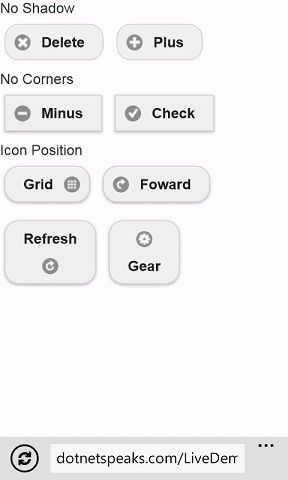
Step 12: 运行效果

在线演示:http://www.osctools.net/jsbin/tikgjhgb/1
全文完!
英文原文,OSCHINA原创翻译