一.在LNMP环境下添加memcache模块
1.安装依赖库(libevent)
[[email protected] ~]# tar xvf libevent-2.0.21-stable.tar.gz
[[email protected] ~]# cd libevent-2.0.21-stable
[[email protected] libevent-2.0.21-stable]# ./configure --prefix=/usr/local/libevent
[[email protected] libevent-2.0.21-stable]# make
[[email protected] libevent-2.0.21-stable]# make install
[[email protected] libevent-2.0.21-stable]# echo $?
0
[[email protected] libevent-2.0.21-stable]#
2.安装memcached服务端
[[email protected] libevent-2.0.21-stable]# cd ..
[[email protected] ~]# wget http://memcached.org/files/memcached-1.4.21.tar.gz
[[email protected] libevent-1.4.13-stable]# cd ..
[[email protected] ~]# tar xvf memcached-1.4.21.tar.gz
[[email protected] ~]# cd memcached-1.4.20
[[email protected] memcached-1.4.21]# ./configure --prefix=/usr/local/memcached
--with-libevent=/usr/local/libevent/
[[email protected] memcached-1.4.21]# make && make install
[[email protected] memcached-1.4.21]# echo $?
0
[[email protected] memcached-1.4.21]#
3.安装memcache客户端
[[email protected] memcached-1.4.21]# cd ..
[[email protected] ~]# wget http://pecl.php.net/get/memcache-2.2.7.tgz
[[email protected] ~]# tar xvf memcache-2.2.7.tgz
[[email protected] ~]# cd memcache-2.2.7
[[email protected] memcache-2.2.7]# /usr/local/php-5.4.28/bin/phpize
Configuring for:
PHP Api Version: 20100412
Zend Module Api No: 20100525
Zend Extension Api No: 220100525
[[email protected] memcache-2.2.7]# ./configure --enable-memcache --with-php-config=/usr/local/php-5.4.28/bin/php-config --with-zlib-dir
[[email protected] memcache-2.2.7]# make && make install
[[email protected] memcache-2.2.7]# vim /usr/local/php-5.4.28/lib/php.ini
[memcache]
extension_dir="/usr/local/php-5.4.28/lib/php/extensions/no-debug-non-zts-20100525/"
extension=memcache.so
[[email protected] memcache-2.2.7]#
4.启动memcached服务
[[email protected] memcache-2.2.7]# /usr/local/memcached/bin/memcached -d -m 10 -u root -l 192.168.1.105 -p 11211 -c 256 -P /tmp/memcached.pid
[[email protected] memcache-2.2.7]# netstat -antp | grep 11211
tcp 0 0 192.168.1.105:11211 0.0.0.0:* LISTEN 6943/memcached
[[email protected] memcache-2.2.7]#
参数说明:
-d选项是启动一个守护进程,
-m是分配给Memcache使用的内存数量,单位是MB,我这里是10MB,
-u是运行Memcache的用户,我这里是root,
-l是监听的服务器IP地址,如果有多个地址的话,我这里指定了服务器的IP地址202.207.177.177,
-p是设置Memcache监听的端口,我这里设置了11211,最好是1024以上的端口,
-c选项是最大运行的并发连接数,默认是1024,我这里设置了256,按照你服务器的负载量来设定,
-P是设置保存Memcache的pid文件,我这里是保存在 /tmp/memcached.pid.
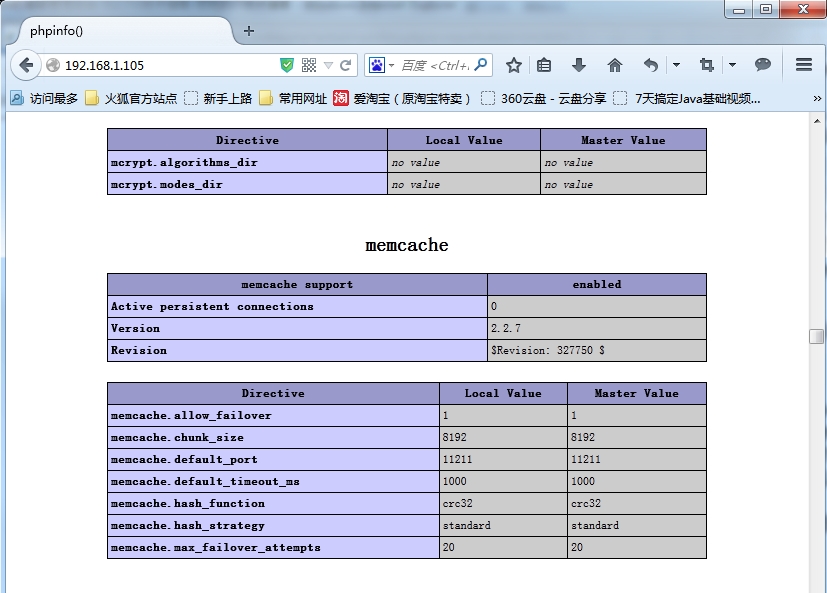
5.启动nginx和php-fpm打开php首页,查看是否加载memcache模块
[[email protected] memcache-2.2.7]# killall nginx
[[email protected] memcache-2.2.7]# killall php-fpm
[[email protected] memcache-2.2.7]# /usr/local/php-5.4.28/sbin/php-fpm
[[email protected] memcache-2.2.7]# /usr/local/nginx-1.6.2/sbin/nginx
[[email protected] memcache-2.2.7]# netstat -antup | grep -E '80|11211|9000'
tcp 0 0 127.0.0.1:9000 0.0.0.0:* LISTEN 6954/php-fpm
tcp 0 0 192.168.1.105:11211 0.0.0.0:* LISTEN 6943/memcached
tcp 0 0 0.0.0.0:80 0.0.0.0:* LISTEN 6958/nginx
udp 0 0 192.168.1.105:11211 0.0.0.0:* 6943/memcached
[[email protected] memcache-2.2.7]#
6.测试面显示加载的模块
二.在LNMP环境下添加redis模块
1.下载安装phpredis模块
[[email protected] phpredis-develop]# ./configure --with-php-config=/usr/local/php-5.4.28/bin/php-config --enable-redis
[[email protected] phpredis-develop]# make && make install
[[email protected] phpredis-develop]# echo $?
0
[[email protected] phpredis-develop]# vim /usr/local/php-5.4.28/lib/php.ini
[redis]
extension_dir="/usr/local/php-5.4.28/lib/php/extensions/no-debug-non-zts-20100525/"
extension=redis.so
[[email protected] phpredis-develop]# killall php-fpm
[[email protected] phpredis-develop]# killall nginx
[[email protected] phpredis-develop]# /usr/local/php-5.4.28/sbin/php-fpm
[[email protected] phpredis-develop]# /usr/local/nginx-1.6.2/sbin/nginx
[[email protected] phpredis-develop]#
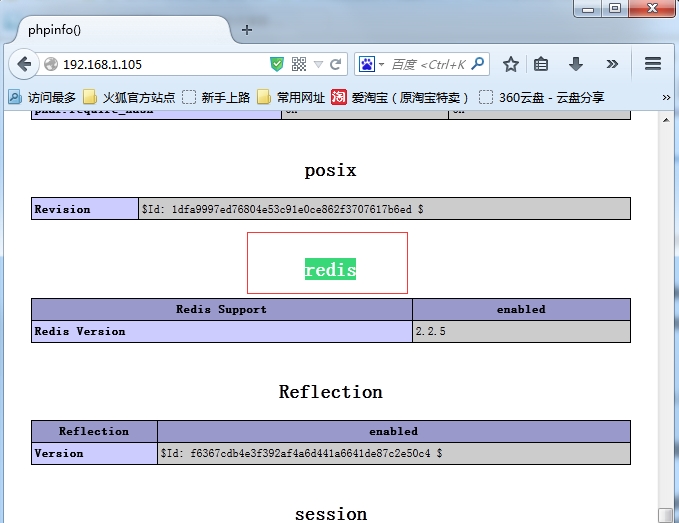
2.检查模块是否已安装好
三.LNMP环境下安装mongodb模块
1.下载安装mongo模块
[[email protected] ~]# wget http://pecl.php.net/get/mongo-1.5.8.tgz
[[email protected] ~]# tar xvf mongo-1.5.8.tgz
[[email protected] ~]# cd mongo-1.5.8
[[email protected] mongo-1.5.8]# /usr/local/php-5.4.28/bin/phpize
Configuring for:
PHP Api Version: 20100412
Zend Module Api No: 20100525
Zend Extension Api No: 220100525
[[email protected] mongo-1.5.8]# ./configure --with-php-config=/usr/local/php-5.4.28/bin/php-config
--enable-mongo
[[email protected] mongo-1.5.8]# make && make install
[[email protected] mongo-1.5.8]# vim /usr/local/php-5.4.28/lib/php.ini
[mongo]
extension_dir="/usr/local/php-5.4.28/lib/php/extensions/no-debug-non-zts-20100525/"
extension=mongo.so
[[email protected] mongo-1.5.8]# killall php-fpm
[[email protected] mongo-1.5.8]# killall nginx
[[email protected] mongo-1.5.8]# /usr/local/php-5.4.28/sbin/php-fpm
[[email protected] mongo-1.5.8]# /usr/local/nginx-1.6.2/sbin/nginx
[[email protected] mongo-1.5.8]#
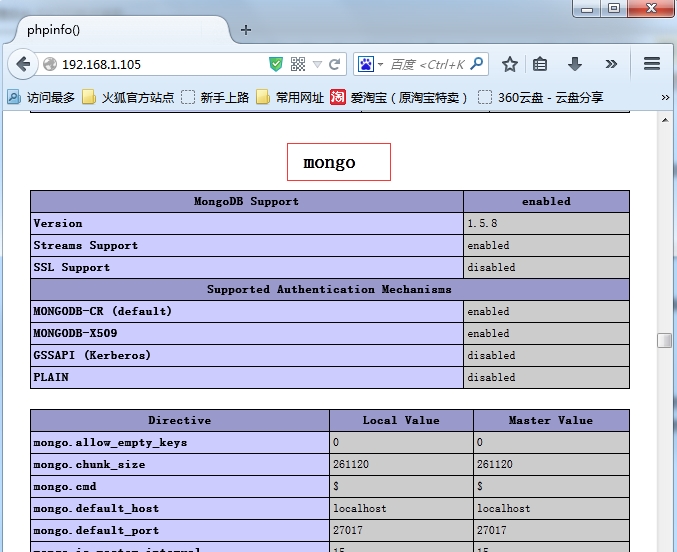
2.检查模块是否已安装好
四.在安装php时禁用了libiconv模块,此时需要添加此模块
1.下载和线上版本对应的php源代码,在源代码中找到iconv模块的路径进行编译
[[email protected] ~]# cd php-5.4.28/ext/iconv/
[[email protected] iconv]# /usr/local/php-5.4.28/bin/phpize
Configuring for:
PHP Api Version: 20100412
Zend Module Api No: 20100525
Zend Extension Api No: 220100525
[[email protected] iconv]# ./configure --with-php-config=/usr/local/php-5.4.28/bin/php-config
[[email protected] iconv]# make && make install
[[email protected] iconv]# vim /usr/local/php-5.4.28/lib/php.ini
[iconv]
extension_dir="/usr/local/php-5.4.28/lib/php/extensions/no-debug-non-zts-20100525/"
extension=iconv.so
[[email protected] iconv]# killall php-fpm
[[email protected] iconv]# killall nginx
[[email protected] iconv]# /usr/local/php-5.4.28/sbin/php-fpm
[[email protected] iconv]# /usr/local/nginx-1.6.2/sbin/nginx
[[email protected] iconv]#
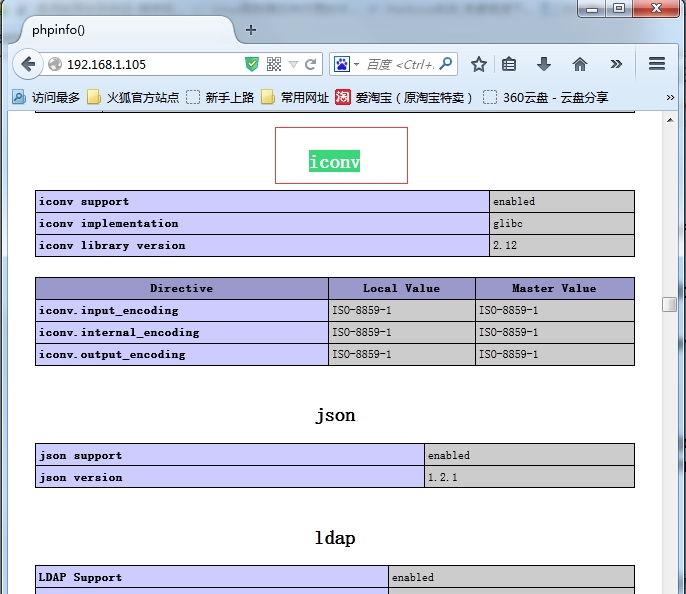
2.检查模块是否已安装好
五.对nginx服务添加模块
[[email protected] ~]# cd /usr/local/nginx-1.6.2/sbin/
[[email protected] sbin]# ./nginx -V --查看此时nginx安装的模块
nginx version: nginx/1.6.2
built by gcc 4.4.7 20120313 (Red Hat 4.4.7-11) (GCC)
configure arguments: --prefix=/usr/local/nginx-1.6.2 --user=nginx --group=nginx --with-http_sub_module --with-http_dav_module --with-http_flv_module --with-http_mp4_module
[[email protected] ~]# cd nginx-1.6.2
[[email protected] nginx-1.6.2]# ./configure --prefix=/usr/local/nginx-1.6.2/ --user=nginx --group=nginx --with-http_sub_module --with-http_dav_module --with-http_flv_module --with-http_mp4_module --with-http_sub_module --下载新的源代码包重新编译
[[email protected] nginx-1.6.2]# make
[[email protected] nginx-1.6.2]# ll objs/ --编译和配置后本地目录会生成objs目录
total 3004
-rw-r--r--. 1 root root 17760 Dec 29 05:22 autoconf.err
-rw-r--r--. 1 root root 38159 Dec 29 05:22 Makefile
-rwxr-xr-x. 1 root root 2960495 Dec 29 05:23 nginx
-rw-r--r--. 1 root root 5253 Dec 29 05:23 nginx.8
-rw-r--r--. 1 root root 5572 Dec 29 05:22 ngx_auto_config.h
-rw-r--r--. 1 root root 657 Dec 29 05:22 ngx_auto_headers.h
-rw-r--r--. 1 root root 4010 Dec 29 05:22 ngx_modules.c
-rw-r--r--. 1 root root 21204 Dec 29 05:23 ngx_modules.o
drwxr-xr-x. 8 root root 4096 Dec 27 23:34 src
[[email protected] nginx-1.6.2]# mv /usr/local/nginx-1.6.2/sbin/nginx /usr/local/nginx-1.6.2/sbin/nginx.old --配置以前的服务脚本
[[email protected] nginx-1.6.2]# cp -a objs/nginx /usr/local/nginx-1.6.2/sbin/ --将新编译的脚本放到nginx服务的根目录
[[email protected] nginx-1.6.2]# /usr/local/nginx-1.6.2/sbin/nginx -V --查看新编译后的配置
nginx version: nginx/1.6.2
built by gcc 4.4.7 20120313 (Red Hat 4.4.7-11) (GCC)
configure arguments: --prefix=/usr/local/nginx-1.6.2/ --user=nginx --group=nginx --with-http_sub_module --with-http_dav_module --with-http_flv_module --with-http_mp4_module --with-http_sub_module
[[email protected] nginx-1.6.2]#