一、 列出Hyper-V PowerShell命令行模块
在搜索中PowerShell并打开PowerShell
|
1
|
get-command –module hyper-v | out-gridview
|
使用get-help帮助学习Hyper-V PowerShell

二、 使用PowerShell列出虚拟机
使用下面的命令列出正在运行的虚拟机
|
1
|
get-vm | where {$_.State –eq ‘Running’}
|
使用下面的命令列出已经关闭的虚拟机
|
1
|
get-vm | where {$_.State –eq ‘Off’}
|
三、 使用PowerShell创建虚拟机
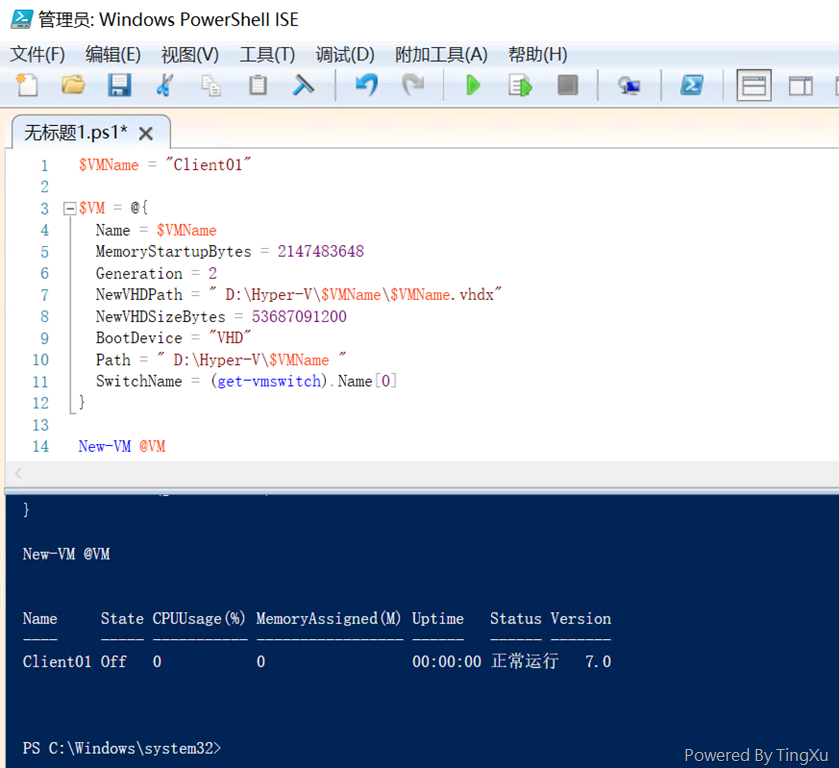
使用管理员身份打开Windows PowerShell ISE
使用下面的命令创建虚拟机
|
1
2
3
4
5
6
7
8
9
10
11
12
13
|
$VMName = "Client01"
$VM = @{
Name = $VMName
MemoryStartupBytes = 2147483648
Generation = 2
NewVHDPath = " D:\Hyper-V\$VMName\$VMName.vhdx"
NewVHDSizeBytes = 53687091200
BootDevice = "VHD"
Path = " D:\Hyper-V\$VMName "
SwitchName = (get-vmswitch).Name[0]
}New-VM @VM
|
更多Hyper-V PowerShell cmdlet部分请参见微软官方网站:
https://technet.microsoft.com/%5Clibrary/Hh848559.aspx
本文转自 徐庭 51CTO博客,原文链接:http://blog.51cto.com/ericxuting/1722991,如需转载请自行联系原作者