Apache简单配置(4)搭建Discuz 7.0.0论坛
RHEL5.3 基本网络配置
一、
1、RHEL5 U3:如图1
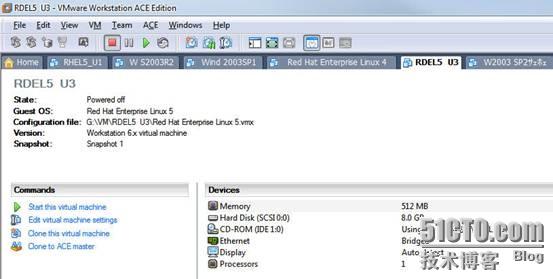
(如图1)
2、#hostname //查看当前主机的主机名:如图2

(如图2)
3、#vi /etc/sysconfig/network-scripts/ifcfg-eth0 编辑指定网络接口配置文件:如图3
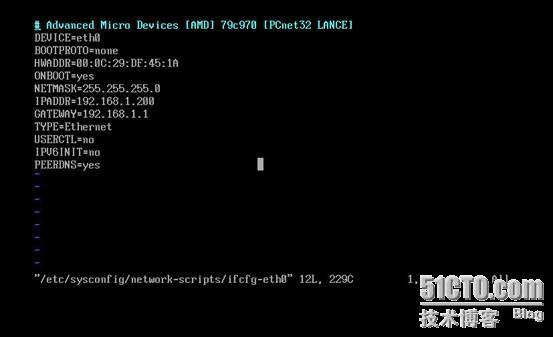
(如图3)
4、#vi /etc/sysconfig/network 通过配置文件修改主机名:如图4
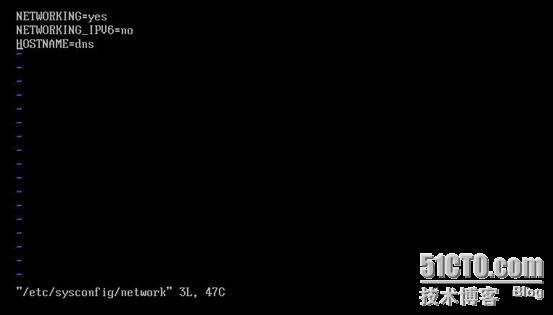
(如图4)
5、在终端字符界面修改其字体和中文字体大小:如图5

(如图5)
6、挂载光盘:如图6

(如图6)
7、查看OpenSSH是否安装:如图7
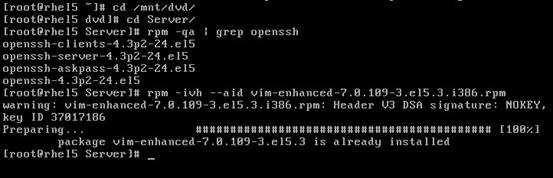
(如图7)
8、#vi /etc/hosts 设置本地DNS解析文件:如图8
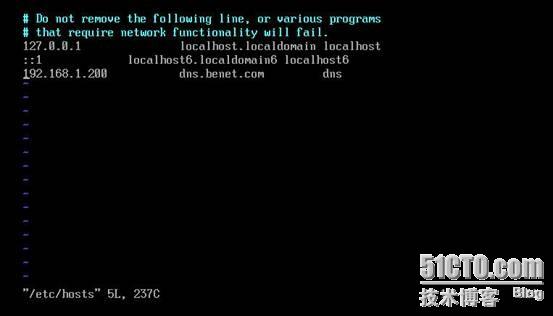
(如图8)
9、#vi /etc/resolv.conf 指定当前主机的DNS服务器,最多可指定三个:如图9

(如图9)
10、关闭iptables防火墙:如图10

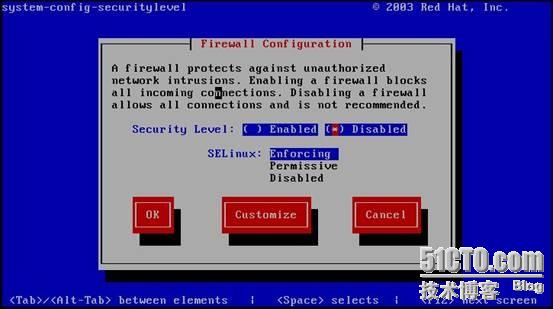
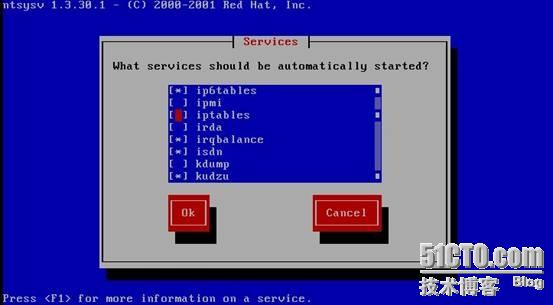

(如图10)
二、DNS简单配置
1、vim /etc/named.conf
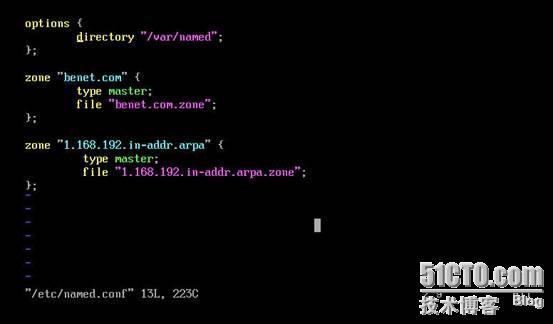
2、vim /var/named/benet.com.zone

3、vim /var/named/1.168.192.in-addr.arpa.zone

三、nslookup查看

四、Apache简单配置
1[[email protected] ~]# cd /mnt/dvd/
[[email protected] dvd]# ls
70bto70_request_UCHome.zip
Comsenz 核心产品 Discuz! 7_0_0 正式版发布.mht
Discuz6.0.0SCGBK.zip
Discuz! 6_0_0到Discuz! 7_0_0升级图文教程.mht
Discuz! 6_1_0到Discuz! 7_0_0升级图文教程 .mht
Discuz_7.0.0_FULL_SC_GBK
Discuz_7.0.0_FULL_SC_GBK.zip
Discuz_7.0.0_FULL_SC_UTF8.zip
Discuz_7.0.0_SC_GBK
Discuz_7.0.0_SC_GBK.zip
Discuz_7.0.0_SC_UTF8.zip
Discuz!7_0_0 安装图文教程 .mht
Discuz!7_0 测试版升级到正式版方法 .mht
Discuzv6.0.0GBK简体中文版.zip
httpd-2.2.11.tar.gz
mysql-5.1.39-linux-i686-glibc23.tar.gz
php-5.2.11.tar.gz
phpMyAdmin-3.2.2-all-languages.tar.gz
PHPWind_GBK_7.5all.rar
UCenter_1.5.0_SC_GBK
UCenter_1.5.0_SC_GBK.zip
UCenter_1.5.0_SC_UTF8.zip
UCenter_1.5.0_TC_UTF8.zip
ZendOptimizer-3.3.3-linux-glibc23-i386.tar.gz
[[email protected] dvd]#
[[email protected] dvd]# tar zxvf httpd-2.2.11.tar.gz
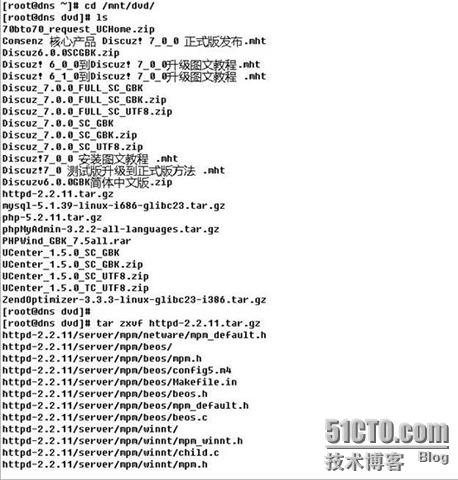
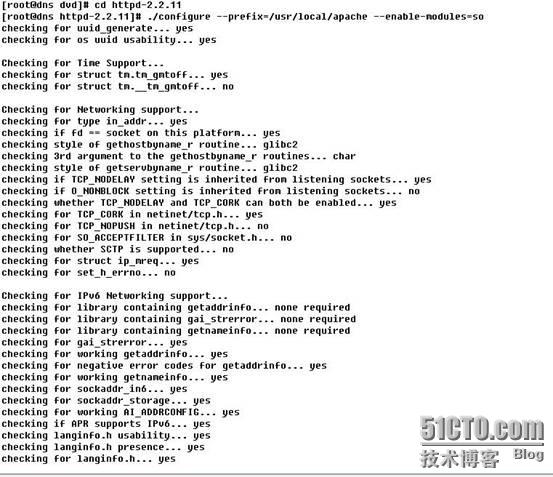
[[email protected] dvd]# cd httpd-2.2.11
[[email protected] httpd-2.2.11]# ./configure --prefix=/usr/local/apache --enable-modules=so
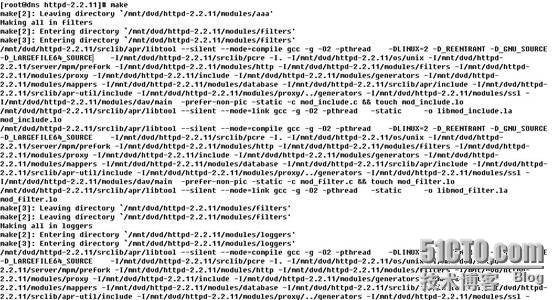
[[email protected] httpd-2.2.11]# make
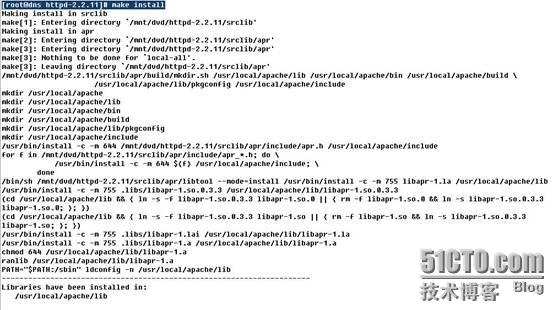
[[email protected] httpd-2.2.11]# make install
[[email protected] httpd-2.2.11]# /usr/local/apache/bin/apachectl start
[[email protected] httpd-2.2.11]# netstat -ntl
Active Internet connections (only servers)
Proto Recv-Q Send-Q Local Address Foreign Address State
tcp 0 0 127.0.0.1:2208 0.0.0.0:* LISTEN
tcp 0 0 0.0.0.0:111 0.0.0.0:* LISTEN
tcp 0 0 0.0.0.0:690 0.0.0.0:* LISTEN
tcp 0 0 192.168.1.200:53 0.0.0.0:* LISTEN
tcp 0 0 127.0.0.1:53 0.0.0.0:* LISTEN
tcp 0 0 127.0.0.1:631 0.0.0.0:* LISTEN
tcp 0 0 127.0.0.1:953 0.0.0.0:* LISTEN
tcp 0 0 127.0.0.1:25 0.0.0.0:* LISTEN
tcp 0 0 127.0.0.1:2207 0.0.0.0:* LISTEN
tcp 0 0 :::80 :::* LISTEN
tcp 0 0 :::22 :::* LISTEN
tcp 0 0 ::1:953 :::* LISTEN
[[email protected] httpd-2.2.11]#
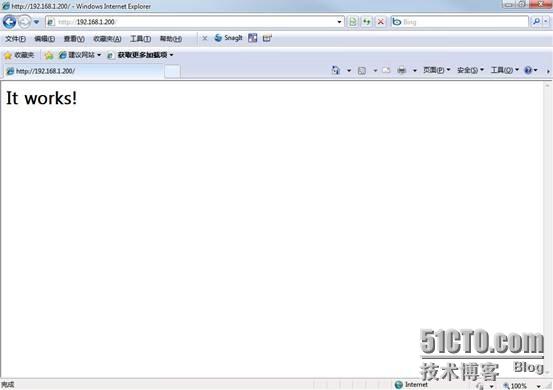
测试:
五、Mysql简单配置
[[email protected] ~]# cd /mnt/dvd/
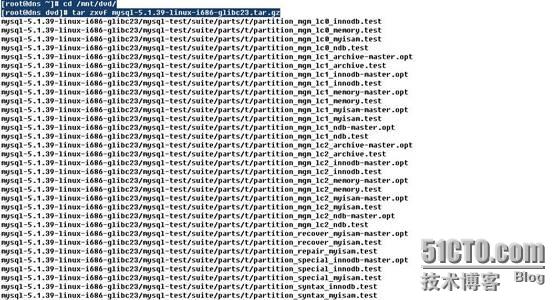
[[email protected] dvd]# tar zxvf mysql-5.1.39-linux-i686-glibc23.tar.gz
[[email protected] dvd]#
[[email protected] dvd]# mv mysql-5.1.39-linux-i686-glibc23 /usr/local/
[[email protected] dvd]# cd /usr/local/
[[email protected] local]# ln -s mysql-5.1.39-linux-i686-glibc23 mysql
[[email protected] local]# groupadd mysql
[[email protected] local]# useradd -g mysql mysql
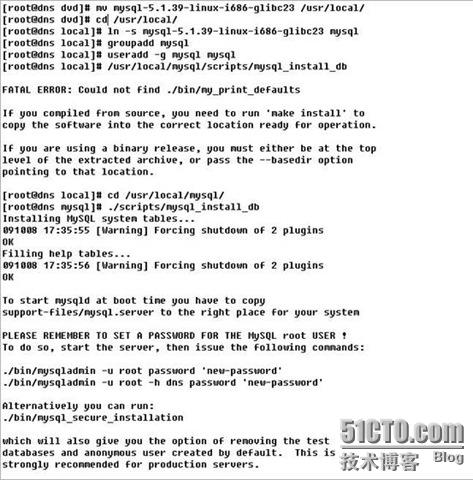
[[email protected] local]# /usr/local/mysql/scripts/mysql_install_db (注意会出错,在/usr/local/mysql/路径下安装)
FATAL ERROR: Could not find ./bin/my_print_defaults
If you compiled from source, you need to run 'make install' to
copy the software into the correct location ready for operation.
If you are using a binary release, you must either be at the top
level of the extracted archive, or pass the --basedir option
pointing to that location.
[[email protected] local]# cd /usr/local/mysql/
[[email protected] mysql]# ./scripts/mysql_install_db
Installing MySQL system tables...
091008 17:35:55 [Warning] Forcing shutdown of 2 plugins
OK
Filling help tables...
091008 17:35:56 [Warning] Forcing shutdown of 2 plugins
OK
To start mysqld at boot time you have to copy
support-files/mysql.server to the right place for your system
PLEASE REMEMBER TO SET A PASSWORD FOR THE MySQL root USER !
To do so, start the server, then issue the following commands:
./bin/mysqladmin -u root password 'new-password'
./bin/mysqladmin -u root -h dns password 'new-password'
Alternatively you can run:
./bin/mysql_secure_installation
which will also give you the option of removing the test
databases and anonymous user created by default. This is
strongly recommended for production servers.
See the manual for more instructions.
You can start the MySQL daemon with:
cd . ; ./bin/mysqld_safe &
You can test the MySQL daemon with mysql-test-run.pl
cd ./mysql-test ; perl mysql-test-run.pl
Please report any problems with the ./bin/mysqlbug script!
The latest information about MySQL is available at http://www.mysql.com/
Support MySQL by buying support/licenses from http://shop.mysql.com/
[[email protected] mysql]# chown -R root /usr/local/mysql/
[[email protected] mysql]# chown -R mysql /usr/local/mysql/data/
[[email protected] mysql]# chown -R mysql /usr/local/mysql/
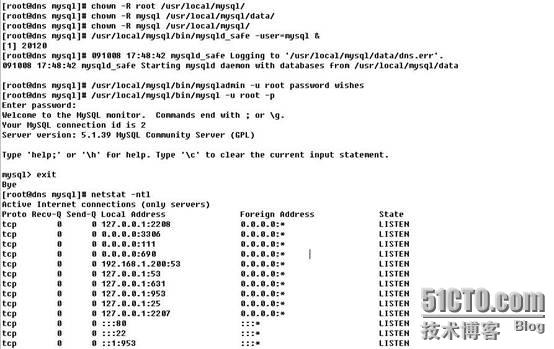
[[email protected] mysql]# /usr/local/mysql/bin/mysqld_safe -user=mysql &
[1] 20120
[[email protected] mysql]# 091008 17:48:42 mysqld_safe Logging to '/usr/local/mysql/data/dns.err'.
091008 17:48:42 mysqld_safe Starting mysqld daemon with databases from /usr/local/mysql/data
[[email protected] mysql]# /usr/local/mysql/bin/mysqladmin -u root password wishes
[[email protected] mysql]# /usr/local/mysql/bin/mysql -u root -p
Enter password:
Welcome to the MySQL monitor. Commands end with ; or \g.
Your MySQL connection id is 2
Server version: 5.1.39 MySQL Community Server (GPL)
Type 'help;' or '\h' for help. Type '\c' to clear the current input statement.
mysql> exit
Bye
[[email protected] mysql]# netstat -ntl
Active Internet connections (only servers)
Proto Recv-Q Send-Q Local Address Foreign Address State
tcp 0 0 127.0.0.1:2208 0.0.0.0:* LISTEN
tcp 0 0 0.0.0.0:3306 0.0.0.0:* LISTEN
tcp 0 0 0.0.0.0:111 0.0.0.0:* LISTEN
tcp 0 0 0.0.0.0:690 0.0.0.0:* LISTEN
tcp 0 0 192.168.1.200:53 0.0.0.0:* LISTEN
tcp 0 0 127.0.0.1:53 0.0.0.0:* LISTEN
tcp 0 0 127.0.0.1:631 0.0.0.0:* LISTEN
tcp 0 0 127.0.0.1:953 0.0.0.0:* LISTEN
tcp 0 0 127.0.0.1:25 0.0.0.0:* LISTEN
tcp 0 0 127.0.0.1:2207 0.0.0.0:* LISTEN
tcp 0 0 :::80 :::* LISTEN
tcp 0 0 :::22 :::* LISTEN
tcp 0 0 ::1:953 :::* LISTEN
六、PHP简单配置
[[email protected] mysql]# cd
[[email protected] ~]# cd /mnt/dvd/
[[email protected] dvd]# tar zxvf php-5.2.11.tar.gz

[[email protected] dvd]# cd php-5.2.11
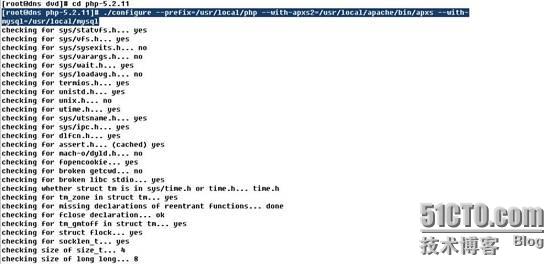
[[email protected]]#./configure --prefix=/usr/local/php --with-apxs2=/usr/local/apache/bin/apxs --with-mysql=/usr/local/mysql
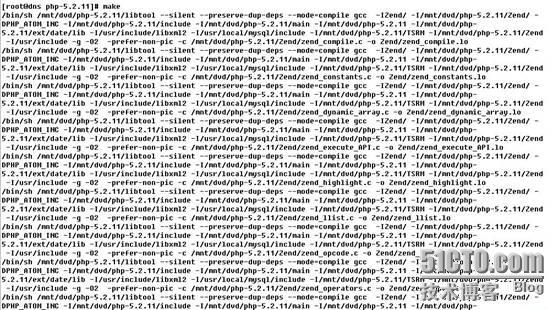
[[email protected] php-5.2.11]# make
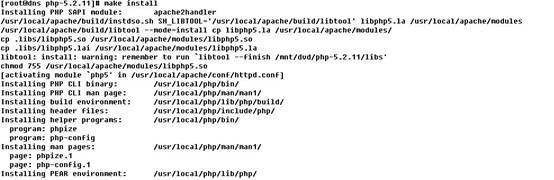
[[email protected] php-5.2.11]# make install
[[email protected] php-5.2.11]# cp php.ini-dist /usr/local/lib/php.ini
[[email protected] php-5.2.11]# vim /usr/local/apache/conf/httpd.conf
1. 确认PHP模块已经添加?
LoadModule php5_module modules/libphp5.so
在53行,如果我们在安装php时,在参数中跟加了apxs,那么apache的配置文件中已经存在了此项,如没添加则手工添加

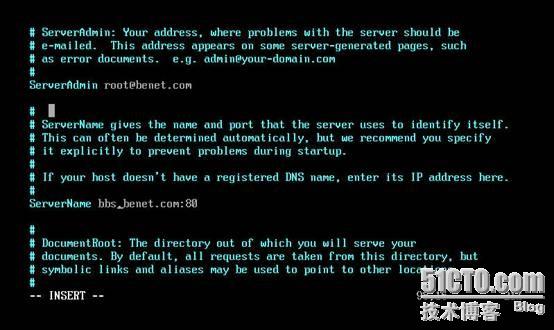
2、修改98行
3、让apache识别*.php文件 310行
在apache 配置文件中添加AddType application/x-httpd-php .php
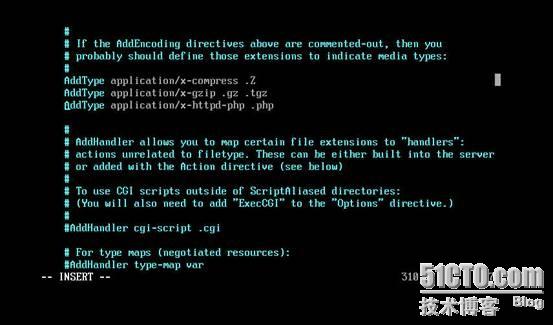
4、测试apache和php是否整合成功
[[email protected] php-5.2.11]# cd /usr/local/apache/htdocs/
You have new mail in /var/spool/mail/root
[[email protected] htdocs]# vim index.php
<?php
phpinfo();
?>
~
~
"index.php" [新] 3L, 20C 已写入
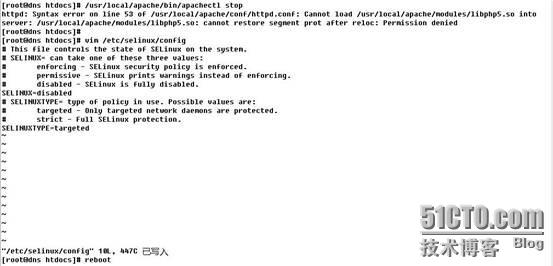
[[email protected] htdocs]# /usr/local/apache/bin/apachectl stop(注意会出错,修改SELinux)
httpd: Syntax error on line 53 of /usr/local/apache/conf/httpd.conf: Cannot load /usr/local/apache/modules/libphp5.so into
server: /usr/local/apache/modules/libphp5.so: cannot restore segment prot after reloc: Permission denied
[[email protected] htdocs]#
[[email protected] htdocs]# vim /etc/selinux/config
# This file controls the state of SELinux on the system.
# SELINUX= can take one of these three values:
# enforcing - SELinux security policy is enforced.
# permissive - SELinux prints warnings instead of enforcing.
# disabled - SELinux is fully disabled.
SELINUX=disabled
# SELINUXTYPE= type of policy in use. Possible values are:
# targeted - Only targeted network daemons are protected.
# strict - Full SELinux protection.
SELINUXTYPE=targeted
~
~
"/etc/selinux/config" 10L, 447C 已写入
[[email protected] htdocs]# reboot
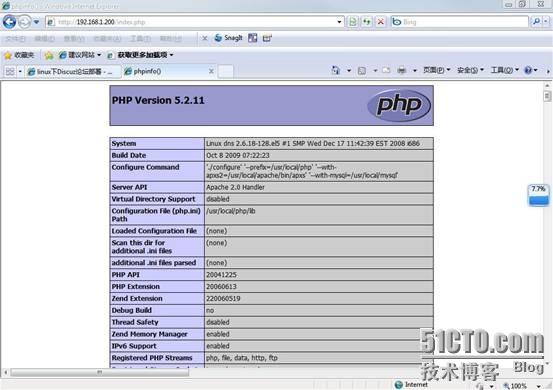
访问,在浏览器中输入http://192.168.1.200/index.php 出现一下界面则说明整合成功
七、ZendOptimizer简单配置
[[email protected] ~]# cd /mnt/dvd/
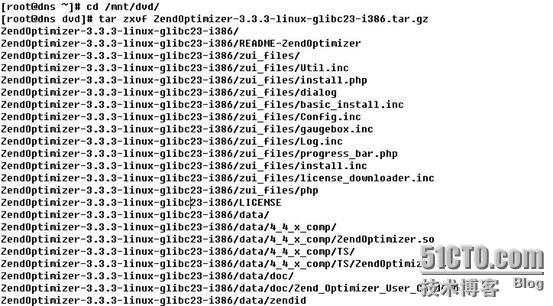
[[email protected] dvd]# tar zxvf ZendOptimizer-3.3.3-linux-glibc23-i386.tar.gz
[[email protected] dvd]# cd ZendOptimizer-3.3.3-linux-glibc23-i386
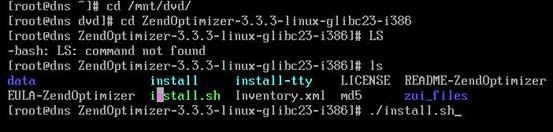
[[email protected] ZendOptimizer-3.3.3-linux-glibc23-i386]# ls
data install install-tty LICENSE README-ZendOptimizer
EULA-ZendOptimizer install.sh Inventory.xml md5 zui_files
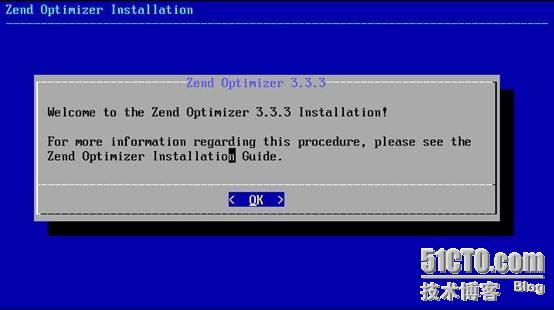
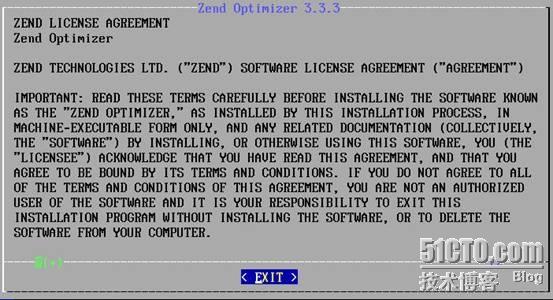
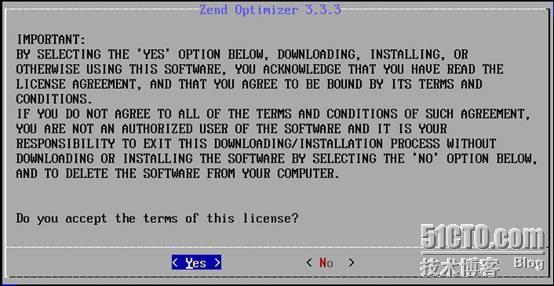
[[email protected] ZendOptimizer-3.3.3-linux-glibc23-i386]# ./intsall.sh
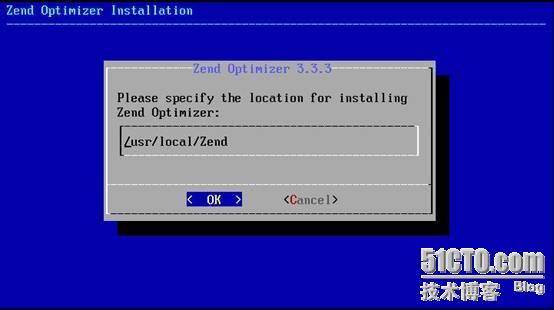

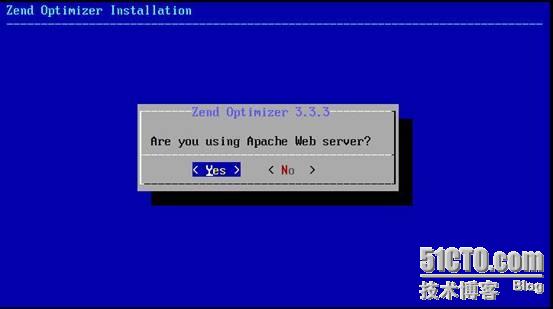
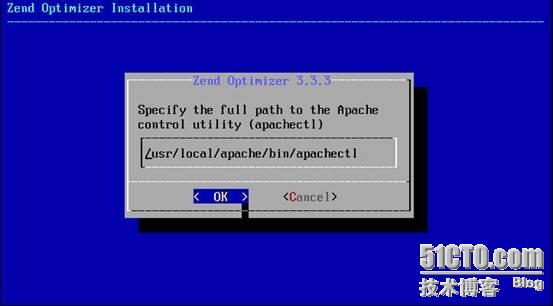
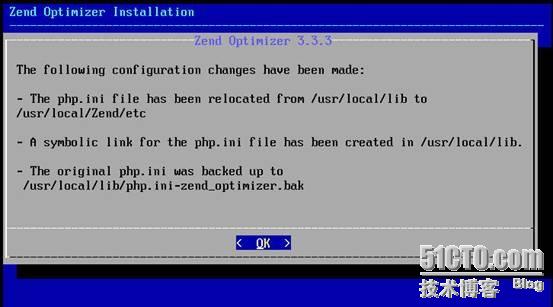
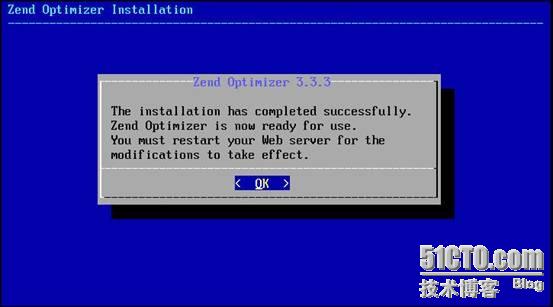
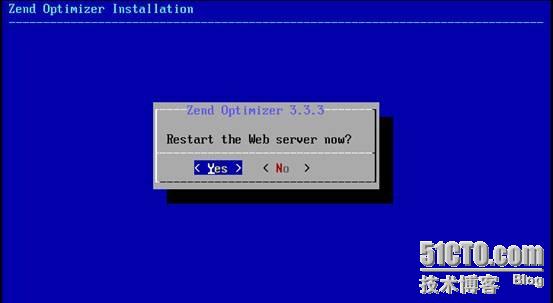
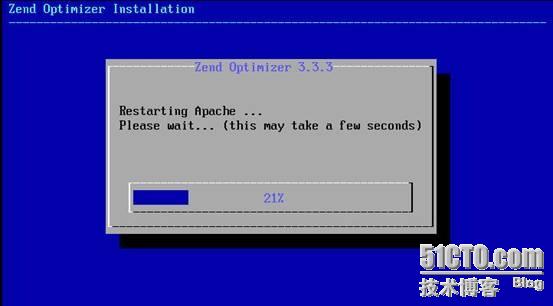

八、安装phpMyAdmin
[[email protected] ~]# cd /mnt/dvd/
[[email protected] dvd]# tar zxvf phpMyAdmin-3.2.2-all-languages.tar.gz
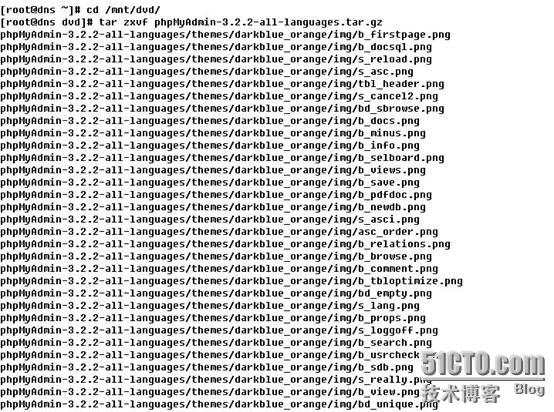
[[email protected] dvd]# mv phpMyAdmin-3.2.2-all-languages phpmyadmin
[[email protected] dvd]# mv phpmyadmin /usr/local/apache/htdocs/
测试:
1、 确定mysqld和httpd服务启动(如果没有启动服务,phpmyadmin不能安装。使用netstat –ntl查看端口)
2、 [[email protected] dvd]# /usr/local/mysql/bin/mysqld_safe -user=mysql &
[[email protected] httpd-2.2.11]# /usr/local/apache/bin/apachectl start
3、[[email protected] dvd]# netstat -ntl
Active Internet connections (only servers)
Proto Recv-Q Send-Q Local Address Foreign Address State
tcp 0 0 127.0.0.1:2208 0.0.0.0:* LISTEN
tcp 0 0 0.0.0.0:3306 0.0.0.0:* LISTEN
tcp 0 0 0.0.0.0:111 0.0.0.0:* LISTEN
tcp 0 0 127.0.0.1:631 0.0.0.0:* LISTEN
tcp 0 0 127.0.0.1:25 0.0.0.0:* LISTEN
tcp 0 0 0.0.0.0:665 0.0.0.0:* LISTEN
tcp 0 0 127.0.0.1:2207 0.0.0.0:* LISTEN
tcp 0 0 :::80 :::* LISTEN
tcp 0 0 :::22 :::* LISTEN
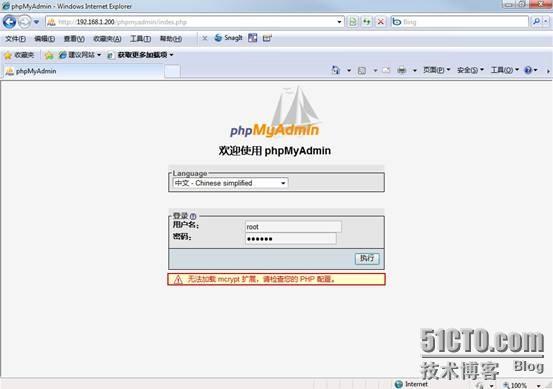
下面开始安装phpmyadmin,在浏览器中输入http://192.168.1.200/phpmyadmin/index.php
,会弹出一个对话框,要求输入用户名和密码(超级管理员)

九、UCenter简单配置
在安装discuz之前我们还要安装UCenter,UCenter是discuz论坛的管理模板
1、新建目录和更改权限
[[email protected] ~]# cd /usr/local/apache/
[[email protected] apache]# ls
bin cgi-bin error include logs manual
build conf icons lib man modules
[[email protected] apache]# mkdir htdocs
[[email protected] apache]# ls
bin cgi-bin error icons lib man modules
build conf htdocs include logs manual
[[email protected] apache]# cd htdocs
[[email protected] htdocs]# ls
[[email protected] htdocs]# ll
总计 0
[[email protected] htdocs]# mkdir upload-ucenter
[[email protected] htdocs]# ls
upload-ucenter
[[email protected] htdocs]# cd
[[email protected] ~]# chmod -R 777 /usr/local/apache/htdocs/upload-ucenter/
2、复制UCenter_1.5.0_SC_GBK里面upload-ucenter文件 到/usr/local/apache/htdocs/upload-ucenter/下
[[email protected] ~]# cd /mnt/dvd/
[[email protected] dvd]# cd UCenter_1.5.0_SC_GBK
[[email protected] UCenter_1.5.0_SC_GBK]# mv upload upload-ucenter
[[email protected] UCenter_1.5.0_SC_GBK]# mv /usr/local/apache/htdocs/ upload-ucenter
[[email protected] UCenter_1.5.0_SC_GBK]# ls
advanced readme upload-ucenter utilities
[[email protected] UCenter_1.5.0_SC_GBK]# cp -r upload-ucenter/* /usr/local/apache/htdocs/upload-ucenter/
[[email protected] UCenter_1.5.0_SC_GBK]# cd
[[email protected] ~]# cd /usr/local/apache/htdocs/upload-ucenter/
[[email protected] upload-ucenter]# ls
admin.php control htdocs install model robots.txt
api crossdomain.xml p_w_picpaths js plugin upgrade
avatar.php data index.php lib release view
3、安装ucenter,然后给upload/data文件下的这些文件加上777的权限,否则在安装时没有权限对数据库进行写入
[[email protected] ~]# cd /usr/local/apache/htdocs/upload-ucenter/
[[email protected] upload-ucenter]# ls
admin.php control htdocs install model robots.txt
api crossdomain.xml p_w_picpaths js plugin upgrade
avatar.php data index.php lib release view
[[email protected] upload-ucenter]# chmod 777 ./data/
[[email protected] upload-ucenter]# chmod 777 ./data/cache/
[[email protected] upload-ucenter]# chmod 777 ./data/view/
[[email protected] upload-ucenter]# chmod 777 ./data/avatar/
[[email protected] upload-ucenter]# chmod 777 ./data/logs/
[[email protected] upload-ucenter]# chmod 777 ./data/backup/
[[email protected] upload-ucenter]# chmod 777 ./data/tmp/
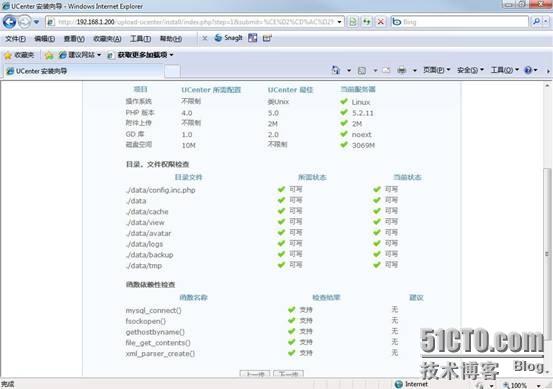
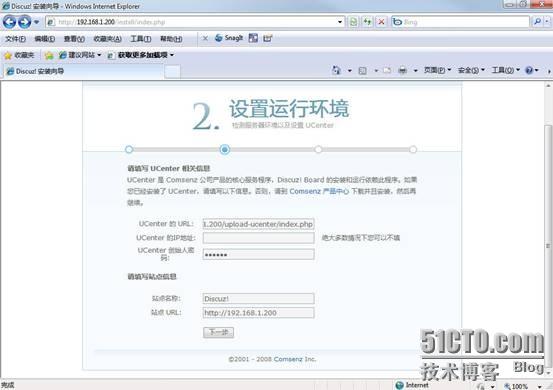
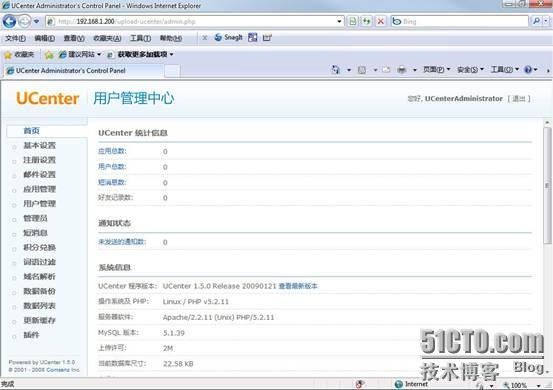
4、IE访问http://192.168.1.200/upload-ucenter/install/index.php 进行UCenter的安装



十、discuz简单配置
1、复制Discuz_7.0.0_SC_GBK里面upload文件 到/usr/local/apache/htdocs/下
[[email protected] dvd]# cd Discuz_7.0.0_SC_GBK
[[email protected] Discuz_7.0.0_SC_GBK]# ls
readme upload utilities
[[email protected] Discuz_7.0.0_SC_GBK]# cp -r upload/* /usr/local/apache/htdocs/
[[email protected] Discuz_7.0.0_SC_GBK]# cd
[[email protected] ~]# cd /usr/local/apache/htdocs/
[[email protected] htdocs]# ls
admin forumdisplay.php modcp sitemap.php
admincp.php frame.php modcp.php space.php
ajax.php htdocs model stats.php
announcement.php p_w_picpaths my.php tag.php
api include plugin task.php
archiver index.php plugin.php templates
p_w_upload.php install plugins topicadmin.php
p_w_uploads invite.php pm.php topic.php
campaign.php ipdata post.php trade.php
config.inc.php js redirect.php uc_client
control leftmenu.php register.php upgrade
crossdomain.xml lib relatekw.php upload-ucenter
data logging.php relatethread.php video.php
discuz_version.php magic.php release view
eccredit.php medal.php robots.txt viewthread.php
faq.php member.php rss.php wap
favicon.ico memcp.php search.php
forumdata misc.php seccode.php
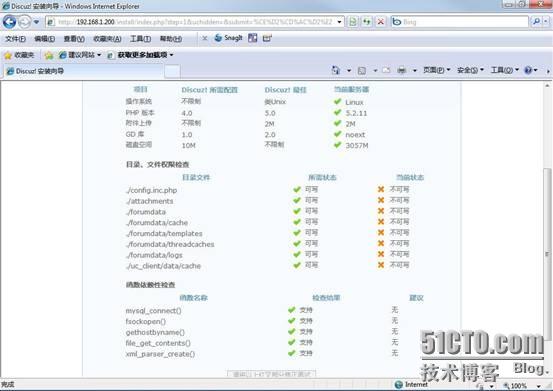
2、htdocs文件下的这些文件加上777的权限,否则在安装时没有权限对数据库进行写入
[[email protected] htdocs]# chmod 777 templates/
[[email protected] htdocs]# chmod 777 templates/default/
[[email protected] htdocs]# chmod 777 ./p_w_uploads
[[email protected] htdocs]# chmod 777 ./config.inc.php
[[email protected] htdocs]# chmod 777 ./forumdata/
[[email protected] htdocs]# chmod 777 ./forumdata/cache/
[[email protected] htdocs]# chmod 777 ./forumdata/templates/
[[email protected] htdocs]# chmod 777 ./forumdata/threadcaches/
[[email protected] htdocs]# chmod 777 ./forumdata/logs
[[email protected] htdocs]# chmod 777 ./uc_client/data/cache/
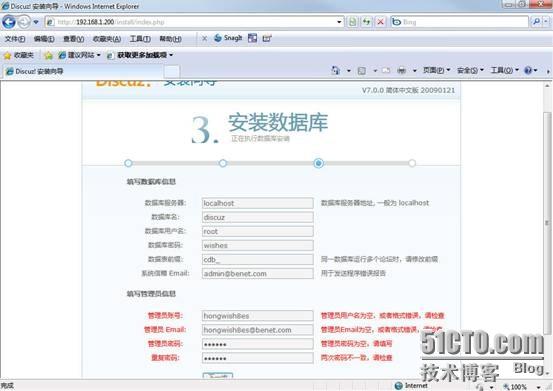
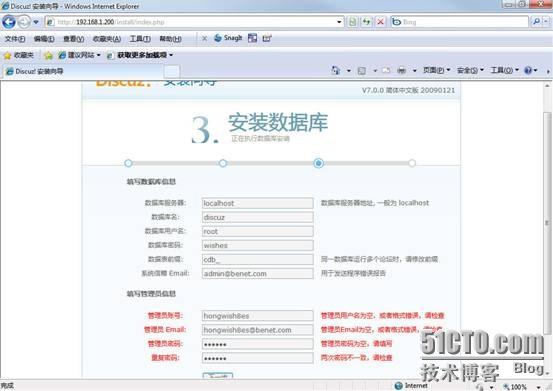
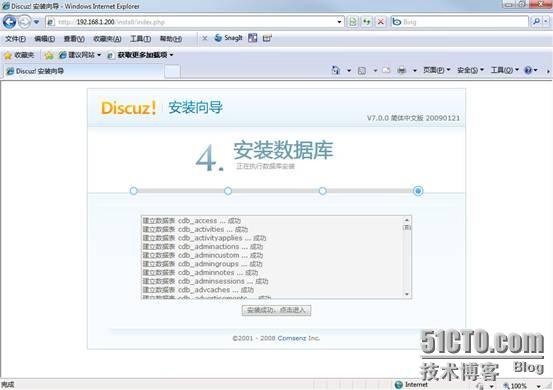
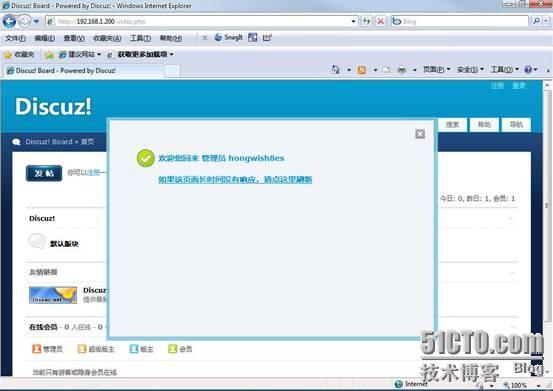
3、IE访问http://192.168.1.200/install/index.php 进行discuz的安装




配置文件在附件里面:
如有不懂的地方,请call我!qq:357714938 mail:[email protected]
转载于:https://blog.51cto.com/hongwish8es/210229