Install KVM Hypervisor on CentOS 7.x and RHEL 7.x
By Pradeep Kumar | June 23, 2016
KVM is an open source hardware virtualization software through which we can create and run multiple Linux based and windows based virtual machines simultaneously. KVM is known as Kernel based Virtual Machine because when we install KVM package then KVM module is loaded into the current kernel and turns our Linux machine into a hypervisor.
In this post first we will demonstrate how we can install KVM hypervisor on CentOS 7.x and RHEL 7.x and then we will try to install virtual machines.
Before proceeding KVM installation, let’s check whether your system’s CPU supports Hardware Virtualization.
Run the beneath command from the console.
[[email protected] ~]# grep -E '(vmx|svm)' /proc/cpuinfo
We should get the word either vmx or svm in the output, otherwise CPU doesn’t support virtualization.
Step:1 Install KVM and its associate packages
Run the following yum command to install KVM and its associated packages.
[[email protected] ~]# yum install qemu-kvm qemu-img virt-manager libvirt libvirt-python libvirt-client virt-install virt-viewer bridge-utils
Start and enable the libvirtd service
[[email protected] ~]# systemctl start libvirtd
[[email protected] ~]# systemctl enable libvirtd
Run the beneath command to check whether KVM module is loaded or not
[[email protected] ~]# lsmod | grep kvm
kvm_intel             162153  0
kvm                   525409  1 kvm_intel
[[email protected] ~]#
In Case you have Minimal CentOS 7 and RHEL 7 installation , then virt-manger will not start for that you need to install x-window package.
[[email protected] ~]# yum install "@X Window System" xorg-x11-xauth xorg-x11-fonts-* xorg-x11-utils -y
Reboot the Server and then try to start virt manager.
Step:2 Start the Virt Manager
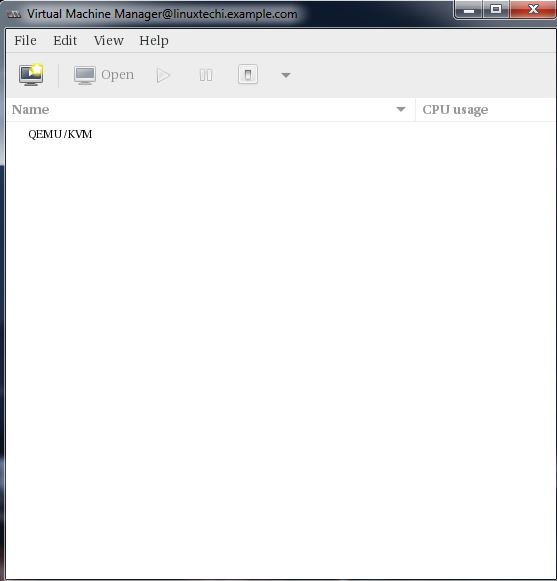
Virt Manager is a graphical tool through which we can install and manage virtual machines. To start the virt manager type the ‘virt-manager‘ command from the terminal.
[[email protected] ~]# virt-manager
Step:3 Configure Bridge Interface
Before Start creating VMs , let’s first create the bridge interface. Bridge interface is required if you want to access virtual machines from outside of your hypervisor network.
[[email protected] ~]# cd /etc/sysconfig/network-scripts/
[[email protected] network-scripts]# cp ifcfg-eno49 ifcfg-br0
[[email protected] network-scripts]#
Edit the Interface file and set followings:
[[email protected] network-scripts]# vi ifcfg-eno49
TYPE=Ethernet
BOOTPROTO=static
DEVICE=eno49
ONBOOT=yes
BRIDGE=br0
Edit the Bridge file (ifcfg-br0) and set the followings:
[[email protected] network-scripts]# vi ifcfg-br0
TYPE=Bridge
BOOTPROTO=static
DEVICE=br0
ONBOOT=yes
IPADDR=192.168.10.21
NETMASK=255.255.255.0
GATEWAY=192.168.10.1
DNS1=192.168.10.11
Replace the IP address and DNS server details as per your setup.
Restart the network Service to enable the bridge interface.
[[email protected] ~]# systemctl restart network
[[email protected] ~]#
Check the Bridge interface using below command :
[[email protected] ~]# ip addr show br0